Wednesday, August 17, 2016

How to use R Scripts with Power BI

This blog is about how to use R script and R related features in PowerBI with examples. R server details need to configure in Power BI desktop which includes R Server and R IDE.
Firstly, let’s see how to load data and use this data in PowerBI visualizations.
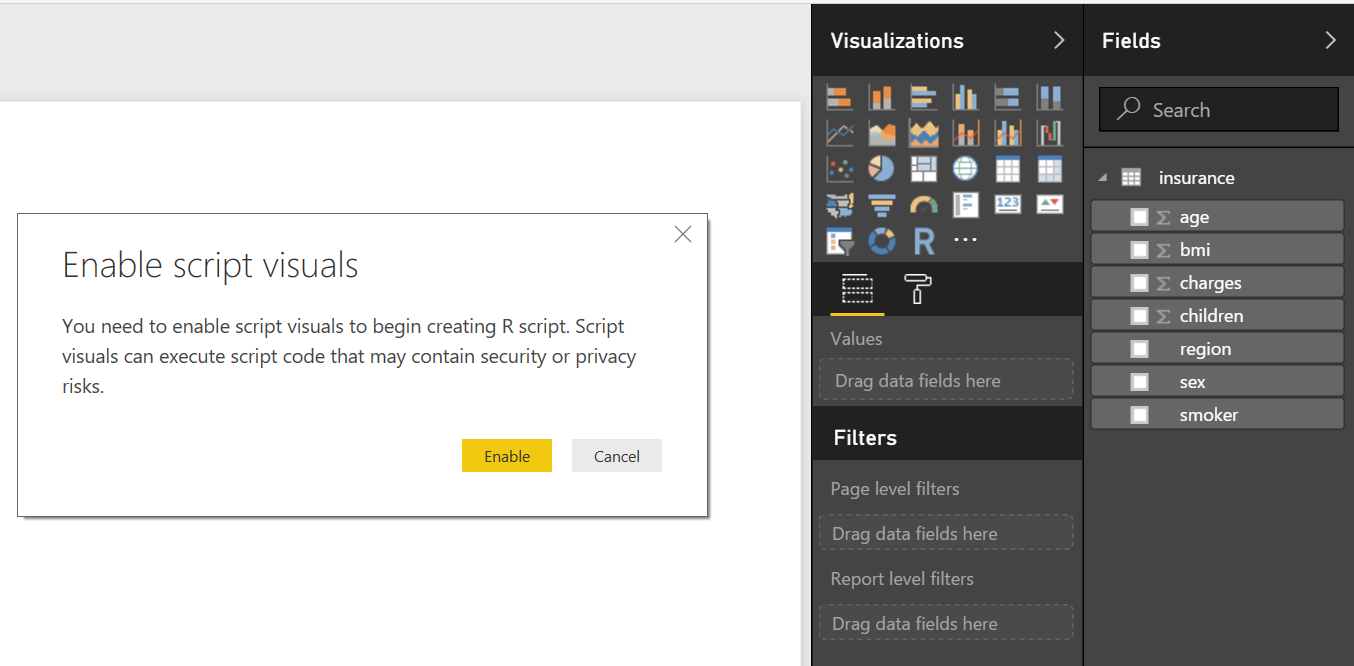
When you select the data, few lines of R script will be generated by default as shown below.
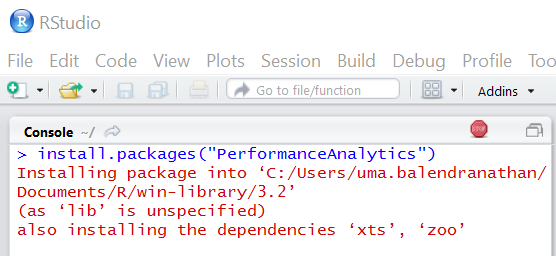
PowerBI is not allow to install any package. You should use external VDI such as R Studio or Visual Studio. In this example, “Performance Analysis” package is installed using R Studio.
After install the package you can use any functions in this package. The below screenshot shows the correlation between insurance charges against age.
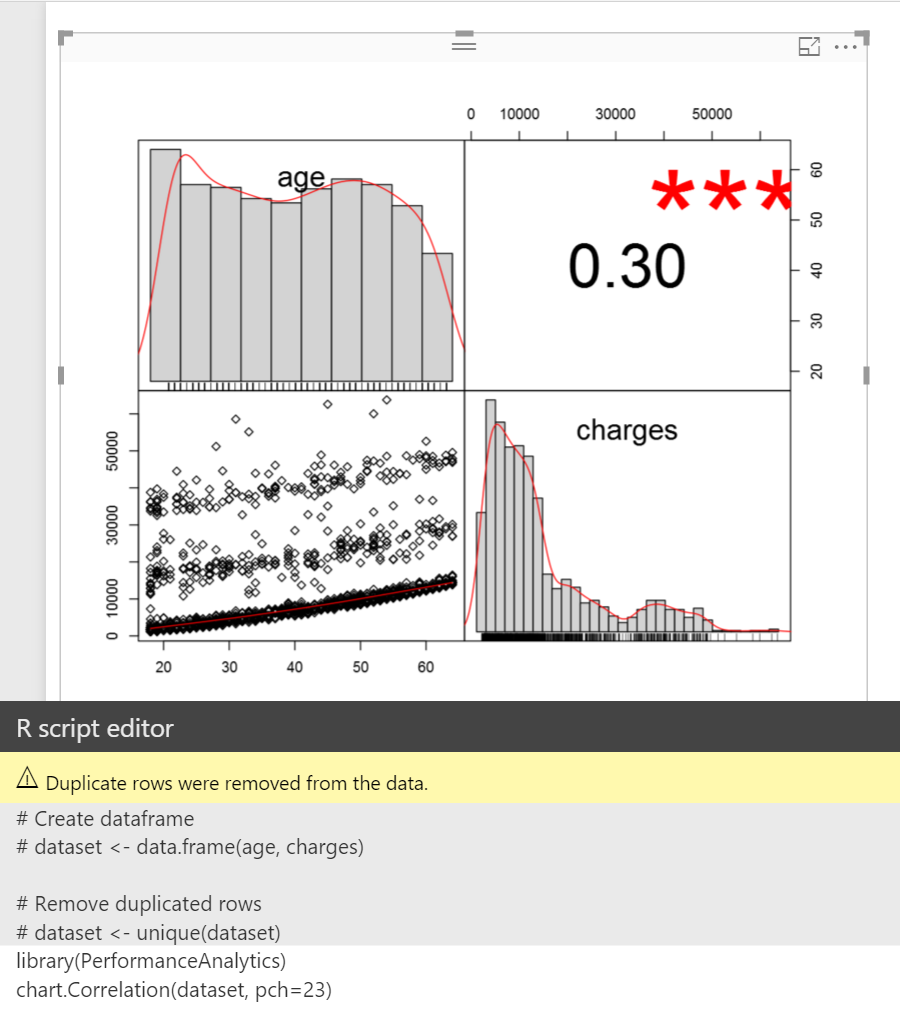
You can interact with data using other visualization components. The below examples show correlation between charge and age when male is a non-smoker.
Now let’s see how to use R Script in dataset level. Before run the script, you might need to configure the Privacy option, otherwise you might get error message as shown below.
Formula.Firewall: Query 'wisc_bc_data' (step 'Run R Script') is accessing data sources that have privacy levels which cannot be used together. Please rebuild this data combination.
Power Query-> Options -> Privacy -> Fast Combine -> check "Ignore the Privacy Levels....
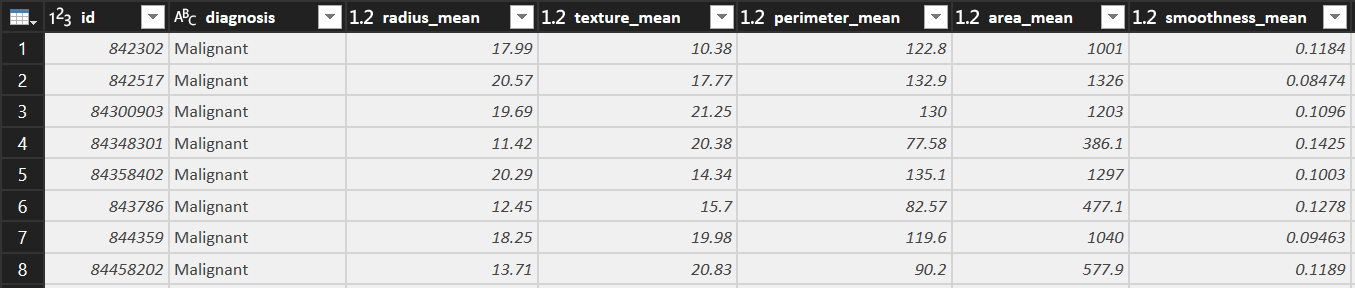
For this example, dataset is normalized first, then prepare train and test data.
He
Before normalized
After normalized
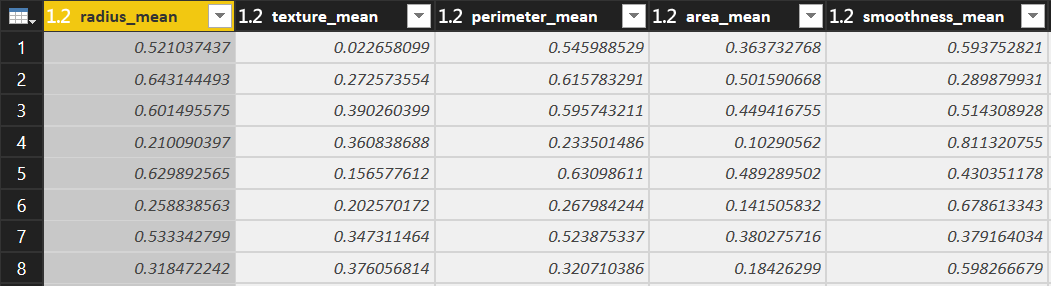
You can be noticed that all the data normalized 0-1.


# 'dataset' holds the input data for this script
normalize <- function(x) { return ((x - min(x)) / (max(x) -min(x))) }
wbcd_n <- as.data.frame(lapply(dataset[3:32], normalize))


# Split data
wbcd_train <- wbcd_n[1:469, ]
wbcd_test <- wbcd_n[470:569, ]
wbcd_train_labels  <- dataset[1:469, 2]
wbcd_test_labels <- dataset[470:569, 2]


# Modeling
library("class")
wbcd_test_pred <- knn(train = wbcd_train, test = wbcd_test, cl=wbcd_train_labels, k=21)
# Output
output <- dataset[470:569, ]
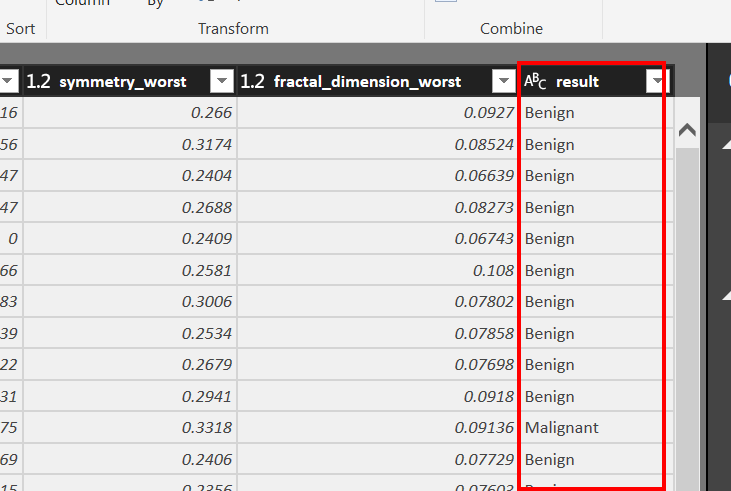
output$result <- wbcd_test_pred
I will clearly explain in another blog post about K nearest neighbors (knn) model. Knn is a simple algorithm that stores all available cases and classifies new cases based on a similarity measure.
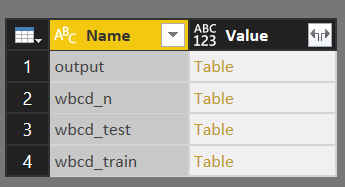

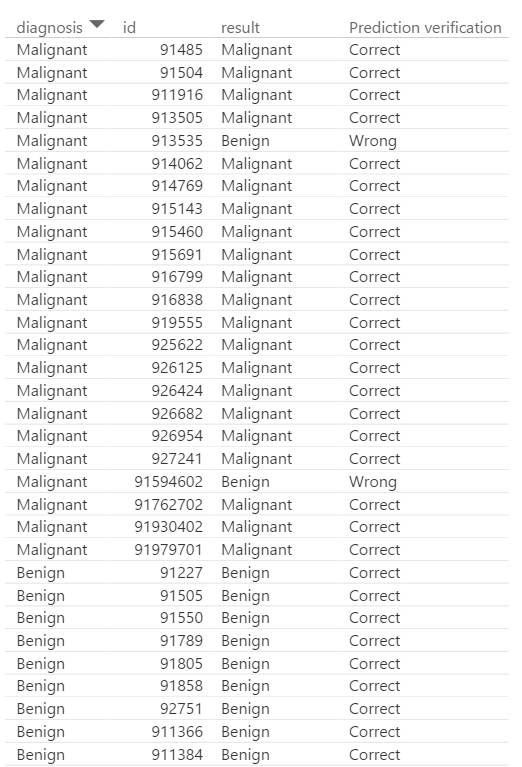
If you click output file, you can see the prediction column with the name of result.
Cheers!
Uma

Thursday, August 11, 2016

How to configure Append/overwrite in Flat File Destination in SSIS

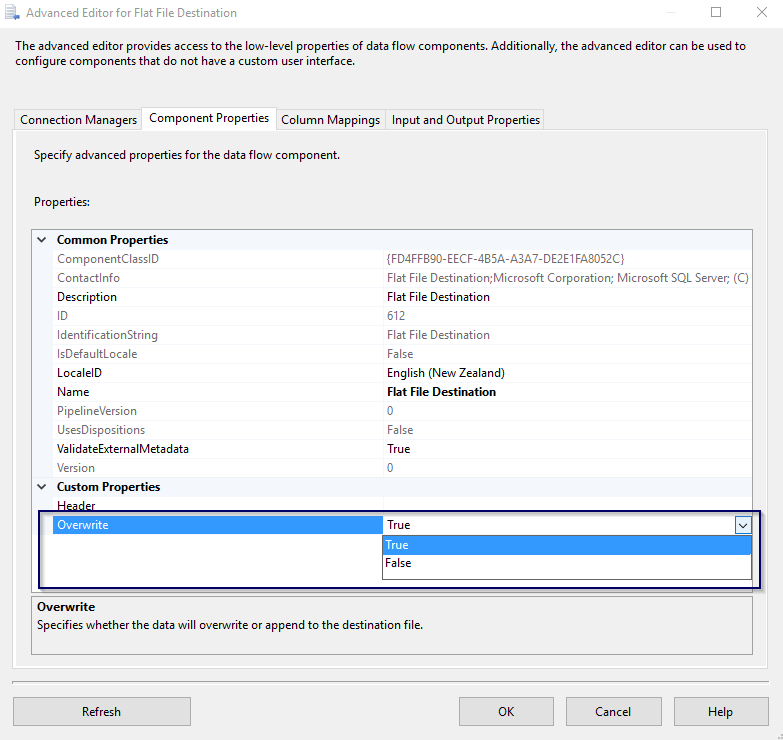
Right click on Flat Destination component and click on Show Advanced Editor
Under the Custom Properties Group, choose the option from Overwrite options either True or False
Cheers!
Uma

Wednesday, April 20, 2016

How to handle early arriving Facts or late arriving Dimensions

There are three common options available to handle early arriving Facts or late arriving Dimensions.
Option 1:
Do not load fact - Redirect/ignore the records
Option 2:
Load Fact with an unknown key (0 or -1), but make sure that dimension already have unknown member
C:\Users\umashanthan.b\Desktop\1\2.jpg
Option 3:
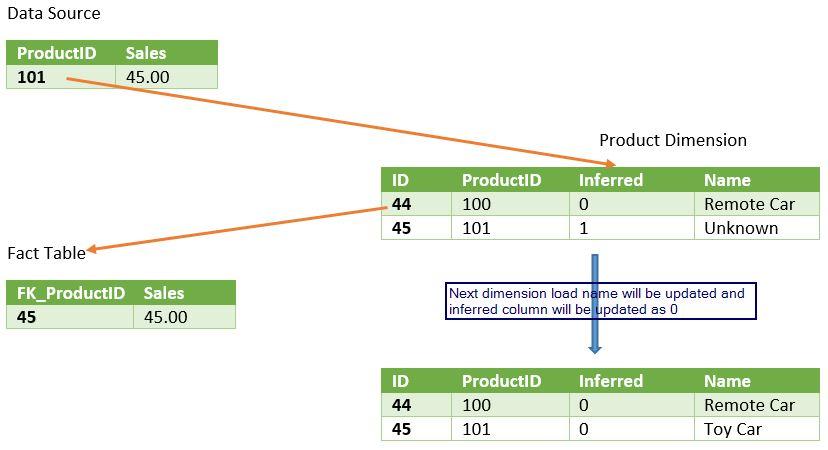
Load Fact with create inferred member - Inferred members exist when a fact table references dimension members that are not yet loaded. When data for the inferred member is loaded, you can update the existing record rather than create a new one.
C:\Users\umashanthan.b\Desktop\1\3.jpg

Cheers!
Uma

Thursday, March 24, 2016

SSIS Master Package Analysis based on Performance Counter and Wait Stats

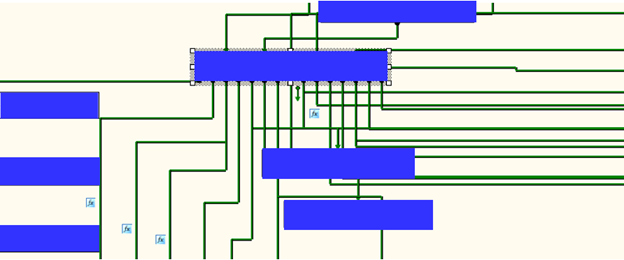
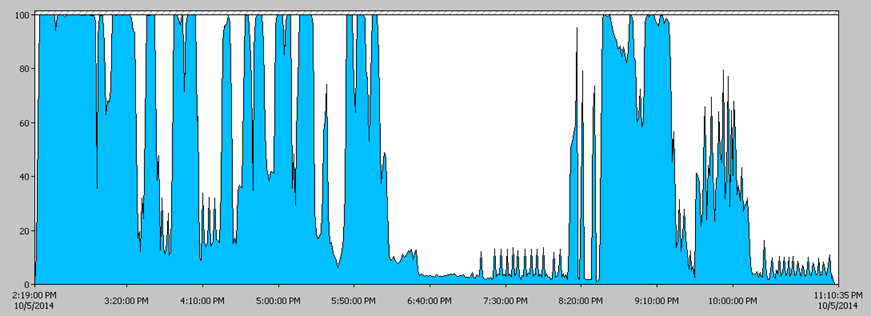
In order to achieve effective and goal-oriented performance tuning it is mandatory to know your system’s bottlenecks. In most cases the root causes for those bottlenecks lie deep in the system’s architecture and are not visible at first sight.  For example the following image shows one of the complex master package design.
C:\Users\Vane\Downloads\image.png
Performance Monitor
Performance Monitor allows you to analyze all performance counters in a single window. Depending on the number of counters this can be very confusing.

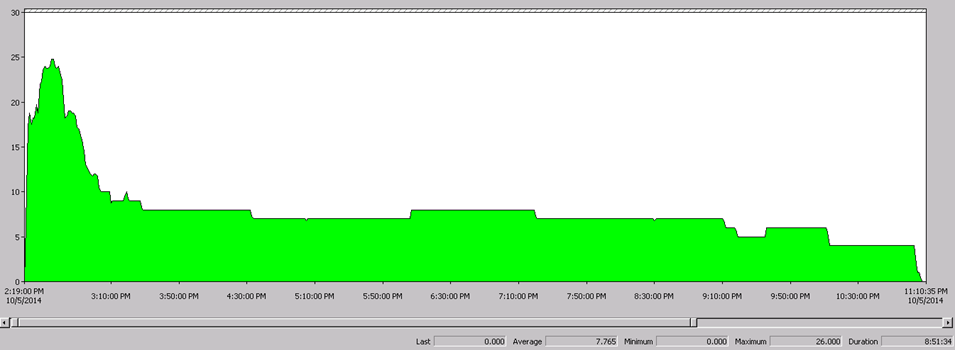
SSIS Package Instances: Total number of simultaneous SSIS Packages running.
C:\Users\Vane\Downloads\image (1).png
The above image illustrates that we can go up to 26 Maximum Parallel Processing (Number of Logical Processing + 2 = 24 + 2= 26).
C:\Users\Vane\Desktop\Talend\unnamed.png
This information will help to re organize sub packages in proper order in the master packages and parallel processing design.
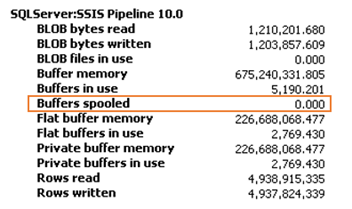
Buffer Spooled: "Buffers spooled" counter to determine whether data buffers are being written to disk temporarily while a package is running. This swapping reduces performance and indicates that the computer has insufficient memory.
C:\Users\Vane\Downloads\image (2).png
Total SQL memory vs SSIS memory utilization (Only SSIS packages):
C:\Users\Vane\Downloads\image (3).pngFrom this output we can come to the conclusion that there are no any Memory Bottlenecks.
SQL Server I/O Bottlenecks:
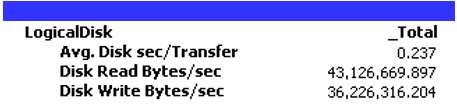
Disk sec/Transfer –> Time taken to perform the I/O operation
Ideal value for Disk sec/Transfer is 0.005-0.015 sec. If you consistently notice this counter is beyond 0.015 then there is a serious I/O bottleneck. Look for Disk Bytes /sec immediately. If it is below 150 MB for SAN disk and Below 50 MB for Single disk then the problem is with I/O subsystem engage hardware vendor.
C:\Users\Vane\Downloads\image (8).png
From this output we can come to the conclusion that there is a series bottleneck with I/O operation in the server. However this is not applicable for production environment or other environment because in the server all file groups are pointed to one disk.

% Processor Time (Total): %Processor Time Indicated how much the processor actually spends on productive threads. Seek to understand how much CPU is being used by Integration Services and how much CPU is being used overall by SQL Server while Integration Services is running.
C:\Users\Vane\Downloads\image (5).png This outcome will help us for future re organize sub packages/tasks in packages and parallel processing design.
Network: SSIS moves data as fast as your network is able to handle it. Because of this, it is important to understand your network topology and ensure that the path between your source and target have both low latency and high throughput.C:\Users\Vane\Desktop\Talend\unnamed (1).png
C:\Users\Vane\Downloads\image (6).png
From this outcome we can come to conclusion that there are no any Network bottle neck in the server.
 
Wait Stats When SQL Server is executing any task, and if for any reason it has to wait for resources to execute the task, this wait is recorded by SQL Server with the for the delay.C:\Users\Vane\Desktop\Talend\unnamed (2).png
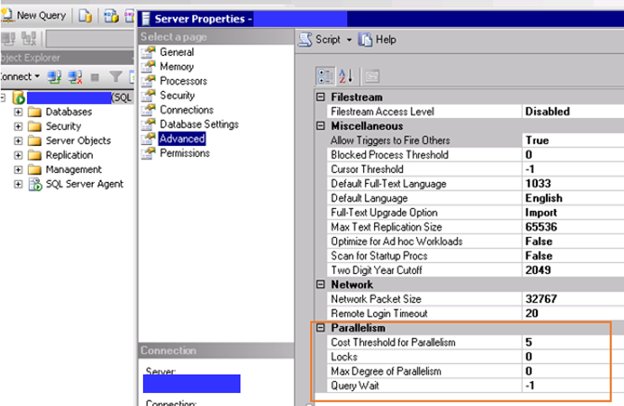
CXPACKET: When a parallel operation is created for a SQL query, multiple threads for a single query are used. Each query usually deals with a different set of data or rows. Due to some reasons, one or more of the threads lag behind, creating the CXPACKET Wait Stat.
Depending on the server workload type, there are several ways to reduce or avoid this wait type. Each way uses the properties “Maximum Degree of Parallelism” and “Cost Threshold for Parallelism”. 
C:\Users\Vane\Downloads\image (7).png
IO_COMPLETION: The IO_COMPLETION wait type occurs while SQL Server is waiting for I/O operations to complete. This wait type generally represents non-data page I/Os.
This outcome clearly illustrate that parallel execution should be handle optimized way, otherwise unnecessary waiting happen in SQL Server. This information will help to re organize sub packages and task.
Cheers!
Uma

Install Apache Spark on Windows environment

In this post I will walk through the process of install Apache Spark on Windows environment

Spark can be installed in two ways
  1. Building Spark from Source Code
  2. Use Prebuilt Spark package

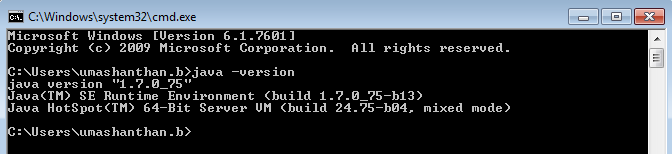
First make sure you have installed Java and set the required environment variable JAVA_HOME, Path, you can confirm using java-version command, if not install and configure Java.


If you are downloading Pre-Build version the prerequisites are:
  1. Java Development Kit
  2. Python (only required, if you are using Python instead of Scala or Java)

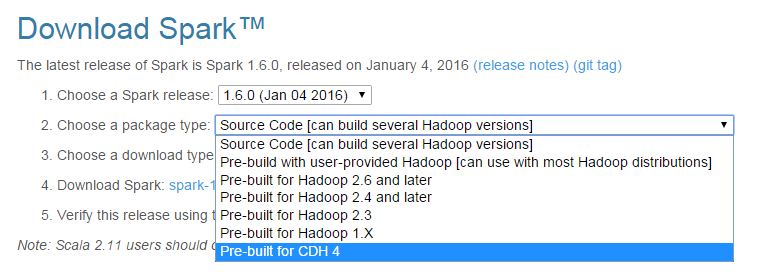
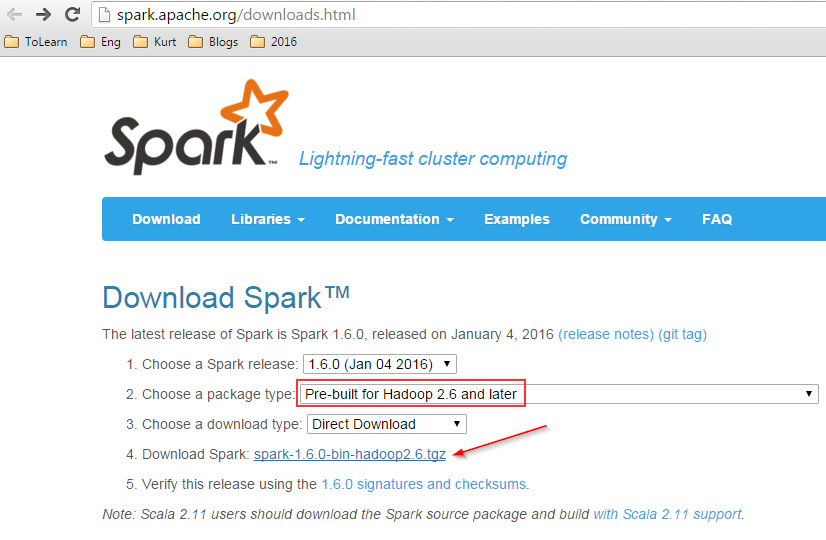
Download Pre-Build for Hadoop 2.6 and later, as shown below

Extract the file, here I place all the Spark related files into C:\Learning\
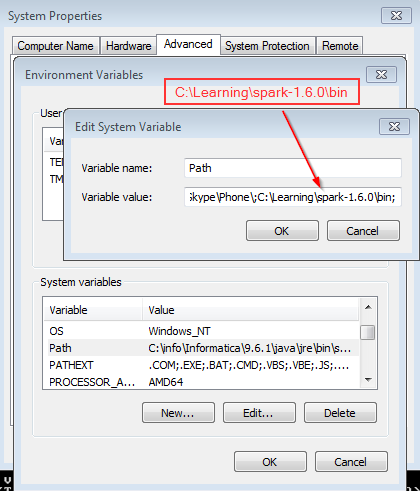
Set the SPARK_HOME and add %SPARK_HOME%\bin in PATH in environment variables
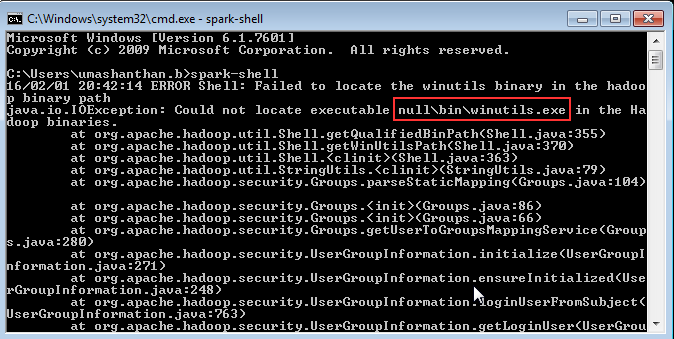
When you run Spark and you will see the following exception:
java.io.IOException: Could not locate executable null\bin\winutils.exe in the Hadoop binaries. The reason is because spark expect to find HADOOP_HOME environment variable pointed to hadoop binary distribution.


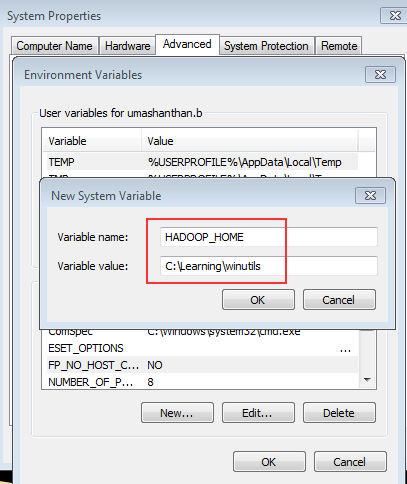
Download hadoop common binary, extract the downloaded zipped file to C:\Learning\


Then set the HADOOP_HOME for example

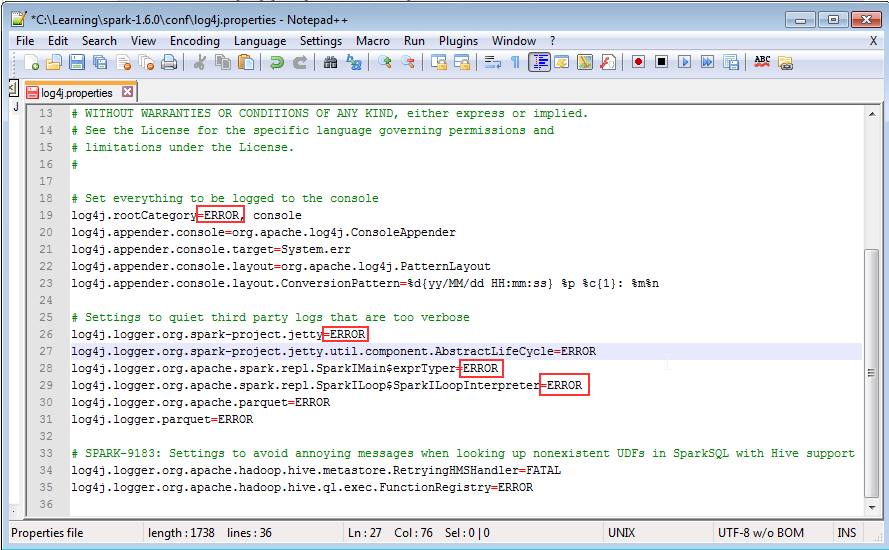
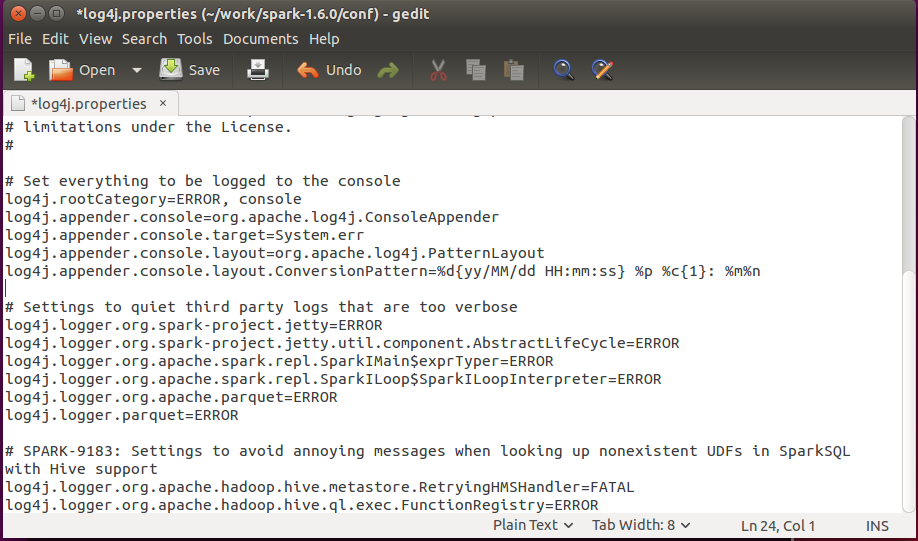
Spark use Apache log4j for logging, to configure log4j go to C:\Learning\spark-1.6.0\conf, you will find template file called ‘log4j.properties.template’.


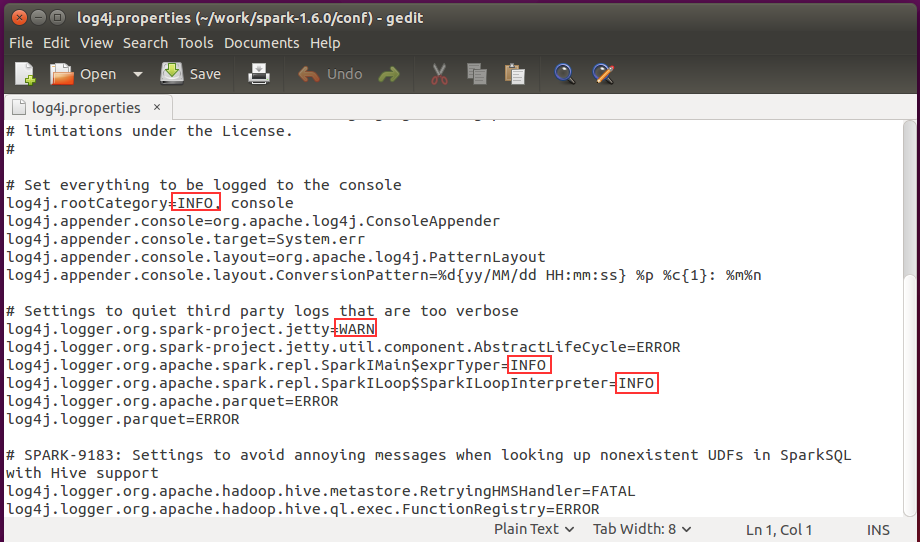
Delete the extension ‘.template’, and open file in text editor, find the property called ‘log4j.rootCategory’ , you can set it to the level you want.
In my case I changed to ‘ERROR instead of ‘INFO AND WARN’


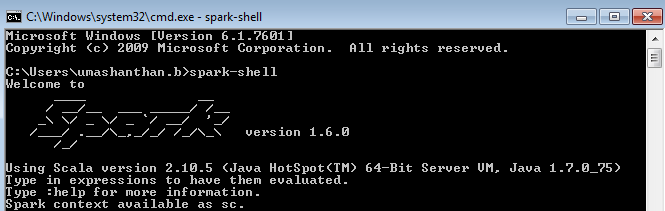
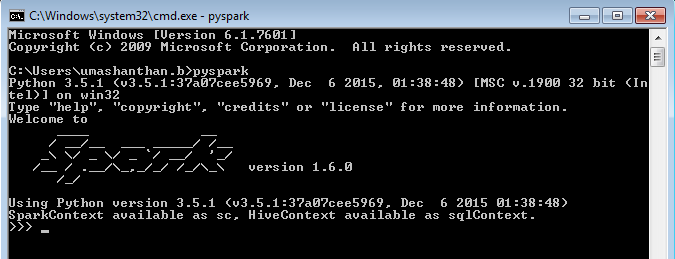
Spark has two shells, they are existed in ‘C:\Learning\spark-1.6.0\bin’ directory :
  1. Scala shell (C:\Learning\spark-1.6.0\bin \spark-shell.cmd).
  2. Python shell (C:\Learning\spark-1.6.0\bin\pyspark.cmd)

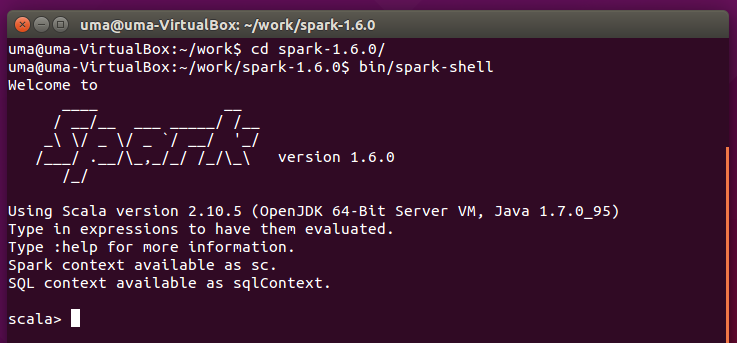
If you start using spark-shell the you will see the shell as shown below

If you start using pyspark the you will see the shell as shown below

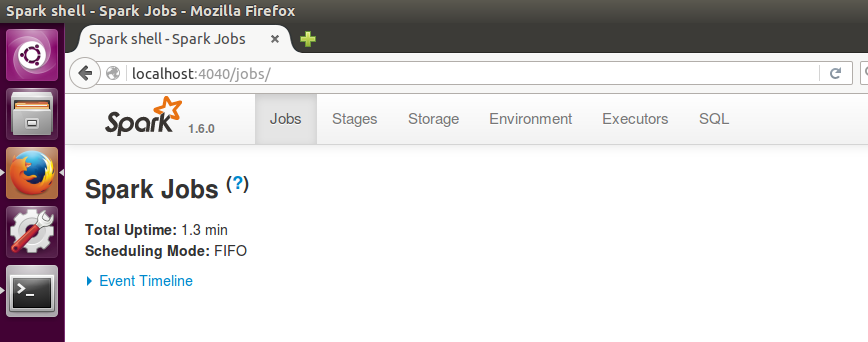
You can check via UI also
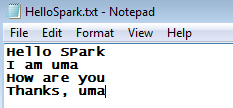
Now let run and see Word count example, I create a small text file as shown below and save it
Let’s run using spark-shell


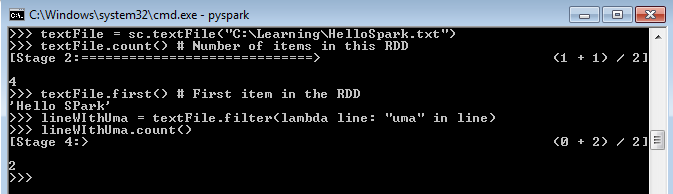
Let’s run using pyspark


In addition to this, if you need to get Source file of the Spark and build, you need to Install Spark and configure also you need to install any tool that can be used to build the source code such as SBT.

In the following steps shows that how to install Scala

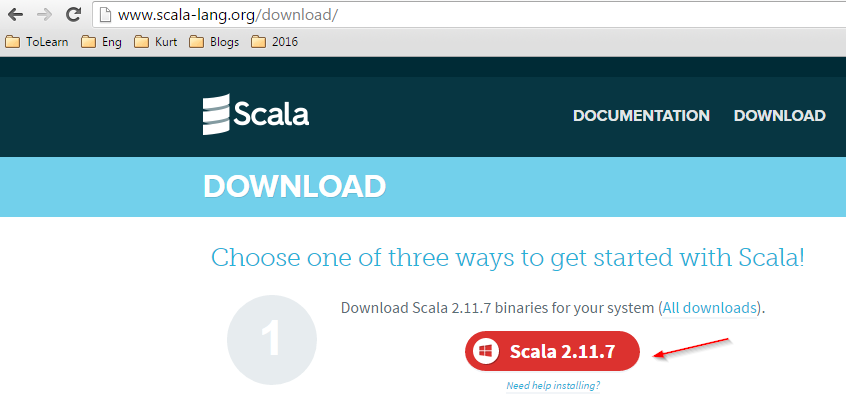
Download the scala from www.scala-lang.org/download
Run the downloaded msi file and install
Set SCALA_HOME  and add %SCALA_HOME%\bin in   PATH variable in environment variables.
You can test using scala command in command prompt

Cheers!
Uma

How install Spark in Linux

In this post I will walk through the process of install Apache Spark on Linux environment
uma@uma-VirtualBox:~/Downloads$ sudo wget http://www.eu.apache.org/dist/spark/spark-1.6.0/spark-1.6.0-bin-hadoop2.6.tgz
uma@uma-VirtualBox:~/Downloads$ sudo tar -xvf spark-1.6.0-bin-hadoop2.6.tgz -C /home/uma/work/
uma@uma-VirtualBox:~/work$ sudo mv spark-1.6.0-bin-hadoop2.6 spark-1.6.0
Bin/spark-shell
Lot of information
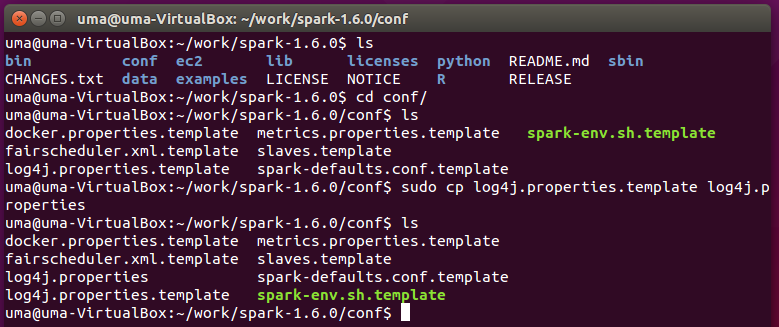
uma@uma-VirtualBox:~/work/spark-1.6.0/conf$ sudo cp log4j.properties.template log4j.properties
uma@uma-VirtualBox:~/work/spark-1.6.0/conf$ sudo gedit log4j.properties
uma@uma-VirtualBox:~$ cd work
uma@uma-VirtualBox:~/work$ sudo chmod -R 777 spark-1.6.0/
Bin/spark-shell

Cheers!
Uma