Wednesday, July 29, 2015

HTTP Post using T-SQL

I thought to re-post this useful query which helps to do HTTP POST using T-SQL

declare @iobject int,
@ihr int,
@data nvarchar(4000) ,
@smtpWebService varchar(200),
@retVal varchar(8000),
@src varchar(1000),
@desc varchar(1000)

exec @ihr = sp_oaCreate 'Msxml2.ServerXMLHTTP.3.0', @iobject OUTPUT
if (@ihr <> 0)
begin
exec sp_displayoaerrorinfo @iobject, @ihr return
end

set @data = 'boo=yeah'
set @smtpWebService = 'http://www.google.com'

exec @ihr = sp_OAMethod @iobject, 'Open', null, 'POST',@smtpWebService, 0
exec @ihr = sp_OAMethod @iobject, 'setRequestHeader', null, 'Content-Type', 'application/x-www-form-urlencoded'
exec @ihr = sp_OAMethod @iobject, 'send', null, @data

if @ihr <> 0
begin
exec sp_OAGetErrorInfo @iobject, @src OUT, @desc OUT
select hr = convert(varbinary(4),@ihr), Source = @src, Description = @desc
--raiserror('Error Creating COM Component 0x%x, %s, %s',16,1, @ihr, @src, @desc) return
print @src
print @desc
end

exec @ihr = sp_OAGetProperty @iObject, 'responseText', @retVal OUT
print @retVal
-- Destroy the object
exec @ihr = sp_OADestroy @iobject

Original post link:
http://techknowledges.blogspot.com/2007/10/t-sql-http-post-string.html


sp_displayoaerrorinfo 

CREATE PROCEDURE sp_hexadecimal
    @binvalue varbinary(255),
    @hexvalue varchar(255) OUTPUT
AS
DECLARE @charvalue varchar(255)
DECLARE @i int
DECLARE @length int
DECLARE @hexstring char(16)
SELECT @charvalue = '0x'
SELECT @i = 1
SELECT @length = DATALENGTH(@binvalue)
SELECT @hexstring = '0123456789abcdef'
WHILE (@i <= @length)
BEGIN
DECLARE @tempint int
DECLARE @firstint int
DECLARE @secondint int
SELECT @tempint = CONVERT(int, SUBSTRING(@binvalue,@i,1))
SELECT @firstint = FLOOR(@tempint/16)
SELECT @secondint = @tempint - (@firstint*16)
SELECT @charvalue = @charvalue +
SUBSTRING(@hexstring, @firstint+1, 1) +
SUBSTRING(@hexstring, @secondint+1, 1)
SELECT @i = @i + 1
END
SELECT @hexvalue = @charvalue
go

CREATE PROCEDURE sp_displayoaerrorinfo
    @object int,
    @hresult int
AS
DECLARE @output varchar(255)
DECLARE @hrhex char(10)
DECLARE @hr int
DECLARE @source varchar(255)
DECLARE @description varchar(255)
PRINT 'OLE Automation Error Information'
EXEC sp_hexadecimal @hresult, @hrhex OUT
SELECT @output = '  HRESULT: ' + @hrhex
PRINT @output
EXEC @hr = sp_OAGetErrorInfo @object, @source OUT, @description OUT
IF @hr = 0
BEGIN
SELECT @output = '  Source: ' + @source
PRINT @output
SELECT @output = '  Description: ' + @description
PRINT @output
END
ELSE
BEGIN
    PRINT ' sp_OAGetErrorInfo failed.'
    RETURN
END


Cheers!
Uma


Tuesday, July 28, 2015

Generate a custom error message in Execute SQL Task in SSIS

Generates an error message and initiates error processing for the session. RAISERROR can either reference a user-defined message stored in the sys.messages catalog view or build a message dynamically. The message is returned as a server error message to the calling application or to an associated CATCH block of a TRY…CATCH construct.

declare @position varchar(20)
set @position = ?

if (@position like 'eng%' or @position like 'man%')
begin
delete from dbo.employee where position = @position;

end
else 
begin
raiserror ('position is an unidentified type',10,1)
end
go

Cheers!
Uma

Monday, July 27, 2015

T-SQL script - Delete files using file name pattern Ole Automation Procedures

Use the Ole Automation Procedures option to specify whether OLE Automation objects can be instantiated within Transact-SQL batches. This option can also be configured using the Policy-Based Management or the sp_configure stored procedure. Ole Automation Procedures is an alternate approach for xp_cmdshell to handle file system.

The following T-SQL script shows that how to delete file without xp_cmdshell 
IF OBJECT_ID('dbo.sp_Clean_Files') IS NOT NULL
DROP PROC dbo.sp_Clean_Files
GO

CREATE PROCEDURE dbo.sp_Clean_Files
      @Temp_File_Path varchar(300) = 'C:\temp', 
-- Temp folder path as input parameter
      @Temp_File_Prefix varchar(100) = '0101', 
-- Temp file prefix as input parameter
      @Temp_File_Extension varchar(10) = 'TMP' 
-- Temp file extension as input parameter

AS
BEGIN
      SET NOCOUNT ON;
     
      EXEC sp_configure 'show advanced options', 1;
      RECONFIGURE;
      EXEC sp_configure 'Ole Automation Procedures', 1;
      RECONFIGURE;
     
            DECLARE @ResultOP int
            DECLARE @OLE_Obj  int
            DECLARE @TempFullPath varchar(300)
            SET @TempFullPath = @Temp_File_Path +'\'+@Temp_File_Prefix+'*.'+@Temp_File_Extension -- define temp folder full path

            EXEC @ResultOP = sp_OACreate 'Scripting.FileSystemObject', @OLE_Obj OUTPUT
            EXEC @ResultOP = sp_OAMethod @OLE_Obj, 'DeleteFile', NULL, @TempFullPath
            EXEC @ResultOP = sp_OADestroy @OLE_Obj

      EXEC sp_configure 'Ole Automation Procedures', 0;
      RECONFIGURE;     
      EXEC sp_configure 'show advanced options', 0;
      RECONFIGURE;

END

GO

Cheers!
Uma

Sunday, June 28, 2015

tNormlize: How to normalized multivalued attribute in Talend

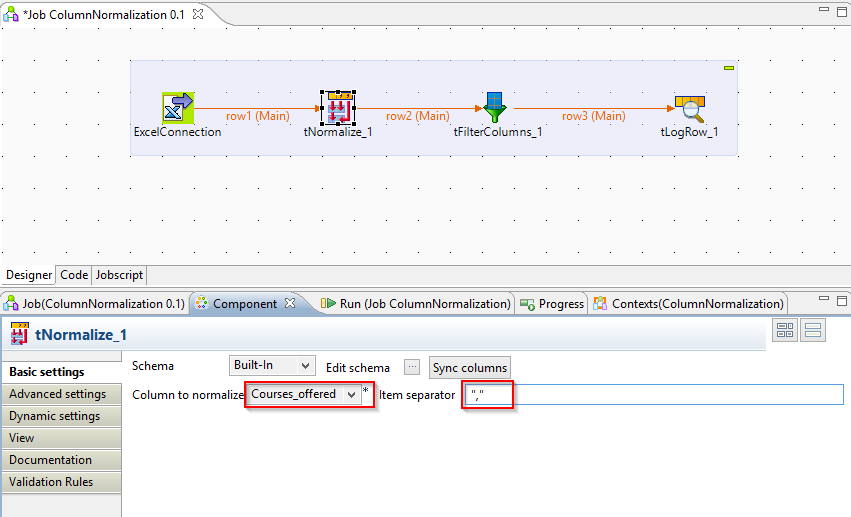
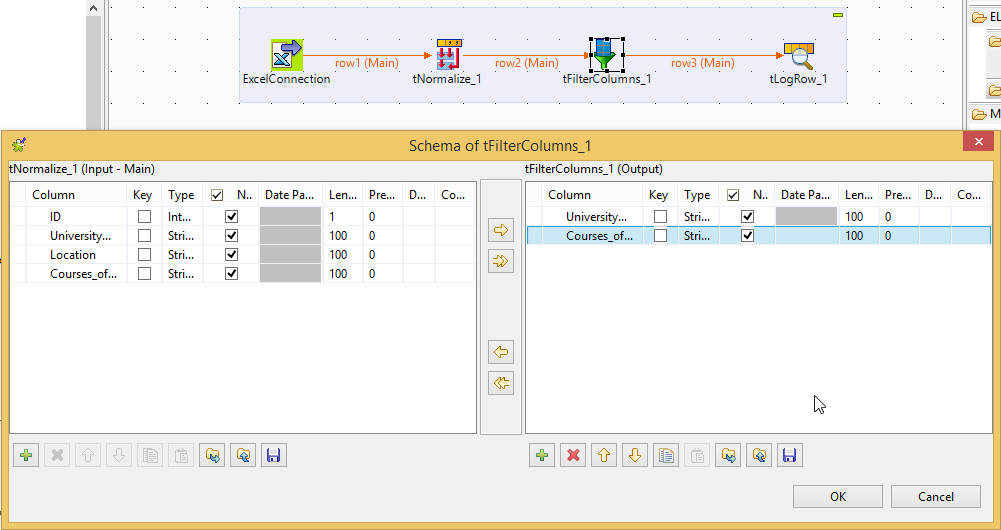
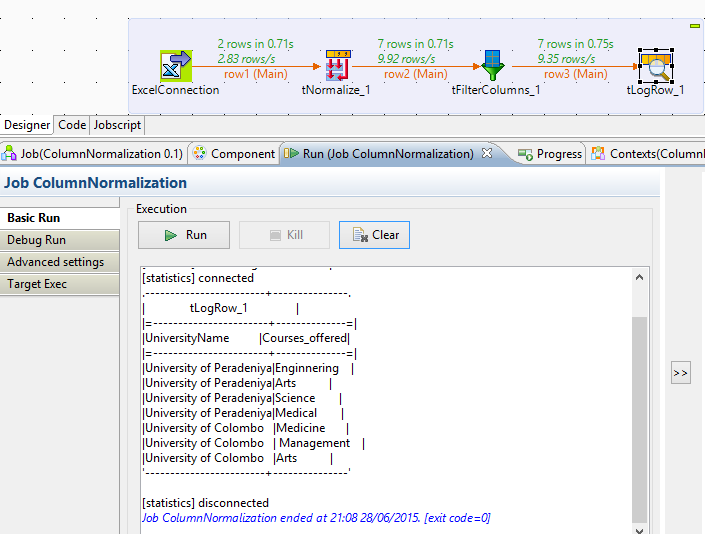
Use the tNormalize column to break a multi-valued attribute stored in an RDMBS column into individual rows.
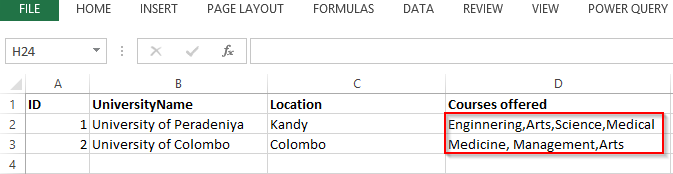
This simple scenario illustrates a Job that normalizes multivalued attribute and displays the result in a table on the Run console. This Excel sheet contains and multi value attribute in a column called CourceOffered.


Monday, June 1, 2015

Talend Tutorial Step By Step - Post 3: tHasInput and tHashOutput

Talend provides set of components (tHashInput & tHashOutput) to process huge amount of data at a very faster speed. The tHashInput component is part of the Technical family of component and allows you to quickly read row data from memory. that has previously been saved by tHashOutput


tHashInput


This component is used along with tHashOutput. It reads from the cache memory data loaded by tHashOutput. Together, these twin components offer high-speed data access to facilitate transactions involving a massive amount of data.

tHashOutput

This component writes data to the cache memory and is closely related to tHashInput. Together, these twin components offer high-speed data access to facilitate transactions involving a massive amount of data.
tHashOutput and tHashInput works in conjunction. They do not have any purpose if used separately. If you have a very huge data which you want to process multiple times at a very faster pace, then you can use tHashOutput component to write the data into cache memory and then read that data using tHashInput component.

Enabling tHashInput and tHashOutput

Many of the exercises rely on the use of tHashInput and tHashOutput components. Talend 5.2.3 does not automatically enable these components for use in jobs. To enable these components perform the instructions in the following section:

How to do it…

  1. On the main menu bar navigate to File | Edit Project properties to open the properties dialogue.
  2. Select Designer then Palette Settings.
  3. Click on the Technical folder and then click on the button shown in the following screenshot to add this folder to the Show panel.


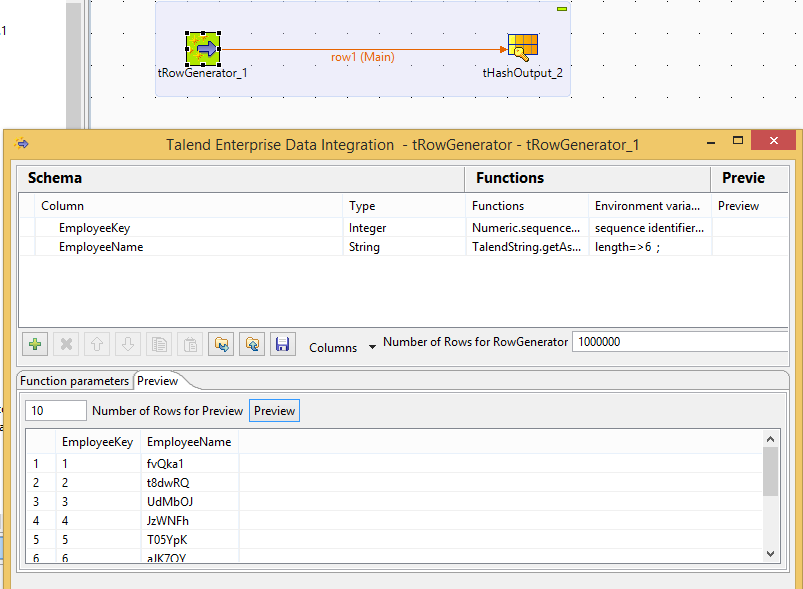
The following example shows that how to create tHashOutput and then get the data using tHashInput.


The following image shows that that how to create a sample tHashOutput
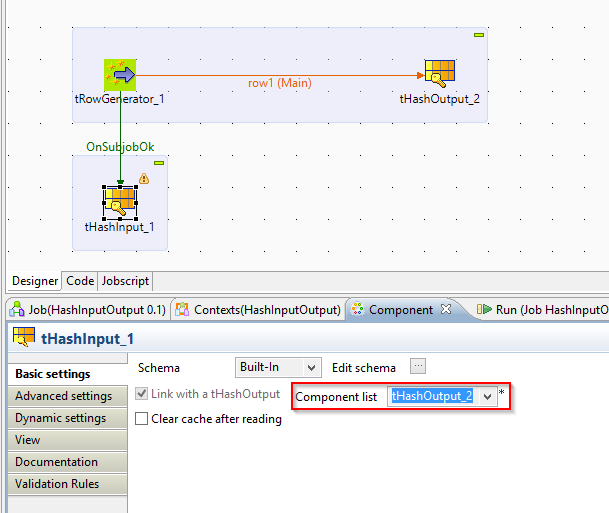
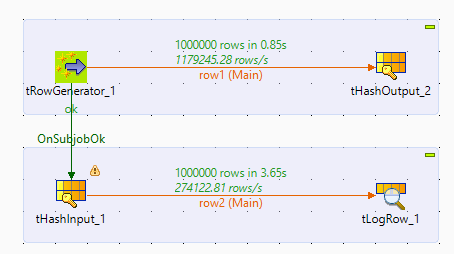
The following image shows that how to connect tHashOutput with tHashInput. One you run, you will see that same records are retrieved from tHashOutput. 
Cheers!

Talend Tutorial Step by Step - Post 1: Built-in schema for CSV source with context

In this post, you will create a Built-in schema for CSV file which don’t have column header with source file path as context variable.
Create context for source path variable:
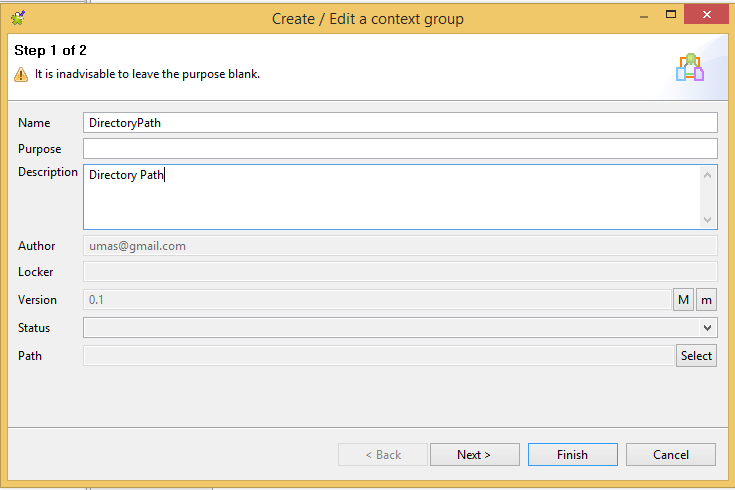
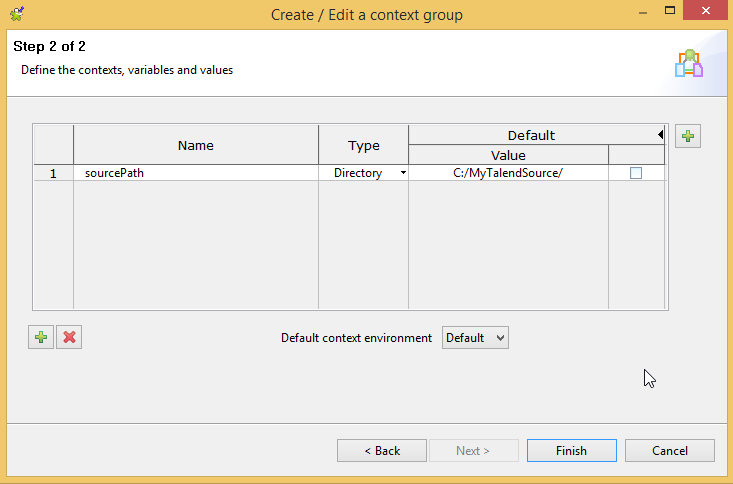
In repository, right click on contexts and Create context Group and crate context contexts variable for sourcePath.
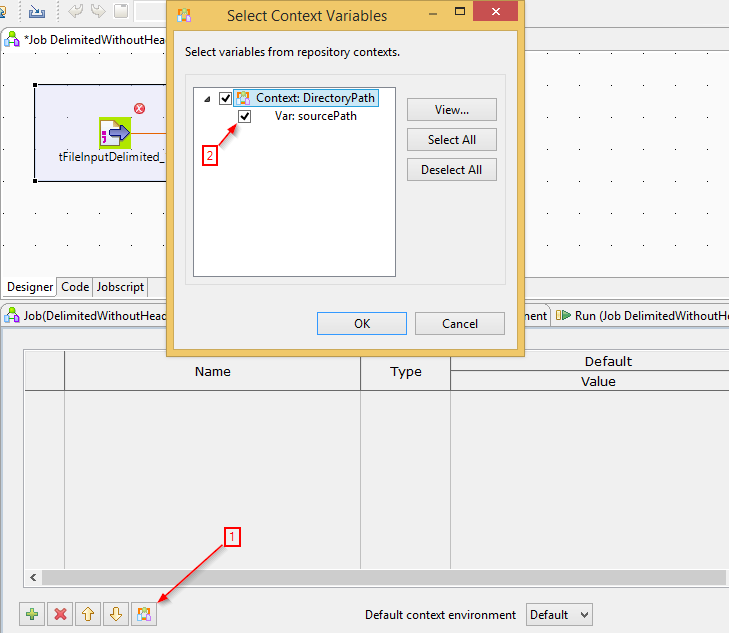
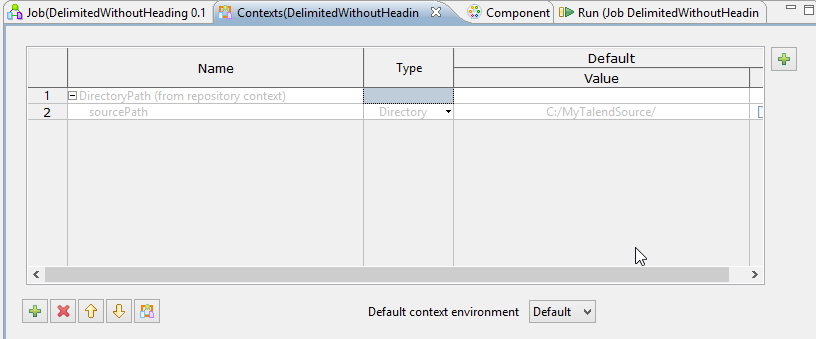
Once you create a context, you have to select the context under the Job as shown below.
Drag a tFileInputDelimited component from the palette, and open it by double clicking it. Click the Edit Schema button (…), shown in the following screenshot, to open the schema editor:
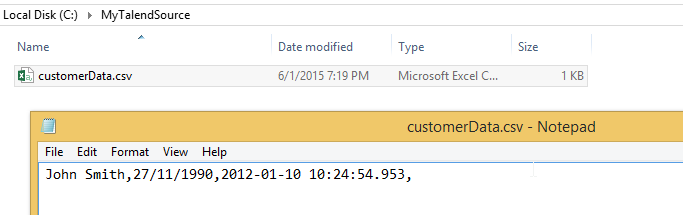
Built-In Schema: Follow the following steps to create Built-in schema for the following source file.
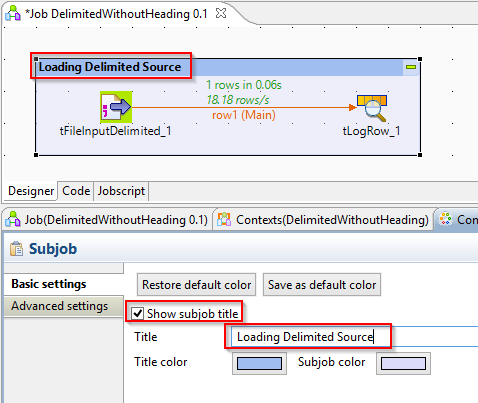
Rename the sub job as you want.
Once you run the Job, you will get the following output in tLogRow component.
Cheers!

Talend Tutorial Step by Step - Post 2: Creating a generic schema from the existing metadata

Generic schemas Generic schemas aren’t tied to a particular source, so they can be used as a shared resource across multiple types of data source or they can be used to define data sources that are generated, such as the output from custom SQL queries.
Any schema can be easily converted into a generic schema to enable it to be re-used.
The following recipe shows two methods of creating generic schemas;
  1. A pre-existing schema in the metadata repository
Rename it as you want by editing the Generic schema
  1. From a built-in schema
This will open a windows file save dialogue. Save the file as customerDelimited.xml


Now create a new generic schema from the saved XML file by right-clicking Generic schemas, and selecting the option Create generic schema from XML.

Cheers!