Tuesday, April 15, 2014

Error: 0xC0209303 at Package, Connection manager "Excel Connection Manager": The requested OLE DB provider Microsoft.ACE.OLEDB.12.0 is not registered. If the 64-bit driver is not installed, run the package in 32-bit mode.

The error might occur when you run the package  in the 64 bit environment, but when you test your connection, it says success.

Details error message : Error: 0xC0209303 at Package, Connection manager "Excel Connection Manager": The requested OLE DB provider Microsoft.ACE.OLEDB.12.0 is not registered. If the 64-bit driver is not installed, run the package in 32-bit mode. Error code: 0x00000000.

The Reason is package is trying to run via 64 bit driver while running the package, so the solution is to make Run64BitRunTime = False.


Create and Populate Date Dimension

There are many Create and Populate Date Dimension post already available. However, here I have simplified the table structure and the populate data via stored procedure. Also This will answer how to extend the date range in AdventureWorksDW2012.
Table structure:
CREATE TABLE dbo.DimDate(
 [DateKey] [int] IDENTITY(1,1) NOT NULL,
 [FullDate] [datetime] NOT NULL,
 [DayNumberOfWeek] [tinyint] NOT NULL,
 [EnglishDayNameOfWeek] [varchar](20) NOT NULL,
 [DayNumberOfMonth] [tinyint] NOT NULL,
 [DayNumberOfYear] [smallint] NOT NULL,
 [WeekNumberOfYear] [tinyint] NOT NULL,
 [CalendarEnglishMonthName] [varchar](20) NOT NULL,
 [CalendarEnglishShortMonthName] [char](3) NULL,
 [CalendarMonthNumberOfYear] [smallint] NOT NULL,
 [CalendarQuarter] [tinyint] NOT NULL,
 [CalendarYear] [int] NOT NULL,
 [CalendarSemester] [tinyint] NOT NULL,
 [FiscalYear] [smallint] NULL,
 [FiscalSemester] [smallint] NULL,
 [FiscalQuarter] [smallint] NULL,
 CONSTRAINT [PK_DimDate] PRIMARY KEY CLUSTERED
 (
   [DateKey] ASC
 )
);

Stored Procedure to extend or populate the date dimension table records.
CREATE PROCEDURE insertDate
 @StartDate  DATETIME = NULL,
 @EndDate  DATETIME =NULL
AS
BEGIN 
SET IDENTITY_INSERT dbo.DimDate ON

WHILE @StartDate <= @EndDate
BEGIN
INSERT INTO dbo.DimDate
(  DateKey
 ,FullDate
 ,DayNumberOfWeek
 ,EnglishDayNameOfWeek
 ,DayNumberOfMonth
 ,DayNumberOfYear
 ,WeekNumberOfYear
 ,CalendarEnglishMonthName
 ,CalendarEnglishShortMonthName
 ,CalendarMonthNumberOfYear
 ,CalendarQuarter
 ,CalendarYear
 ,CalendarSemester
 ,FiscalYear
 ,FiscalSemester
 ,FiscalQuarter
)

SELECT  
CONVERT(INTEGER, CONVERT(CHAR(10),  @StartDate, 112)) AS DateKey

, @StartDate AS FullDate

, DATEPART(dw, @StartDate) AS DayNumberOfWeek

, DATENAME(dw, @StartDate) AS EnglishDayNameOfWeek

, DAY (@StartDate) AS DayNumberOfMonth

, DATENAME(dayofyear, @StartDate) AS DayNumberOfYear

, DATENAME(week, @StartDate) AS WeekNumberOfYear

, DATENAME(mm, @StartDate) AS CalendarEnglishMonthName

, LEFT(DATENAME(mm, @StartDate),3) AS CalendarEnglishShortMonthName

, MONTH(@StartDate) AS CalendarMonthNumberOfYear

, DATENAME(quarter, @StartDate) AS CalendarQuarter

, YEAR(@StartDate) AS CalendarYear

, CASE
 WHEN DATENAME(quarter, @StartDate) <= 2 THEN 1 
 ELSE 2
  END AS CalendarSemester

, CASE
 WHEN DATEPART(m, @StartDate) >= 7 THEN YEAR(@StartDate) + 1 ELSE YEAR(@StartDate)
 END AS FiscalYear

, CASE
 WHEN DATENAME(quarter, @StartDate) >= 3 THEN 1 ELSE 2
 END AS FiscalSemester

, CASE
 WHEN MONTH(@StartDate) IN (7, 8, 9) THEN 1
 WHEN MONTH(@StartDate) IN (10, 11, 12) THEN 2
 WHEN MONTH(@StartDate) IN (1, 2, 3) THEN 3
 WHEN MONTH(@StartDate) IN (4, 5, 6) THEN 4
    END AS FiscalQuarter

SET @StartDate = DATEADD(dd, 1, @StartDate)
END
SET IDENTITY_INSERT dbo.DimDate OFF
END

To insert or extend the records, just run the SP with Start Date and End Date.


Cheers!

Data Profiling Task with Example – SSIS 2012

This post is about Data Profiling Task in SSIS 2012 and demonstrates how to use this task. The Data Profiling task computes various profiles that help you become familiar with a data source and identity problems in the data that have to be fixed. Mostly, Data Profiling task inside Integration Service package to profile data that is stored in SQL Server and to identify potential problems with data quality.
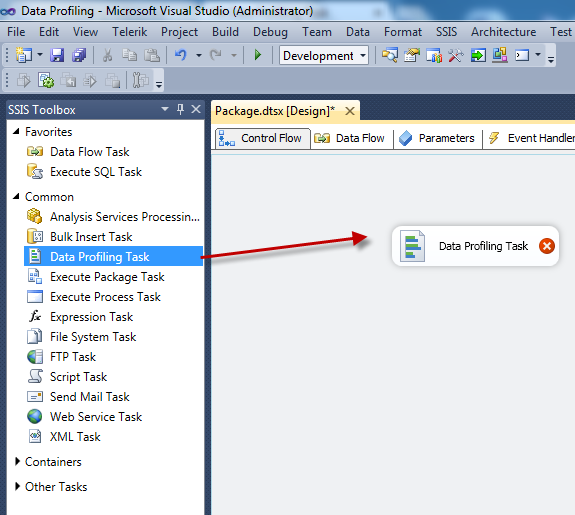
First drag and drop the Data Profiling Task into the Control Flow.


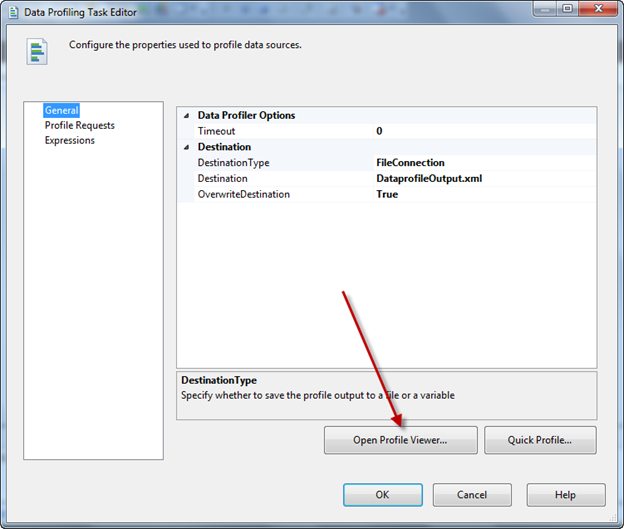
Next, double click on this task and configure the destination file, output comes as XML format. Optionally, if you want make it File Overwrite as True and if file does not exist then create it every time.


You can make use Quick profile wizard to configure the request profiles.


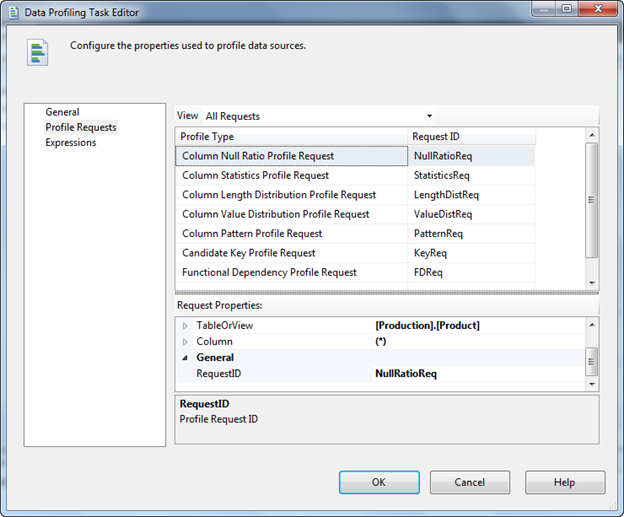
Once you click on it, it will prompt the below screen, there connect to the source server and select target Table or View and then select the compute options as you per your requirement. Once you have done this profile request will be as below, here you can do the changes individually such as change the table or select the column.
The following five profiles analyze individual columns.
Profiles that analyze individual columns
Description
Column Length Distribution Profile
Reports all the distinct lengths of string values in the selected column and the percentage of rows in the table that each length represents.
This profile helps you identify problems in your data, such as values that are not valid. For example, you profile a column of United States state codes that should be two characters and discover values longer than two characters.
Column Null Ratio Profile
Reports the percentage of null values in the selected column.
This profile helps you identify problems in your data, such as an unexpectedly high ratio of null values in a column. For example, you profile a Zip Code/Postal Code column and discover an unacceptably high percentage of missing codes.
Column Pattern Profile
Reports a set of regular expressions that cover the specified percentage of values in a string column.
This profile helps you identify problems in your data, such as string that are not valid. This profile can also suggest regular expressions that can be used in the future to validate new values. For example, a pattern profile of a United States Zip Code column might produce the regular expressions: \d{5}-\d{4}, \d{5}, and \d{9}. If you see other regular expressions, your data likely contains values that are not valid or in an incorrect format.
Column Statistics Profile
Reports statistics, such as minimum, maximum, average, and standard deviation for numeric columns, and minimum and maximum fordatetime columns.
This profile helps you identify problems in your data, such as dates that are not valid. For example, you profile a column of historical dates and discover a maximum date that is in the future.
Column Value Distribution Profile
Reports all the distinct values in the selected column and the percentage of rows in the table that each value represents. Can also report values that represent more than a specified percentage of rows in the table.
This profile helps you identify problems in your data, such as an incorrect number of distinct values in a column. For example, you profile a column that is supposed to contain states in the United States and discover more than 50 distinct values.
The following three profiles analyze multiple columns or relationships between columns and tables.
Profiles that analyze multiple columns
Description
Candidate Key Profile
Reports whether a column or set of columns is a key, or an approximate key, for the selected table.
This profile also helps you identify problems in your data, such as duplicate values in a potential key column.
Functional Dependency Profile
Reports the extent to which the values in one column (the dependent column) depend on the values in another column or set of columns (the determinant column).
This profile also helps you identify problems in your data, such as values that are not valid. For example, you profile the dependency between a column that contains United States Zip Codes and a column that contains states in the United States. The same Zip Code should always have the same state, but the profile discovers violations of this dependency.
Value Inclusion Profile
Computes the overlap in the values between two columns or sets of columns. This profile can determine whether a column or set of columns is appropriate to serve as a foreign key between the selected tables.
This profile also helps you identify problems in your data, such as values that are not valid. For example, you profile the ProductID column of a Sales table and discover that the column contains values that are not found in the ProductID column of the Products table.


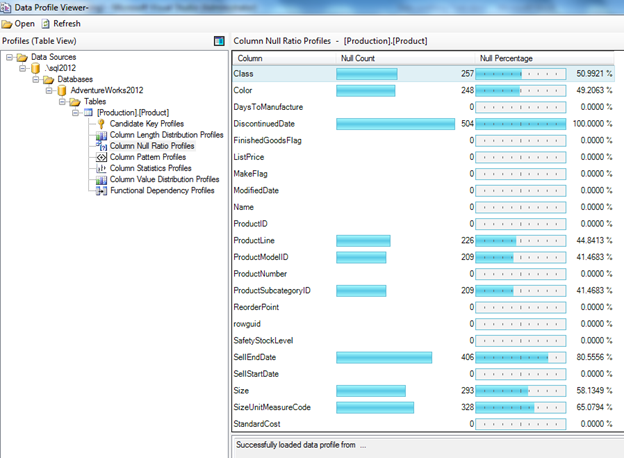
Run the Package, and locate to the file location, you will the xml file will be created. Alternatively you can open the profile task and click on Open Profile Viewer; this is the interface to view the profile in appropriate way.


Here you will be able to see all the relevant details.


Requirements and Limitations:


The Data Profiling task works only with data that is stored in SQL Server. This task does not work with third-party or file-based data sources.


Furthermore, to run a package that contains the Data Profiling task, you must use an account that has read/write permissions, including CREATE TABLE permissions, on the tempdb database.
(More details: http://technet.microsoft.com/en-us/library/bb895263.aspx)

Monday, March 31, 2014

How to create and deploy a CLR in SQL Server 2012 using Visual Studio 2012

The following steps will guide you to create CLR, also this cover the errors that appearing while this process and the solutions.
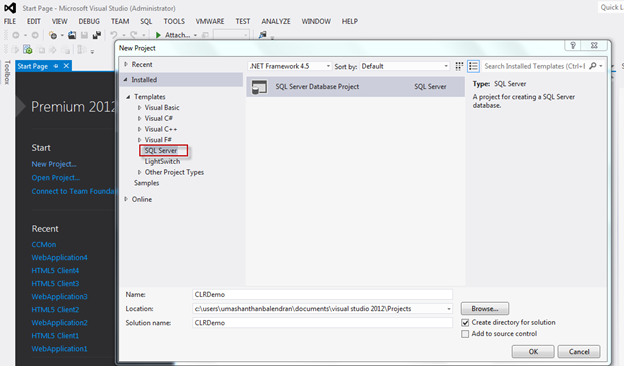
Create a Visual Studio project using SQL Server templates
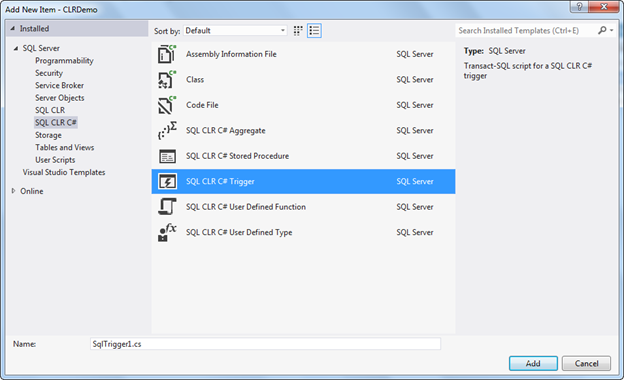
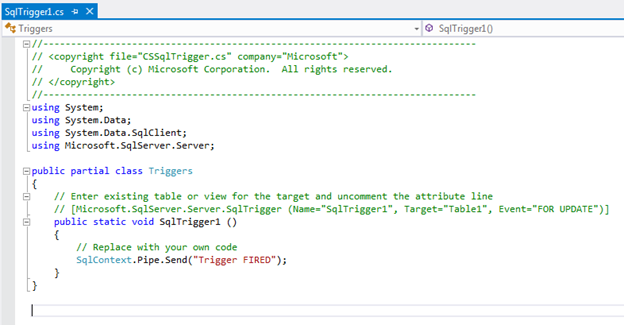
Add item – under SQL SLR C#. By default the relevant codes will be there as shown below.

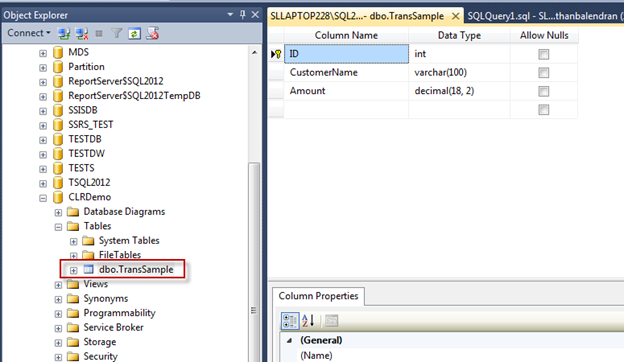
In this example, I am going to fire email when a customer does a transaction above 100000. First I created a table with the columns as shown below, the table name is “TransSample”.

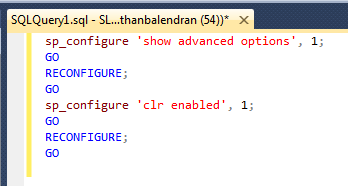
To run a CLR in SQL Server you must enable “clr enabled” in server level.

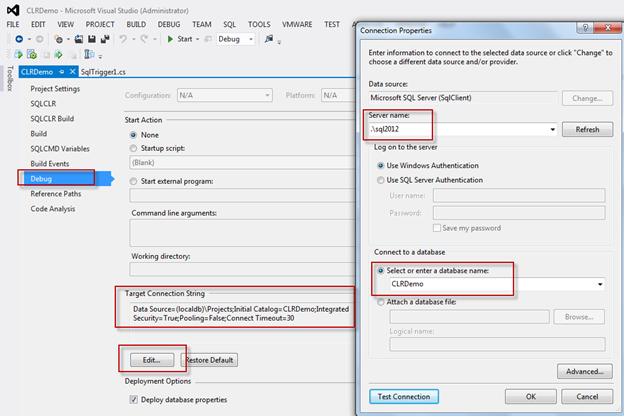
Change the project Connection properties for the target database can be changes via project properties as shown below.

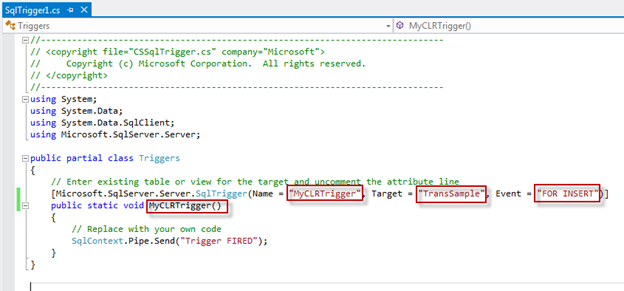
First rename default name in the code for Name, Target and Event.
Name=CLR Name
Target= Target table name
Event = INSERT/UPDATE/...
Function name as CLR name


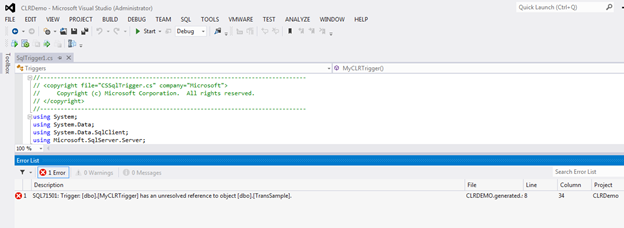
When you try to deploy it, you might get error an error as:
SQL71501: Trigger: [dbo].[MyCLRTrigger] has an unresolved reference to object [dbo].[TransSample]

This problem is due to project does not have proper metadata about the Target Database object for that import the target database under project to do it, follow the following steps:
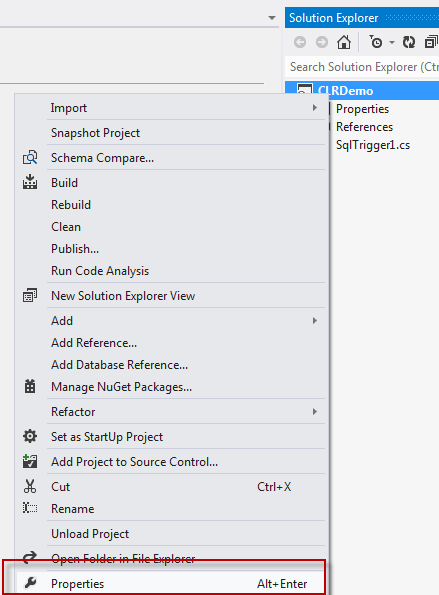
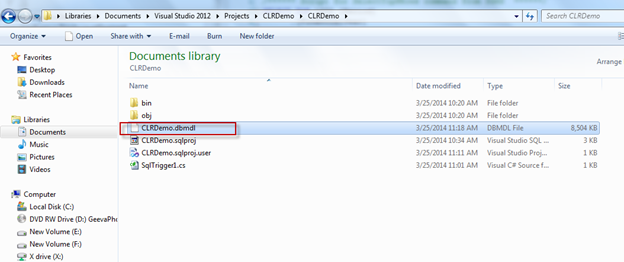
Close the project and locate to the project folder and delete the *.dbmdl file, then open the project aging and import the database by right click on project and under import as shown below screen dump. Once you have done this you would be able to deploy the CLR successfully.


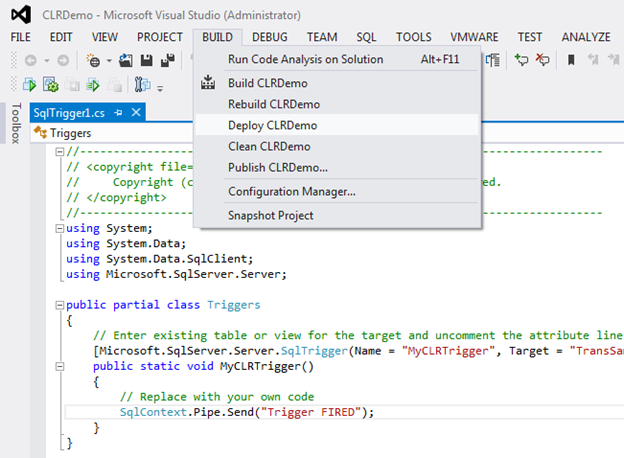
Now you can deploy the project as shown below.

Once you deploy, you would be able to see the CLR under the database as show below.
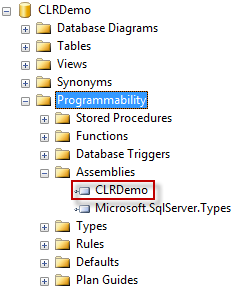

Now will see how to write the logic under this CLR to send an email for more than 100000 transaction.


Code
*********************************************************************************
using System;using System.Data;using System.Data.SqlClient;using Microsoft.SqlServer.Server;using System.Net;using System.Net.Mail;public partial class Triggers
{        
   
// Enter existing table or view for the target and uncomment the attribute line
   [Microsoft.SqlServer.Server.SqlTrigger(Name =
"MyCLRTrigger", Target = "TransSample", Event = "FOR INSERT")]
   
public static void MyCLRTrigger()
   {
       SqlTriggerContext context = SqlContext.TriggerContext;
      
       
string customer = "";
       
double amount = 0;

       
if(context.TriggerAction ==TriggerAction.Insert)
       {
           
using (SqlConnection con = new SqlConnection("context connection=true"))
           {
               con.Open();
               SqlCommand com =
new SqlCommand();
               com.Connection = con;
               
//getting customer name
               com.CommandText =
"select CustomerName from inserted";
               customer = com.ExecuteScalar().ToString();
               
//getting Amount
               com.CommandText =
"select Amount from inserted";
               amount = Convert.ToDouble(com.ExecuteScalar());

               
//apply condition
               
if (amount >= 100000)
               {
                   SendMail(customer, amount);
               }

           }
       }

   }

   
private static void SendMail(string CustomerName, double TrnAmt)
   {
       MailMessage msg =
new MailMessage("umashanthan@gmail.com", "umashanthan@gmail.com");
       SmtpClient cl =
new SmtpClient("smtp.gmail.com", 587);
       cl.DeliveryMethod = SmtpDeliveryMethod.Network;
       cl.EnableSsl =
true;
       cl.UseDefaultCredentials =
false;
       cl.Credentials =
new NetworkCredential("umashanthan@gmail.com", "xxxxxxx");
       msg.Subject =
"Credit Card Transaction Alert";
       msg.Body =
"Alert!" + Environment.NewLine + Environment.NewLine +
           
"The customer " + CustomerName + " made a transaction of " + TrnAmt.ToString();
       cl.Send(msg);
   }

}


*********************************************************************************


After deploy this CLR, You might face another issue as shown below while try to insert a records with transaction amount more than 100000. This is due to the permission issue.
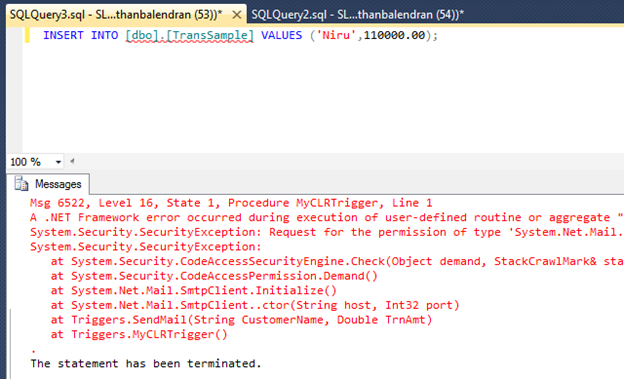

Detail error message:
Msg 6522, Level 16, State 1, Procedure MyCLRTrigger, Line 1
A .NET Framework error occurred during execution of user-defined routine or aggregate "MyCLRTrigger":
System.Security.SecurityException: Request for the permission of type 'System.Net.Mail.SmtpPermission, System, Version=4.0.0.0, Culture=neutral, PublicKeyToken=b77a5c561934e089' failed.
System.Security.SecurityException:
 at System.Security.CodeAccessSecurityEngine.Check(Object demand, StackCrawlMark& stackMark, Boolean isPermSet)
 at System.Security.CodeAccessPermission.Demand()
 at System.Net.Mail.SmtpClient.Initialize()
 at System.Net.Mail.SmtpClient..ctor(String host, Int32 port)
 at Triggers.SendMail(String CustomerName, Double TrnAmt)
 at Triggers.MyCLRTrigger()


First change the Permission Level as “UNSAFE”.
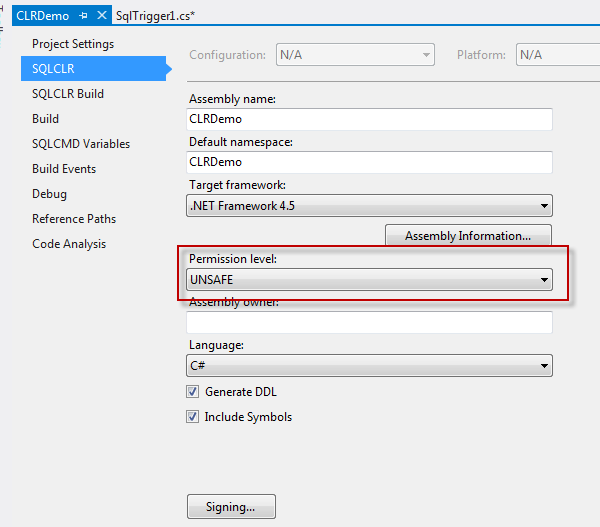

Even after you change the permission level you might get the issue as shown below. This problem is due to the permission related issue to solve that do the following. Make Trustworthy CLR in database. The TRUSTWORTHY database property is used to indicate whether the instance of SQL Server trusts the database and the contents within it. By default, this setting is OFF, but can be set to ON by using the ALTER DATABASE statement.
Error   1           SQL72014: .Net SqlClient Data Provider: Msg 10327, Level 14, State 1, Line 1 ALTER ASSEMBLY for assembly 'CLRDemo' failed because assembly 'CLRDemo' is not authorized for PERMISSION_SET = UNSAFE.  The assembly is authorized when either of the following is true: the database owner (DBO) has UNSAFE ASSEMBLY permission and the database has the TRUSTWORTHY database property on; or the assembly is signed with a certificate or an asymmetric key that has a corresponding login with UNSAFE ASSEMBLY permission.


The following image show that how to make it CLR Trustworthy in Database level via SQL Server Management Studio.


The below image shows that how to make it through the project.
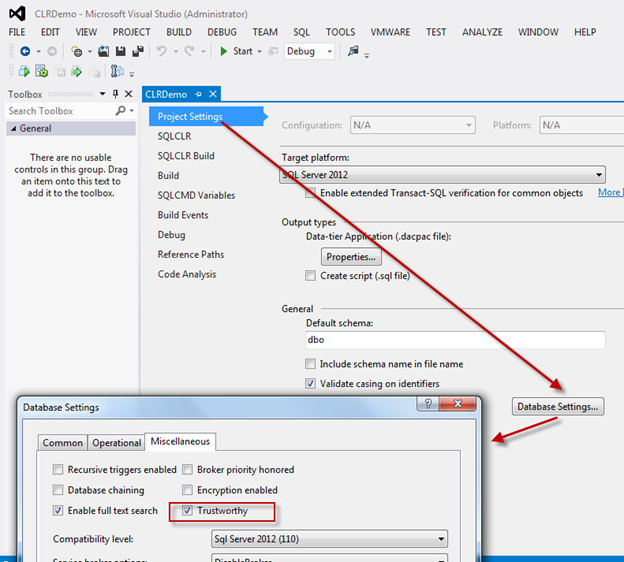

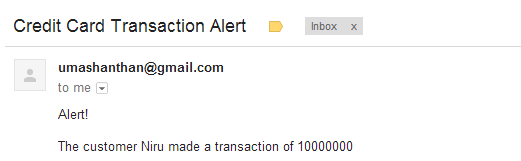
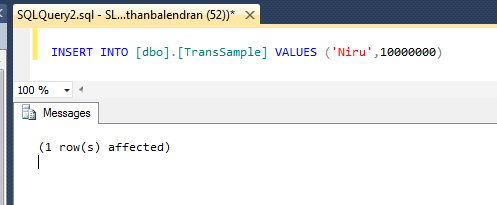
Once deploy the CLR again, just run it and see. You will receive the email as you expects.

Cheers!