Monday, January 4, 2016

How to use XPath in XML Task in SSIS 2014

The XML Task is used when you need to validate, modify, extract, or even create files in an XML format.
In SSIS 2014, there are six operation types are available.


XPath: This option uses the XML Path Language and allows the extraction of sections or specific nodes from the structure of the XML document. You might use this option to extract data from the XML document prior to using the content. For example, you might want to pull out only the orders for a specific customer from an XML file.
In XPath, you can choose one of the operation in the below list box. Node list will retrieve all the nodes based on the XPath and Values will retrieve only values based on the XPath.
In this following example shows how to retire the nodes
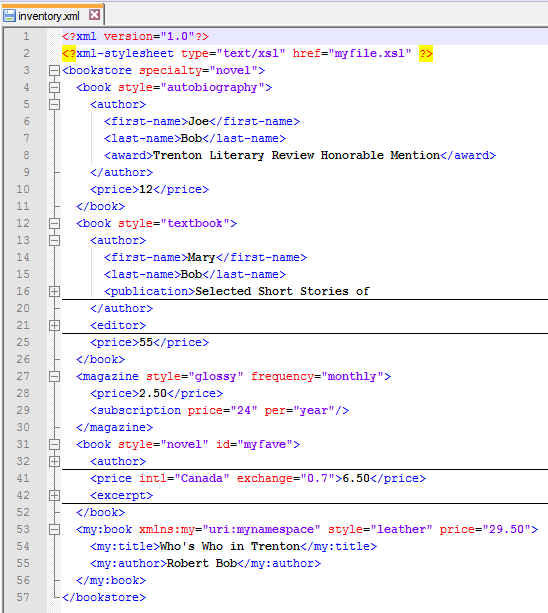
The source file contains 3 nodes for book
Configure the XPath as //book and other file path variables and run. To learn about XPath, please follow this link

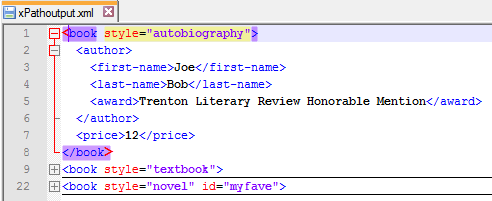
In the output you can notice that only book elements are retrieved.
Now let see the Value retrieve
If you need to retrieve all the authors first name
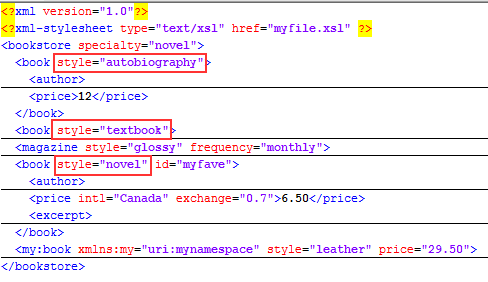
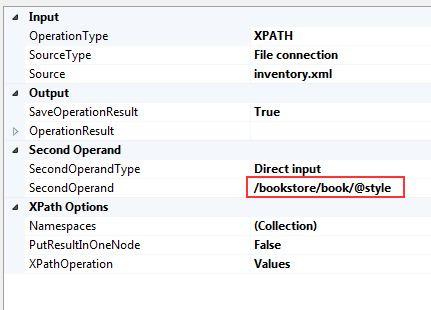
If you need to retrieve attribute you need to use @ symbol before the attribute, for example if you need to take all the style of the book
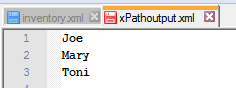
Output:
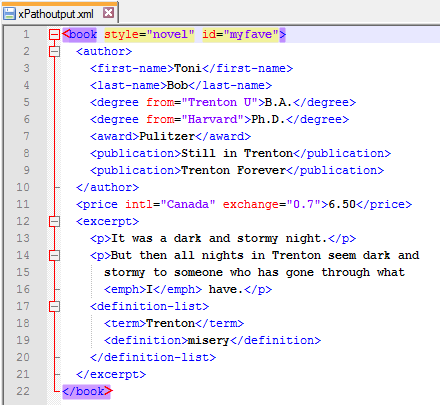
If you need to take last node:


Cheers!
Uma

How to use Diff and Patch in XML Task in SSIS 2014

Diff: This option uses difference algorithms to compare two XML documents to produce a third document called an XML Diffgram that contains the differences between them. Use this option with another XML Task using the Patch option to produce a smaller subset of data to insert into your data store. An example use of this task is extracting only the prices that have changed from a new price sheet in XML format.

Patch: This option applies the results of a Diff operation to an XML document to create a new XML document.


The following example show that how to use Diff operation type.
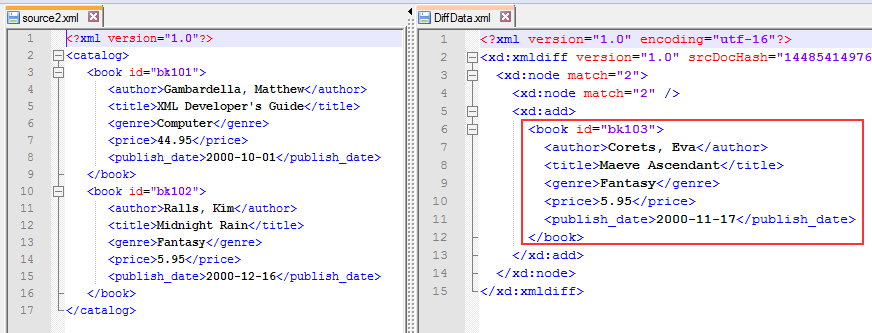
Create a two XML file with some data difference something like shown below.
Set the configuration as shown below and run the job
You will get two output files, one for the operation result is TRUE or FALSE and other one data difference.
Diff.xml
DiffData.xml
Patch


This option applies the results of a Diff operation to an XML document to create a new XML document.
In this example let’s see how to patch the above Diff example output.
Set the configuration and run.
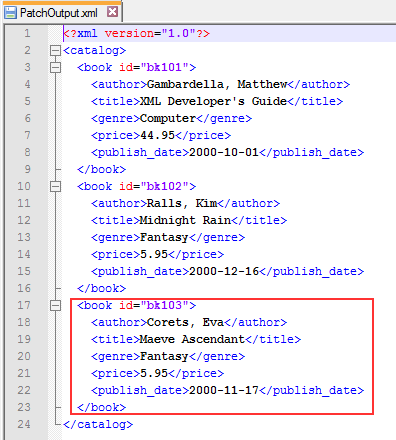
You will notice that the output file will contains the difference as well.
Cheers!
Uma

How to use Merge in XML Task SSIS 2014

The XML Task is used when you need to validate, modify, extract, or even create files in an XML format.
In SSIS 2014, there are six operation types are available.


.
Merge: This option allows for the merging of two XML documents with the same structure. You might use this option to combine the results of two extracts from disparate systems into one document
In this example, I use the following two XML file as shown below. Note that you need to exclude the <?xml version="1.0"?> declaration
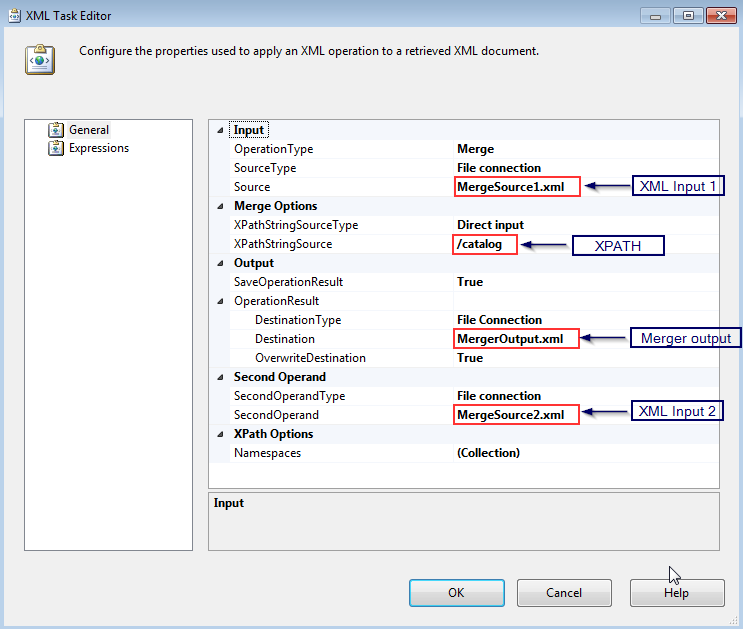
XPathStringSource property assigned /catalog value
Set the input and output values and XPath string and run.
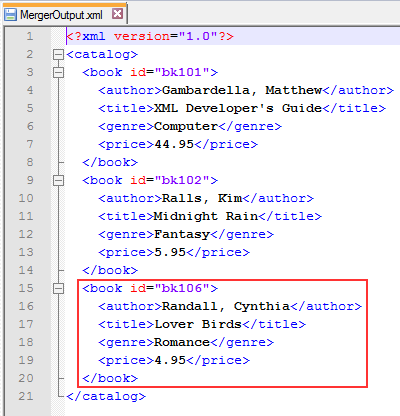
You can see the merge output file as shown below.
Cheers!
Uma

How to use Validate in XML Task SSIS 2014

The XML Task is used when you need to validate, modify, extract, or even create files in an XML format.
In SSIS 2014, there are six operation types are available.

Validate: This option allows for the schema validation of an XML file against Document Type Definition (DTD) or XML Schema Definition (XSD) binding control documents. You can use this option to ensure that a provided XML file adheres to your expected document format.

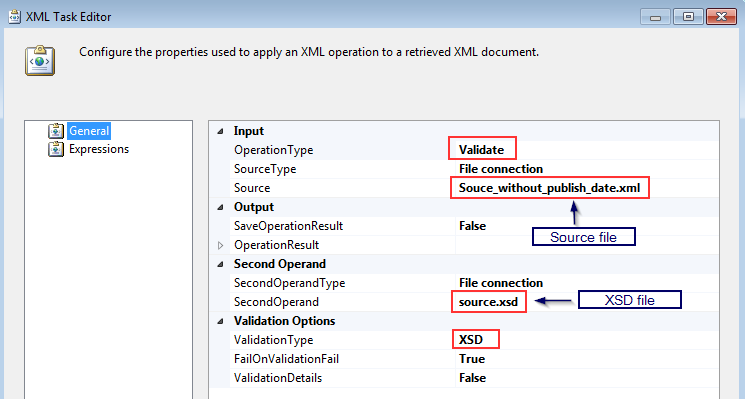
The following example show that how to use validate operation type.
In the real scenario, before processing XML data, we should validate for example if XML schema validation failed then it should notify and stop processing the data.
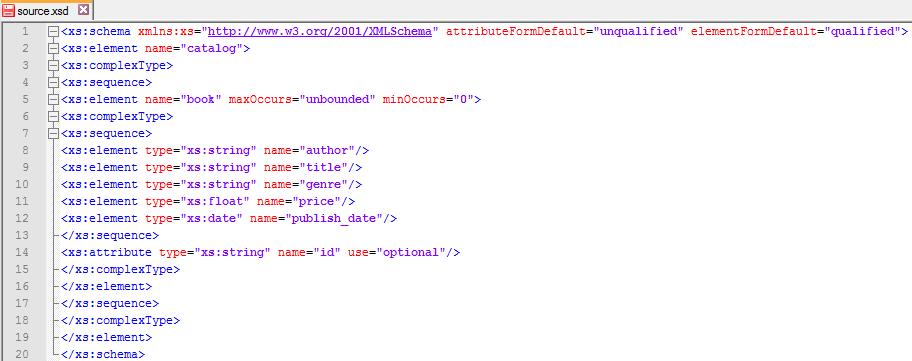
You can create a XSD file using XML file
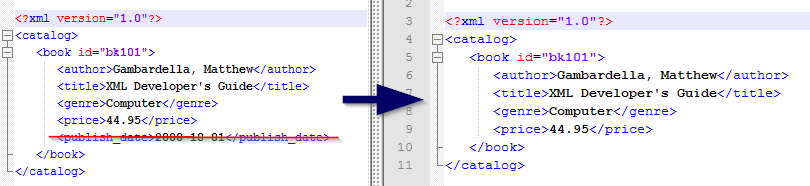
Create a XML file without one of the filed, for example remove publish_date filed from source file
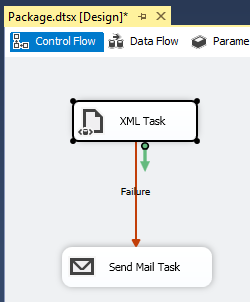
Set the configurations and run the job and see the job will failed and email notification will be set.
Cheers!
Uma

Friday, January 1, 2016

How to dynamically set XML configuration path or SQL server configuration in SSIS

How to dynamically set XML configuration path or SQL server configuration in SSIS

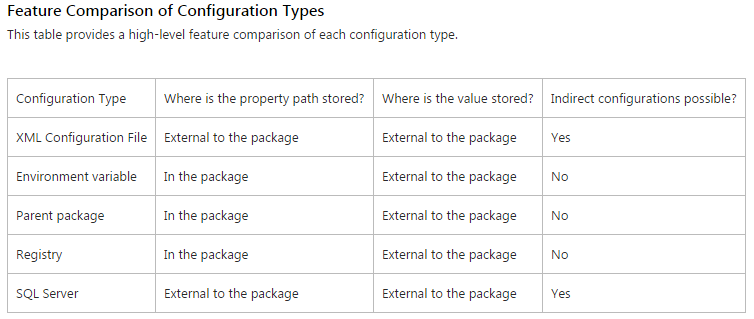
Most commonly used configuration types are XML Configuration File and SQL Server Configuration.

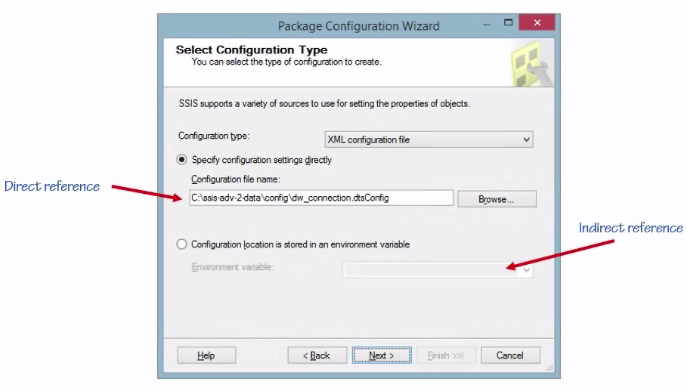
One of most difficult part is set the configuration file path in prior to SQL Server 2012 version, I mean before introduce parameters. Prior versions are support two way to set configuration path direct and indirect.
Direct – Hard code the path as shown below
Indirect - Store a configuration in a Windows environment variable
Cheers!
Uma

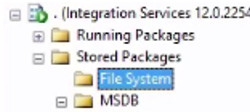
SSIS packages are not visible in File System after File system deployment in Integration Service via SSMS

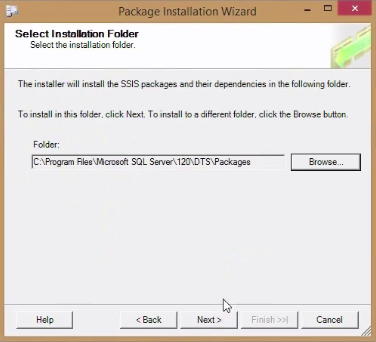
SSIS packages are not visible in File System after File system deployment in Integration Service via SSMS. If you choose the installation folder other than the default folder, it won’t display in Integration Service in SSMS.
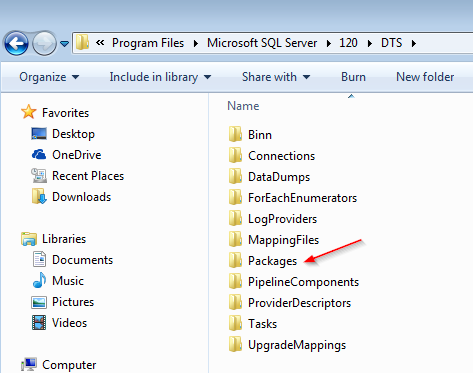
You have to choose default DTS package locations, if you want to view via SSMS. For example, for SQL Server 2014 version path is:
C:\Program Files\Microsoft SQL Server\120\DTS\Packages

Cheers! Uma