Showing posts with label C#. Show all posts

Tuesday, April 15, 2014

Read data from XML file and Load to Tree control C# Code

This post is showing, how to read the data form XML file and load to Tree Control in ASP.NET using C#.
I created a XML file as below:

Create ASP.NET empty web application and under the form just drag and drop the Tree Control which is under navigation tag.

The sample code shows below.
using System;
using System.Collections.Generic;
using System.Linq;
using System.Web;
using System.Web.UI;
using System.Web.UI.WebControls;
using System.Xml;

namespace XMLDemo
{
    public partial class WebForm1 : System.Web.UI.Page
    {
        protected void Page_Load(object sender, EventArgs e)
        {

        }

        protected void Button1_Click(object sender, EventArgs e)
        {
            //Create a doc Document and load the XML data into it.
            XmlDocument doc = new XmlDocument();
            doc.Load("E://Testing.NET//StudentList.xml");
            XmlNodeList studentList = doc.SelectNodes("/");

            // SECTION 2. Initialize the TreeView control.
            TreeView1.Nodes.Clear();
            TreeView1.Nodes.Add(new TreeNode(doc.DocumentElement.Name));
            TreeNode tNode = new TreeNode();
            tNode = TreeView1.Nodes[0];

            // SECTION 3. Populate the TreeView with the DOM nodes.
            AddNode(doc.DocumentElement, tNode);
            TreeView1.ExpandAll();

        }

        private void AddNode(XmlNode inXmlNode, TreeNode inTreeNode)
        {
            XmlNode xNode;
            TreeNode tNode;
            XmlNodeList nodeList;
            int i;

            // Loop through the XML nodes until the leaf is reached.
            // Add the nodes to the TreeView during the looping process.
            if (inXmlNode.HasChildNodes)
            {
                nodeList = inXmlNode.ChildNodes;
                for (i = 0; i <= nodeList.Count - 1; i++)
                {
                    xNode = inXmlNode.ChildNodes[i];

                    inTreeNode.ChildNodes.Add(new TreeNode(xNode.Name));
                    tNode = inTreeNode.ChildNodes[i];
                    AddNode(xNode, tNode);
                }
            }
            else
            {
                // Here you need to pull the data from the XmlNode based on the
                // type of node, whether attribute values are required, and so forth.
                inTreeNode.Text = (inXmlNode.OuterXml).Trim();
            }
        }
    }
}

The output will be like as below.

Monday, November 11, 2013

How to use app.config (Windows Form) and web.config (Web based) file for C# applications

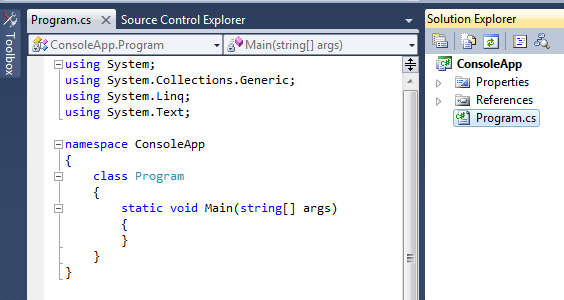
Once you create a web based application project, by default Web.Config file will be appear under solution Explorer.


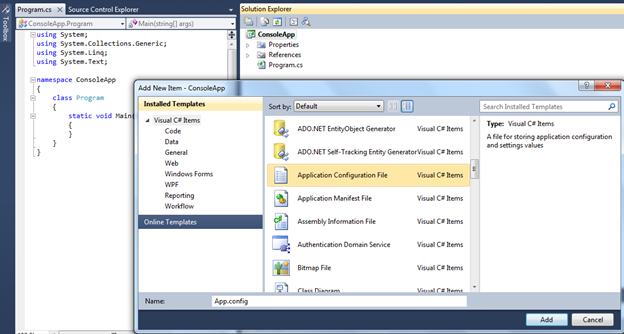
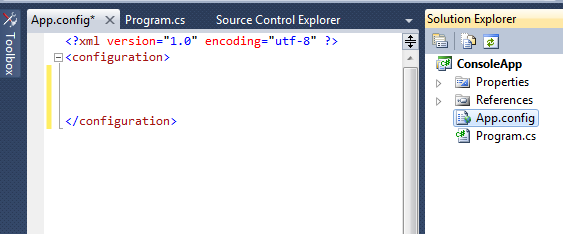
If you create Windows based or Console application, there won’t be any config file under solution explorer, so we need to create manually.


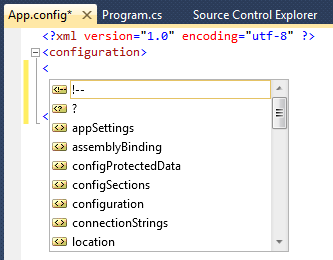
Always try to use the Visual Studio IntelliSense to add variables, because there can be many possibilities to make mistakes such as spelling mistakes and wrong key words.


First add the key word:


Then add user values into the relevant places.


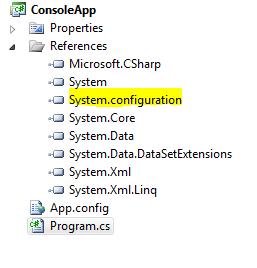
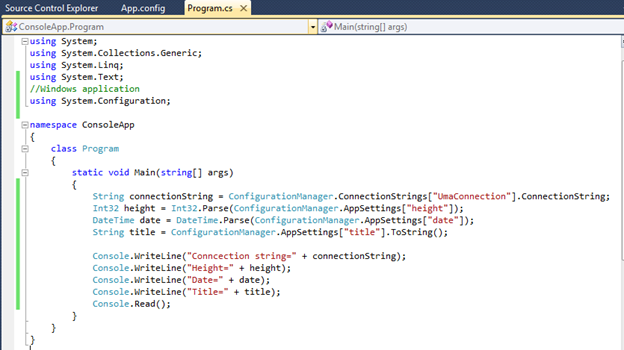
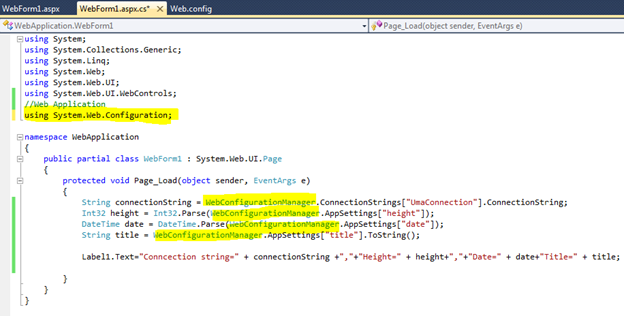
In the application, first need to add the System.Configuration object reference

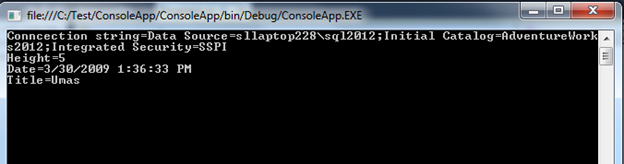
For windows form and console application:


For web based application:


Cheers!


Thursday, July 25, 2013

ADO.NET Retrieve data based on AutoPostBack Option


The following screen will be clearly explain the requirement, First Product category need to select, based on the Product Category, Product Sub Category have to filter under Product Sub Category combo box, based on the Sub Category selection, all the product should be filler and display under product. Then the based on the selected product details should be display.
Before the coding:

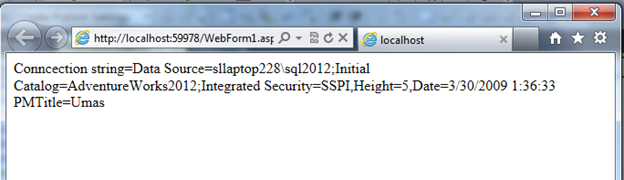
Final Output after the coding:
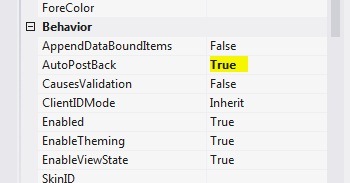
The following picture shows the AutoPostBack option for a combo box:
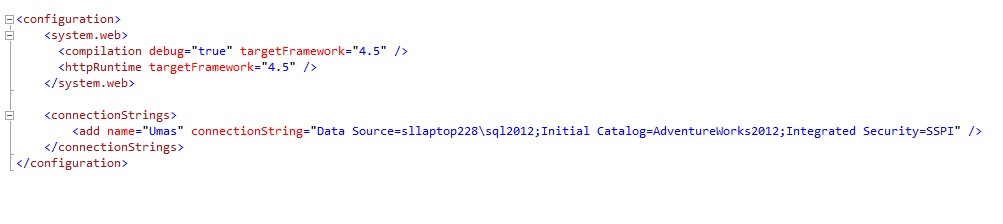
The following Image displays about the connection string in “config” file
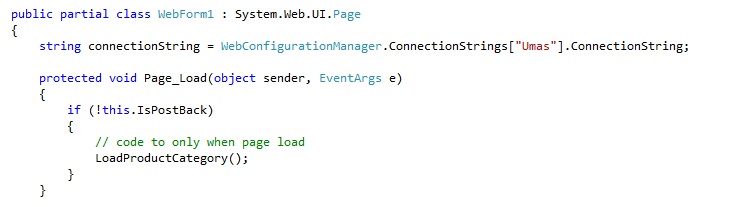
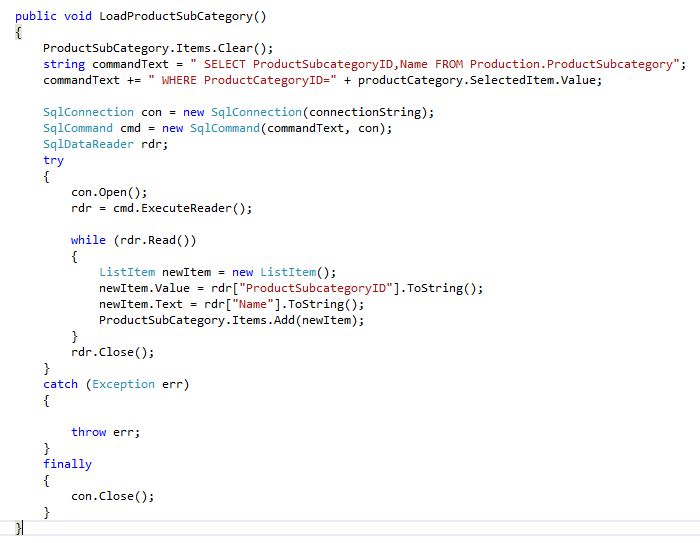
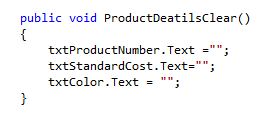
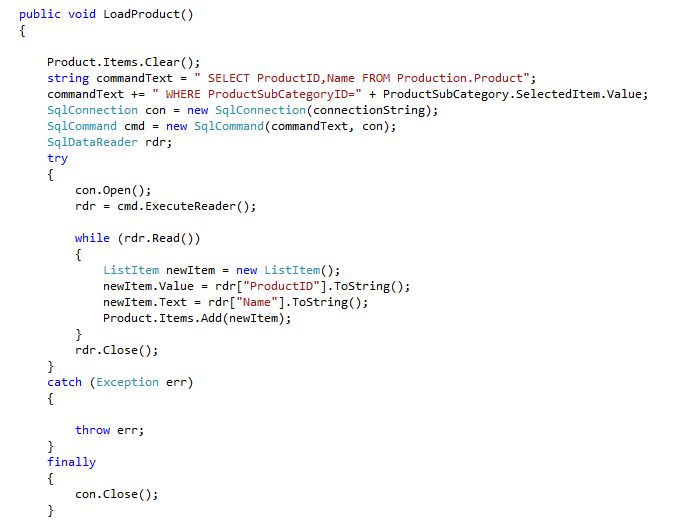
The C# code as following:


Wednesday, July 17, 2013

Data Provider Model – Introduction to ADO.NET


ADO.NET relies on the functionality in a small set of core classes. These can divide into two groups:
1. Contain and Manage Data (DataSet, DataTable, DataRow, DataRelation, and etc.) :
The data container classes are no matter what data source you use, after extract the data, it’s stored using the same data container: the specialized DataSet Classes.

2.Connect to the specific data source (Connection, Command, DataReader and ect.):
For this group of classes exists for in several flavors. Each set of data interaction classes is called ADO.NET data provider. Data providers are customized so that each one uses the best-performing way of interacting with its data source such SQL Server data provider is designed to work with SQL server and oracle Data Provider is design for Oracle database. Also each provider designates its own prefix naming classes such as SQL Server provider includes SqlConnection and SqlCommand classes and the oracle provider includes OracleConnection and OracleCommand classes.
ADO.NET Namespaces for SQL Server Data Access
Namespace
Purpose
System.Data.SqlClient
Contains the classes that use to connect to MS SQL Server database and Execute commands ( such as SqlConnection and SqlCommand)
System.Data.SqlType
Contains structures for SQL Server–specific data types such as SqlMoney andSqlDateTime. You can use these types to work with SQL Server data types without needing to convert them into the standard .NET equivalents (such as System.Decimal and  System.DateTime). These types aren’t required, but they do allow
you to avoid any potential rounding or conversion problems that could adverselyaffect data.
System.Data
Contains fundamental classes with the core ADO.NET functionality. These include DataSet andDataRelation, which allow us to manipulate structured relational data. These classes are totally independent of any specific type of database or the way you connect to it.
Simple data access steps
1. Create connection, Command, and Data Reader.
2. Use the Data Reader to retrieve the Data and use Web Controls to display the data
3. Close the connection


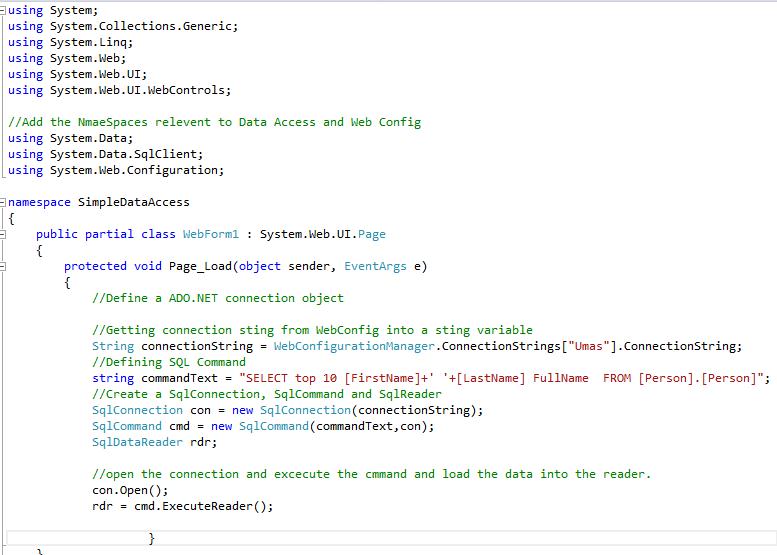
Here’s an example for Data Connection with SQL Server database.
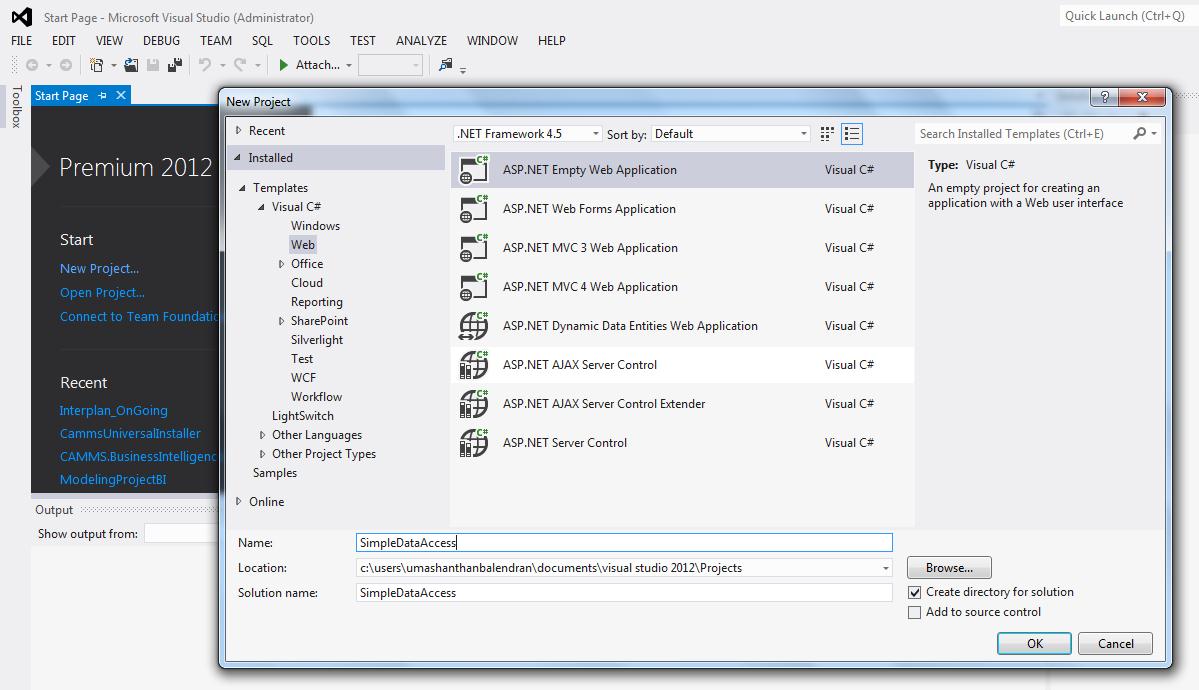
1.       Create the ASP.NET project
2.       Create a connection string in the WebConfig file.
3.       Add new item -WebForm
4.       Write the connection code (Double click the Form)
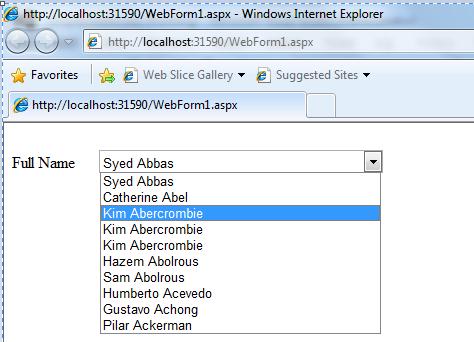
5.       Add web List web control and load the data in to it.
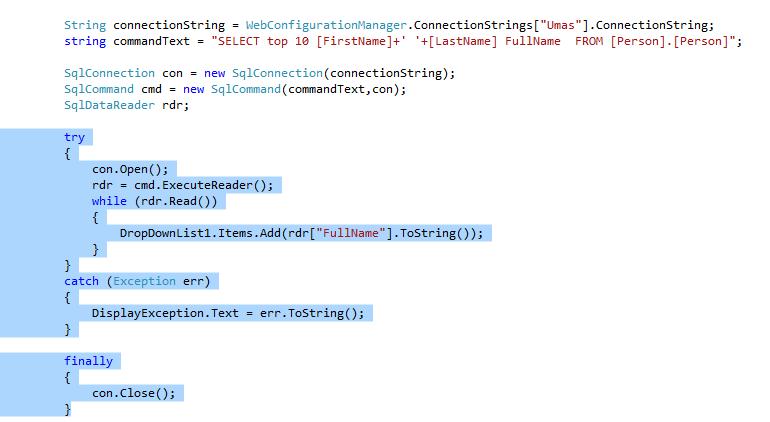
The following code will show how to handle Error Exception.
Put the Labelfor to display the error message:


I hope this would give some basic idea about the Data Provider Model and ADO.NET.

Cheers!