Retrieving XML data in SQL 2012
There are four main options to use at the end of the SELECT statement.
- Automatic tag creation
- RAW
- AUTO
- Full control options
- EXPLICIT
- PATH
The different between Auto tag creation and Full control option is in Automatic tag creation option automatically tags are creating with few control option, but in Full control option, it almost free to define the XML structure as you want. In case if you want to get customized tags in XML, better choose Full control option.
FOR XML RAW
Defaults
- Each row has a tag name of row
- No root element
- Columns become attributes
Options
- RAW (‘name’) to configure tag names
- ROOT(‘name’) to configure root element
- ELEMENTS to change from attributes to elements
Example:
Normal SQL Query
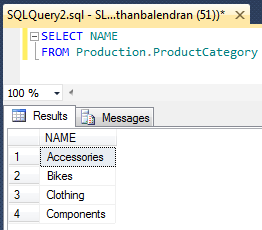
Making the output as XML
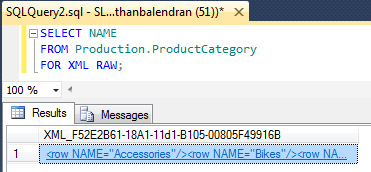
When you click on the XML output it will open in a window as shown below

Now, let the options one by one.
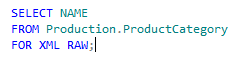 |
<row NAME="Accessories" />
<row NAME="Bikes" />
<row NAME="Clothing" />
<row NAME="Components" />
|
 |
<ProductCategory NAME="Accessories" />
<ProductCategory NAME="Bikes" />
<ProductCategory NAME="Clothing" />
<ProductCategory NAME="Components" />
|
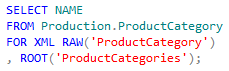 |
<ProductCategories>
<ProductCategory NAME="Accessories" />
<ProductCategory NAME="Bikes" />
<ProductCategory NAME="Clothing" />
<ProductCategory NAME="Components" />
</ProductCategories>
|
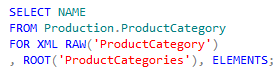 |
<ProductCategories>
<ProductCategory>
<NAME>Accessories</NAME>
</ProductCategory>
<ProductCategory>
<NAME>Bikes</NAME>
</ProductCategory>
<ProductCategory>
<NAME>Clothing</NAME>
</ProductCategory>
<ProductCategory>
<NAME>Components</NAME>
</ProductCategory>
</ProductCategories>
|
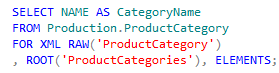 |
<ProductCategories>
<ProductCategory> <CategoryName>Accessories</CategoryName>
</ProductCategory>
<ProductCategory>
<CategoryName>Bikes</CategoryName>
</ProductCategory>
<ProductCategory>
<CategoryName>Clothing</CategoryName>
</ProductCategory>
<ProductCategory>
<CategoryName>Components</CategoryName>
</ProductCategory>
</ProductCategories>
|
Now let see what would happened, if we do JOINS. Joins are flattened in this case 2 options available for ELEMENTS.
- With ELEMENTS option : Each column is sibling element
- Without ELEMENTS option : Each column is an attribute in the element
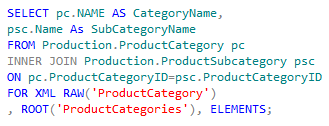 |
<ProductCategories>
<ProductCategory>
<CategoryName>Bikes</CategoryName>
<SubCategoryName>Mountain Bikes</SubCategoryName>
</ProductCategory>
<ProductCategory>
<CategoryName>Bikes</CategoryName>
<SubCategoryName>Road Bikes</SubCategoryName>
</ProductCategory>
<ProductCategory>
<CategoryName>Bikes</CategoryName>
<SubCategoryName>Touring Bikes</SubCategoryName>
</ProductCategory>
<ProductCategory>
<CategoryName>Components</CategoryName>
<SubCategoryName>Handlebars</SubCategoryName>
</ProductCategory>
<ProductCategory>
------
|
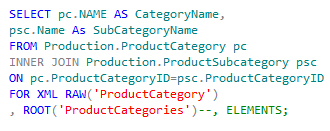 |
<ProductCategories>
<ProductCategory CategoryName="Bikes" SubCategoryName="Mountain Bikes" />
<ProductCategory CategoryName="Bikes" SubCategoryName="Road Bikes" />
<ProductCategory CategoryName="Bikes" SubCategoryName="Touring Bikes" />
<ProductCategory CategoryName="Components" SubCategoryName="Handlebars" />
<ProductCategory CategoryName="Components" SubCategoryName="Bottom Brackets" />
<ProductCategory CategoryName="Components" SubCategoryName="Brakes" />
<ProductCategory CategoryName="Components" SubCategoryName="Chains" />
------
|
FOR XML AUTO
This is very similar to FOR XML RAW.
Defaults
- Each row uses the table name as the tag name
- No root element
- Columns become attributes
Options
- Alias tables to configure tag name
- ROOT (‘name’) to configure root element
- ELEMENTS to change from attributes to elements
Main different is tag name matches the name of the table, if I want to change the row then you has to change the alias of columns name.
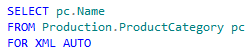 |
<pc Name="Accessories" />
<pc Name="Bikes" />
<pc Name="Clothing" />
<pc Name="Components" />
|
 |
<Category Name="Accessories" />
<Category Name="Bikes" />
<Category Name="Clothing" />
<Category Name="Components" />
|
 |
<Categories>
<Category>
<Name>Accessories</Name>
</Category>
<Category>
<Name>Bikes</Name>
</Category>
<Category>
<Name>Clothing</Name>
</Category>
<Category>
<Name>Components</Name>
</Category>
</Categories>
|
FOR XML AUTO and Joins
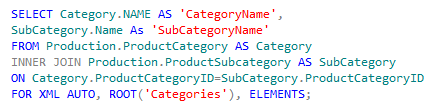
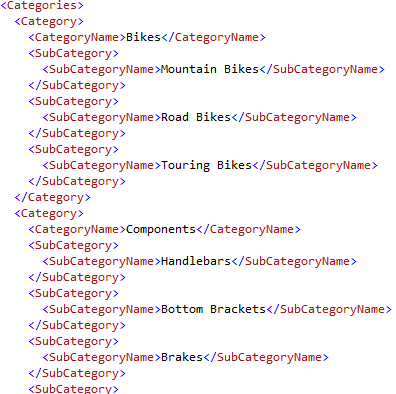
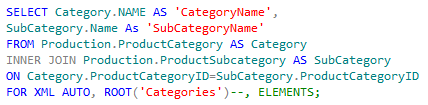
Joins create a hierarchy: column listed in SELECT becomes the parent
With ELEMENTS option: Every column in a hierarchy
Without ELEMENTS option: One element is created for each level, with column values in attributes
 |  |
 |  |
Controlling XML Creation
RAW and AUTO give two options
- All attributes
- All elements
Can mix and match
- EXPLICIT
- Complex syntax
- Not recommended
- PATH
- Simpler syntax
- Recommended***
Defaults
- Each row has a tag name of row
- No root elements
- Columns become elements
Options
- PATH(‘name’) to configure tag names
- ROOT(‘name’) to configure root element
Uses XPATH syntax
Identify desired name after each column SELECT
Special characters
- @ to create attributes
- / to separate hierarchy levels
 |
<row>
<Name>Accessories</Name>
</row>
<row>
<Name>Bikes</Name>
</row>
<row>
<Name>Clothing</Name>
</row>
<row>
<Name>Components</Name>
</row>
|
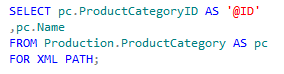 |
<row ID="4">
<Name>Accessories</Name>
</row>
<row ID="1">
<Name>Bikes</Name>
</row>
<row ID="3">
<Name>Clothing</Name>
</row>
<row ID="2">
<Name>Components</Name>
</row>
|
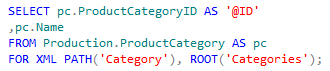 |
<Categories>
<Category ID="4">
<Name>Accessories</Name>
</Category>
<Category ID="1">
<Name>Bikes</Name>
</Category>
<Category ID="3">
<Name>Clothing</Name>
</Category>
<Category ID="2">
<Name>Components</Name>
</Category>
</Categories>
|