Thursday, October 24, 2013

Introduction to MDX with Example


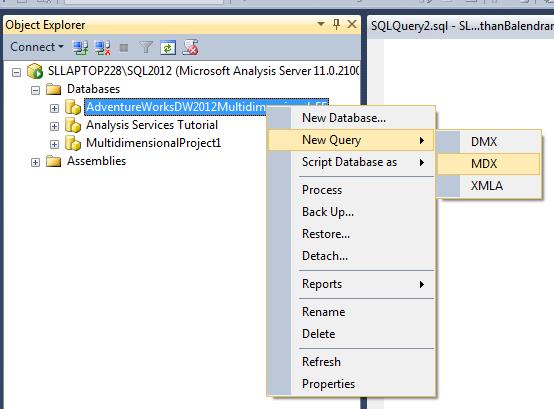
Connect to the SSAS server through the Management Studio. In Object Explorer, right click database folder and select New Query and MDX.

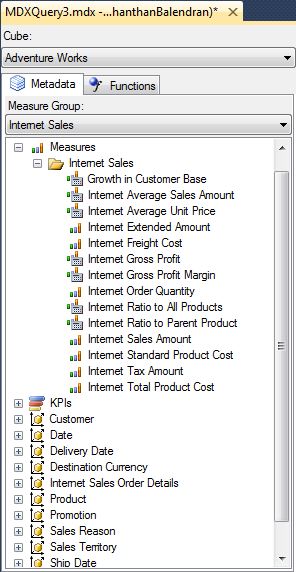
Select the Cube and you can see the structure of the cube. The structure of the cube will be shown below; this will contains all the measure groups, KPI and Dimensions. In here I have selected “Adventure Works” under cube and “Internet Sales” Measure Group under measure group, because this will filter the items that related to the Internet Sales.
In MDX at least minimum there should be at one axis, (COLUMNS / ROWS), instead of manually typing the name just drag and drop from the metadata pane.
Some basic queries are following:

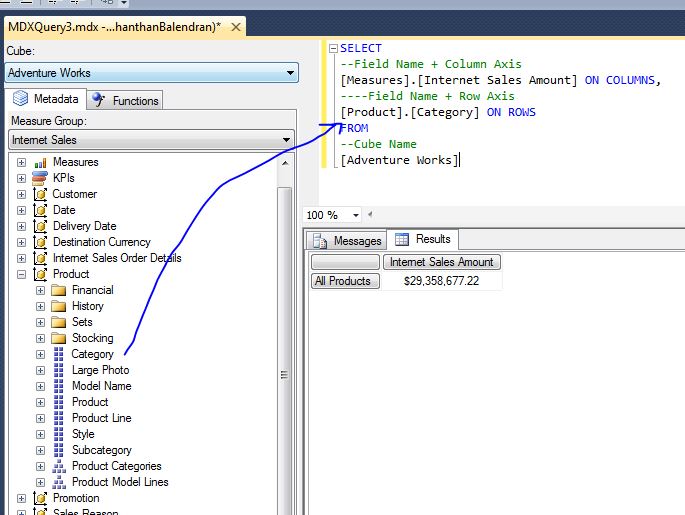
To get the total [Internet Sales Amount], this is without dimension.

To get the [Internet Sales Amount] based on Product Category, that means Product Category in Row axis (Output will display the Internet Sales Amount for the entire category).


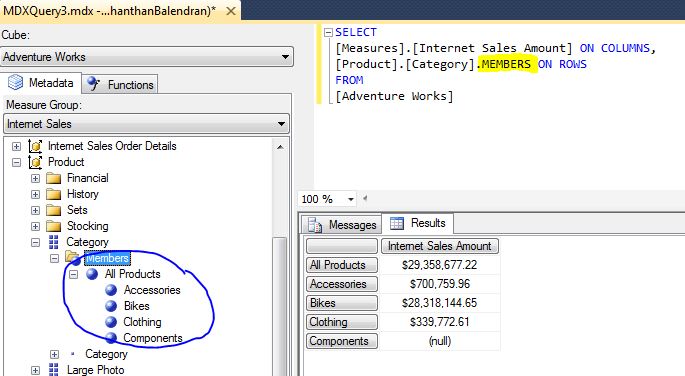
MEMBERS property will display the all the members of the Dimension or Hierarchy.


All it doesn’t matter row and column order, also can be shift the fields;


The terms Columns and Rows are simply aliases for the true names of the axes:
Axis(0) and Axis(1) respectively. Technically, an MDX query can have up to 128 axes, with aliases for the first five:
  1. Columns
  2. Rows
  3. Pages
  4. Sections
  5. Chapters


Although our query can have up to 128 axes, but SQL Server Management Studio can only render bi-dimensional results, the following image illustrate that, even our query is correct, error message is appearing.


NONEMPTY fiction returns the tuples that are non-empty (Unknown).


MEMBERS function can be used with measures dimension: return all the measures:
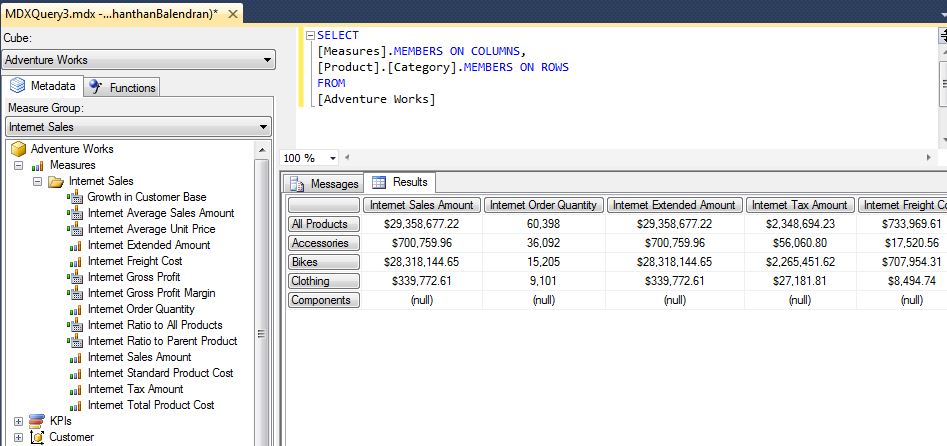


But the above query not display the calculated measures, to display the calculated measures add keyword ADDCALCULATED MEMBERS


We can use the ALLMEMBERS also.


Wednesday, October 23, 2013

Error while Deploying (Errors in the metadata manager) - SSAS Cube


Error   21        Errors in the metadata manager. The dimension with ID of 'Dim Date', Name of 'Dim Date' referenced by the 'DFSX DW' cube, does not exist. Errors in the metadata manager. An error occurred when loading the DFSX DW cube, from the file, '\\?\C:\Program Files\Microsoft SQL Server\MSAS10_50.SQL2008\OLAP\Data\Analysis Services Project2.0.db\DFSX DW.10.cub.xml'.      


To resolve this issue


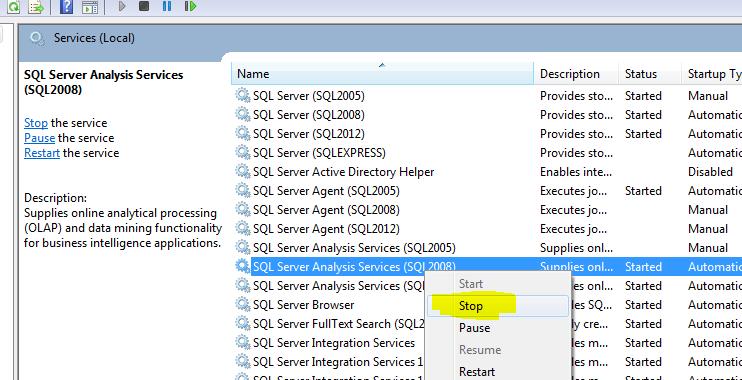
1. Stop the SSAS service.


2.       Go to the particular location that shown in the error message: something like this,
C:\Program Files\Microsoft SQL Server\MSAS10_50.SQL2008\OLAP\Data
Delete the particular folder and the file (DFSX.0.db folder and the DFSX DW.10.cub.xml file)


3.       Start the SSAS service again, then redeploy. This will make deployment success.


Cheers!


SSRS – Cannot insert multi-value item into a detail cell


In SSRS List we cannot insert multi-value item like Graph inside the details: If we try to drag and drop the list it will through the error message as below:


This is because, in this List only has Details (row by row), so Graphs can’t show the value, but Gauge can use because it use only one value for indication. For this, we have add the group inside the details as below:

The data-set that I used here is:


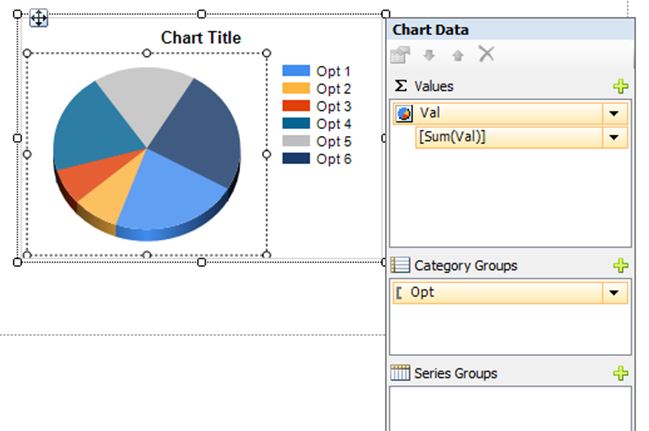
To show the graph in the meaningful way (Opt Vs Val) I need to add the 2 groups that are SectionName and Question, inside the “Details”.


Once we add the group then we can insert the Graph inside the List:
Also can be insert the TextBoxes to display the Group details as below:

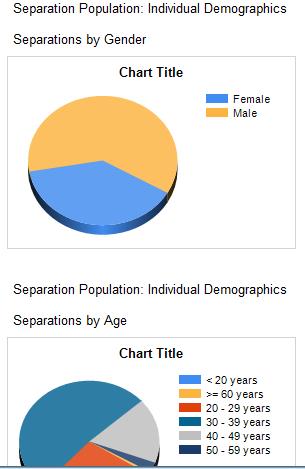
The final report will be display as below:


Cheers!


Monday, October 21, 2013

Use Text file for Email Attachment in SSIS


In this scenario, Email will be send to the relevant Manger regarding their vacant position and the Action and KPIs which relevant to that position. From this email, manager can immediately assign the work to someone else.
SEND EMAIL FOR VACANT POSITION for each loop will iterate for each and every position.


Create the variable for File path and for the Containing relevant information which need to send as attachment.


Assign the variables in the script task and write the code for writing the information.


(VB.Net code)
Make sure False as 2nd parameter for StreamWrite to overwrite the file.
And set the expression as below in the Send Email task.


Cheers!


Wednesday, October 16, 2013

Create Linked Server in SQL Server for DB2 using IBM Informix ODBC Driver

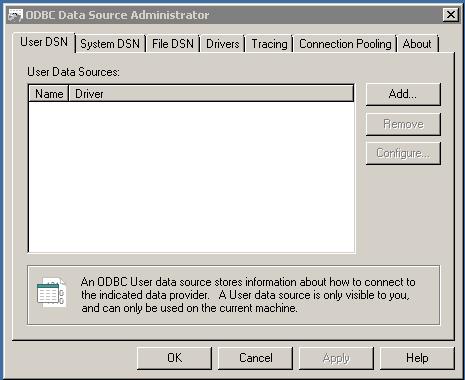
Open the ODBC Data Source Administrator:
The Microsoft® ODBC Data Source Administrator manages database drivers and data sources. This application is located in the Windows Control Panel under Administrative Tools. Beginning in Windows 8, the icon is named ODBC Data Sources, and on 64-bit operating systems there is a 32-bit and 64-bit version.
Or can use the Run command: odbcad32

This will prompt the window as shown below:

Under the System DSN, can create any number of Data source, the below image shows three data source for DB2.


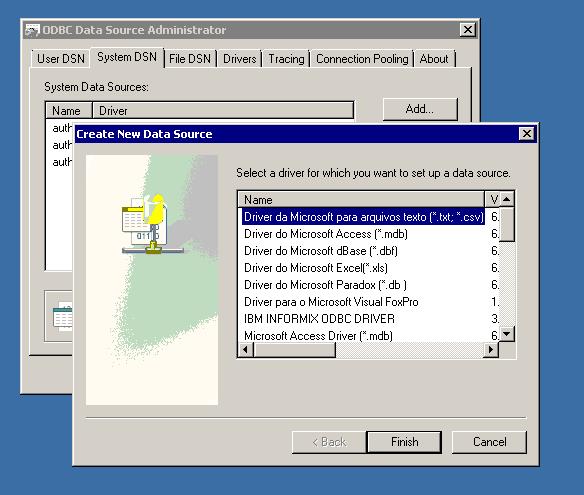
To create the new Data source, click the Add button, this will prompt other windows as shown below:
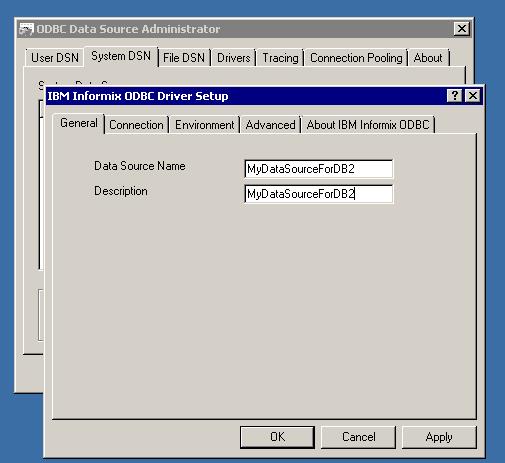
Select the IBM INFROMIX ODBC Driver and press Finish Button: Type the Data Source Name and description.
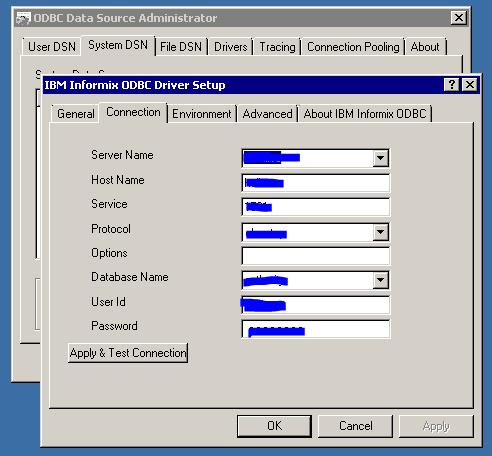
Then fill the connection details: Make sure access permission available for the perticular User ID, can be test the connection also
Leave other tabs details as default and Click ok this will create Data source.
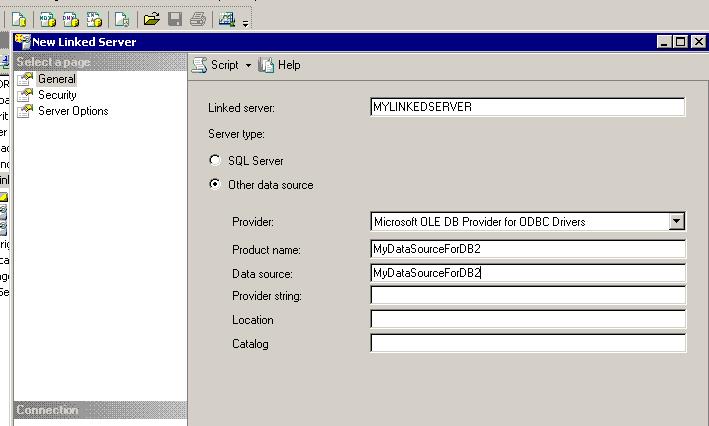
To create the Linked Server: With Admin permission open the SQL Server and create new linked server, make sure you have using the same User Id which you used for ODBC Data Source.
Type the Name of the linked server and then select the “Ole DB Provider for ODBC Drivers”.
And then Type the name of the Product Name and the Data Source (Same as Data source created under SystemDNS) as below

Under security change the "Be made using the login's current security context". It will create linked server for you.


Cheers!

Thursday, August 22, 2013

SQL SERVER 2012 SSIS SSIS 2012 - Package Configurations Menu Option Missing

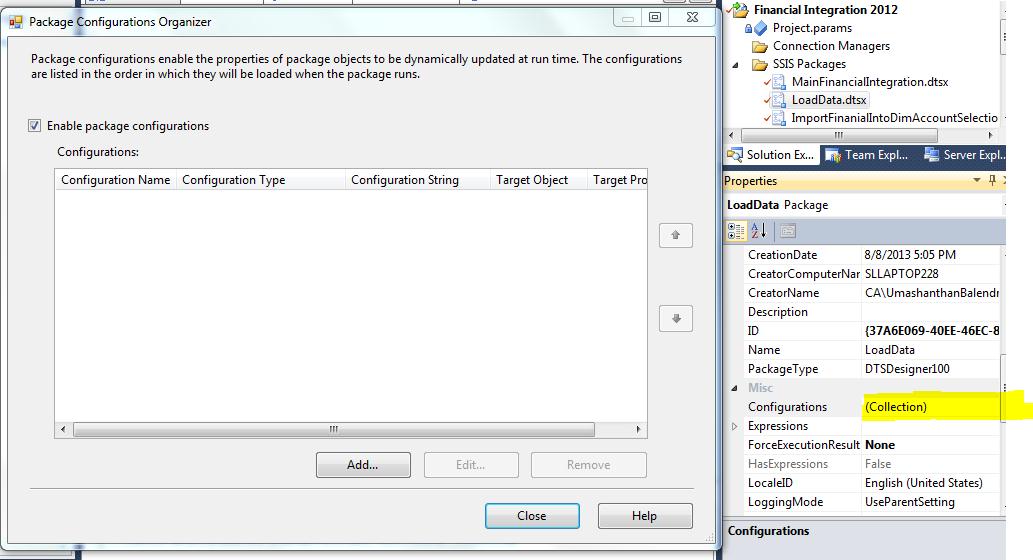
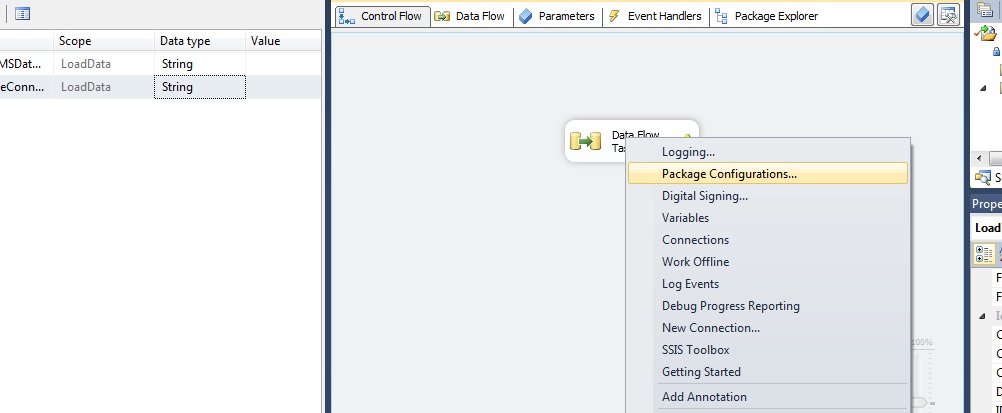
Recently, I have come across the issue that the package configuration option menu was missing when I right click the control flow. The reason is that there is a change in the SQL Server 2012 environment, when you want use the Package Configuration Menu first time by clicking the ellipsis button next to the Configuration property. The Configuration property appears in the properties window for the package. After you configured the first variable that it will be appearing for right click.


The following image shows while right click before configuring any variable.


The following image show ellipsis button next to the Configuration property.


The following image shows that after configuring the first variable


Wednesday, August 7, 2013

Publishing data only using SSMS

You might come across the problem while generate the script using Data only option in SQL Server 2008 R2 – SSMS.


The Error message appears normally as follow:
Microsoft.SqlServer.Management.SqlScriptingEngine.CyclicalForeignKeyException: The selected database contains foreign keys that create a cycle. Publishing data only is not supported for databases with cyclical foreign key relationships. at Microsoft.SqlServer.Management.SqlScriptPublish.GeneratePublishPage.worker_DoWork(Object sender, DoWorkEventArgs e) at System.ComponentModel.BackgroundWorker.OnDoWork(DoWorkEventArgs e) at System.ComponentModel.BackgroundWorker.WorkerThreadStart(Object argument)


Solution: Use the SQL SERVER 2012 –SSMS.


Cheers!