Showing posts with label MDX. Show all posts

Thursday, December 5, 2013

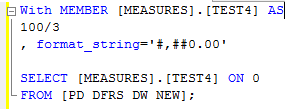
How to round a MDX value

In most of the case, you may want to perform a round operation. The one of the following ways can use for this.


Cheers!


Tuesday, December 3, 2013

MDX query to retrieve Dimension member properties (Unique_Name and MEMBER_KEY)

Analysis Services exposes intrinsic properties on dimension members that you can include in a query to return additional data or metadata for use in a custom application, or to assist in model investigations or construction. In here I am going to explain how to retrieve the properties through the SQL Server Management Studio (SSMS) and MDX.

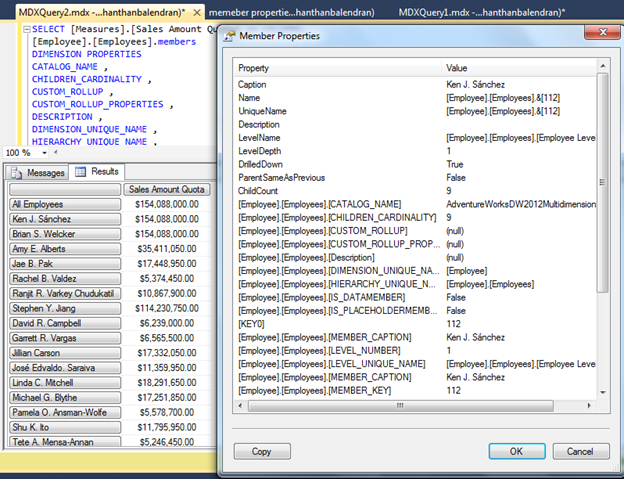
In below simple MDX query retrieve all the members of Employee Hierarchy, when double click on any the member, Member Properties window will pop up. In this window some of the member properties will be display as shown below.


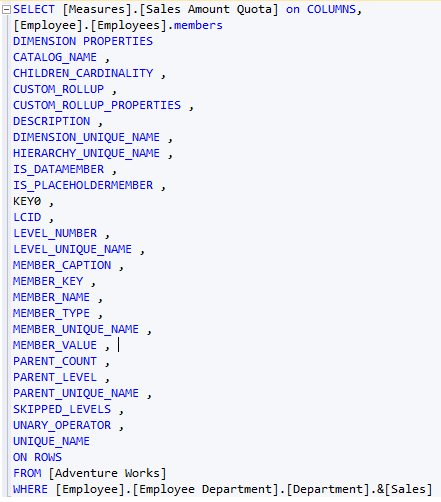
If we want to retire all the member properties, properties need to include in the MDX query.


To get through the MDX query, the following query format can be used.


Cheers!

Friday, November 8, 2013

MDX for KPI

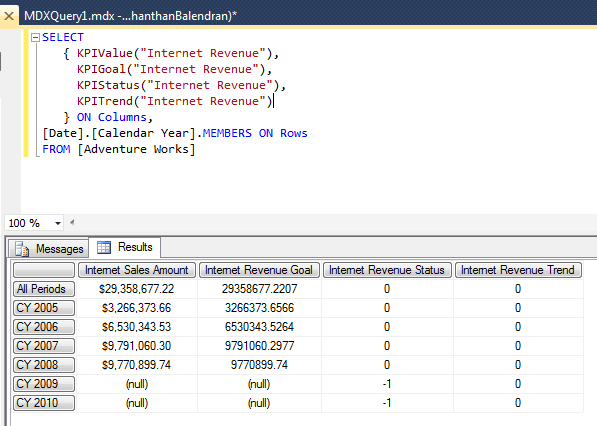
Returns the member that calculates the value of the specified Key Performance Indicator (KPI)


Common syntax : KPIValue(KPI_Name)


Example 1: Here “Internet Revenue” is a KPI name.


Example 2: 


Cheers!

Thursday, November 7, 2013

Basic MDX Queries

The general syntax for an MDX query is as follows:


As my mention in my previous post, the terms Columns and Rows are simply aliases for the true names of the axes: Axis(0) and Axis(1) respectively. Technically, an MDX query can have up to 128 axes, with aliases for the first five:
1.                   Columns
2.                   Rows
3.                   Pages
4.                   Sections
5.                   Chapters


The following all three queries are same:

SELECT
Measures.[Internet Sales Amount] ON COLUMNS,
[Customer].[Country].MEMBERS ON ROWS,
[Product].[Product Line].MEMBERS ON PAGES
FROM [Adventure Works]


SELECT
Measures.[Internet Sales Amount] ON 0,
[Customer].[Country].MEMBERS ON 1,
[Product].[Product Line].MEMBERS ON 2
FROM [Adventure Works]


SELECT
Measures.[Internet Sales Amount] ON AXIS(0),
[Customer].[Country].MEMBERS ON AXIS(1),
[Product].[Product Line].MEMBERS ON AXIS(2)
FROM [Adventure Works]


Note: In MDX always lower axes is must, without COLUMNS can’t have ROWS or PAGES.


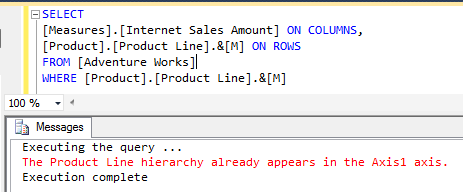
Run the below query, you will find the error: 


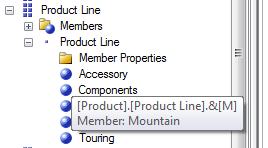
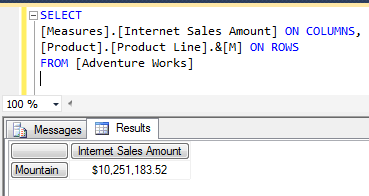
Here [M] is mentioning [Mountain]
The above query is return error, because we can use the same dimension in ROWS axis, so we can filter there.
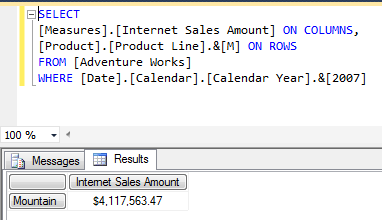
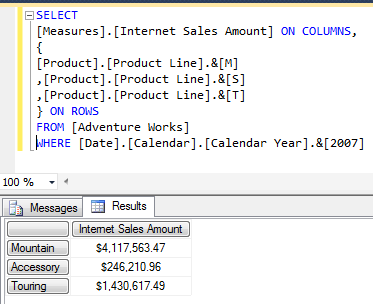
For slicing, we can use other dimensions. For example if you want to filter for year 2007 sales amount.

The WITH Clause and Calculated Members


The MDX with clause provides you with the ability to create calculations and use them within the context of the query. In addition, you can also retrieve data from outside the context of the current cube using LookupCube MDX function.
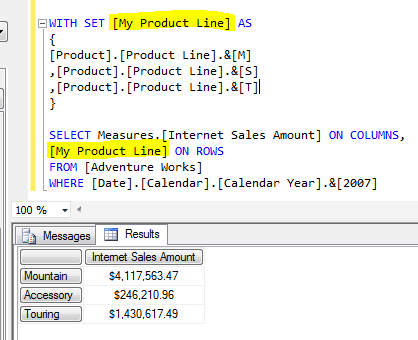
Named Sets


This query is not too lengthy, but you can imagine a query that would contain a lot of members and functions being applied to this specific set several times within the query. Instead of specifying the complete set every time it ’ s used in the query, you can create a named set and then use it in the query as follows:

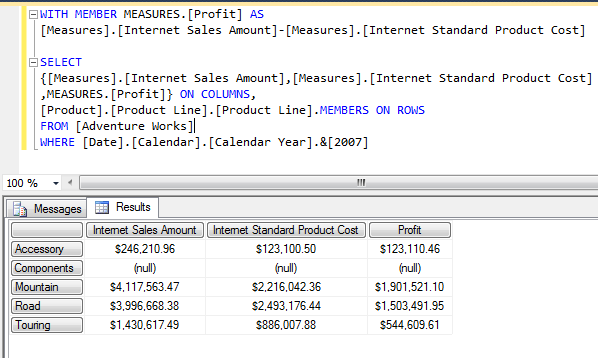
Calculated Members


Calculated members are calculations specified by MDX expressions. They are resolved as a result of MDX expression evaluation rather than just by the retrieval of the original fact data.


One other example: Ordering inside the name set


Cheers!
MDX basic concepts and syntax

In cube unique name for a member is dependent upon the dimension properties such as MemberUniqueNameStyle and HierarchyUniqueNameStyle. The algorithm is determining the unique name of members.


We can access members of a dimension using the name path (using name of the member) or the key path (using the key of the member).


We can access a member in a dimension with its dimension name, hierarchy name, and level name.


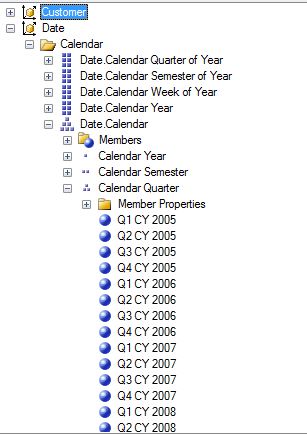
For example, member Q1 CY 2004 in the Calendar hierarchy is represented as:
[Date].[Calendar].[Calendar Quarter].[Q1 CY 2004]


The following three representations are also valid:
  • Hierarchy.Memeber name can be used whereas there are no two members with the same name. If Quarter name is called Q1 we can’t use this, because every year this Q1 repeats, so we should use level name.
                [Date].[Calendar].[Q1 CY 2004]


  • This is using all the members in the path.
            [Date].[Calendar].[CY 2004].[H1 CY 2004].[Q1 CY 2004]

  • Uses the key path.
            [Date].[Calendar].[Calendar Quarter].&[2004]&[1]

The keys of the members in a path represented as &[membername]. When we use the key path, the members are always preceded with the ampersand (&) symbol.
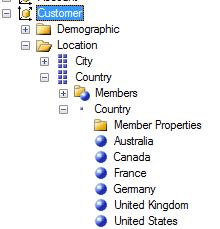
Ex: To access Canada member
[Customer].[Country].&[Canada]


Tuples: A tuple uniquely identifies a cell or a section of cube. A tuple is represented by one member from each dimension, separated by a comma, and is enclosed within parenthesis ().

For Example: Where Country=Australia AND Product=Mountain AND Period= Q1 CY 2004
([Date].[Calendar].[2004].[H1 CY 2004].[Q1 CY 2004], [Product].[Product Line].[Mountain],[Customer].[Country].[Australia])


A collection of tuples forms a new object called a set.


Set: An MDX set is a collection of tuples that are defined using the exact same set of dimensions, both in type and member. A set is specified within curly brace character ({ })
Ex: {(customer.Country.Australia),(Customer.Country.Canada)}

Monday, November 4, 2013

A quick way to write complex MDX query

This post is about how to write Complex MDX queries without any pain. Learning and comprehending how to write MDX queries may need long time experience. The simple solution for this is just use SSRS Query wizard to create MDX queries.


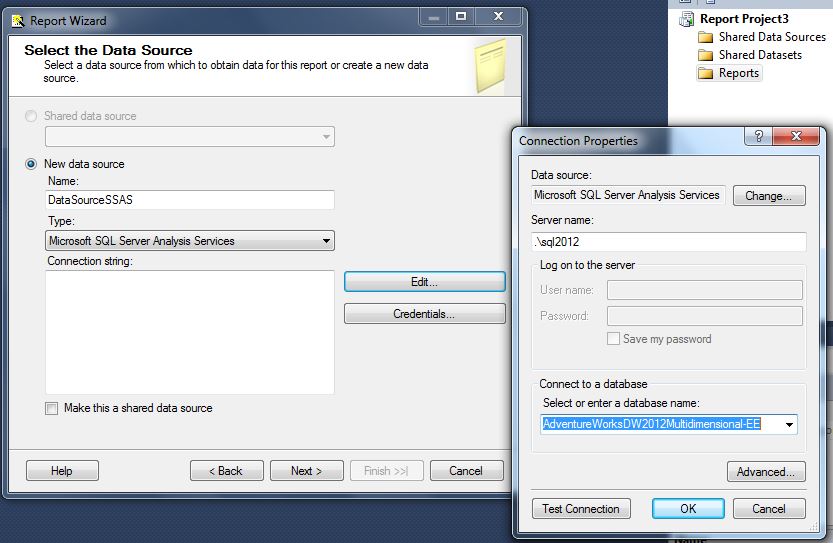
Step 1: Start new report wizard and connect to relevant SSAS cube


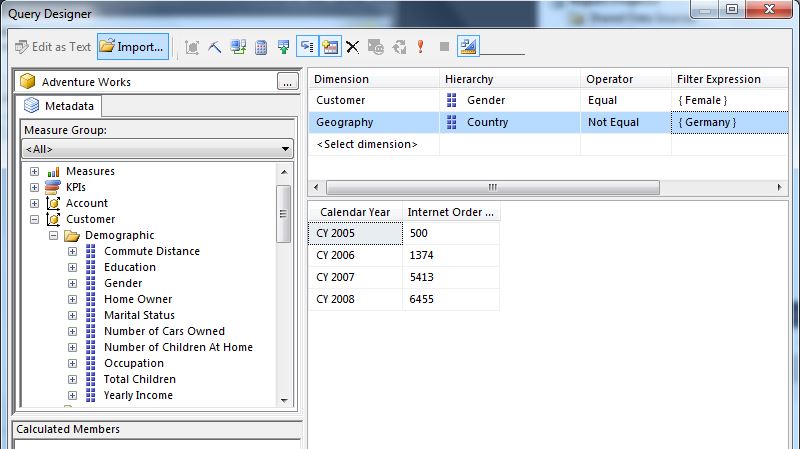
Step 2: Click query builder and Drag the measures and dimensions as required to achieve your required output.


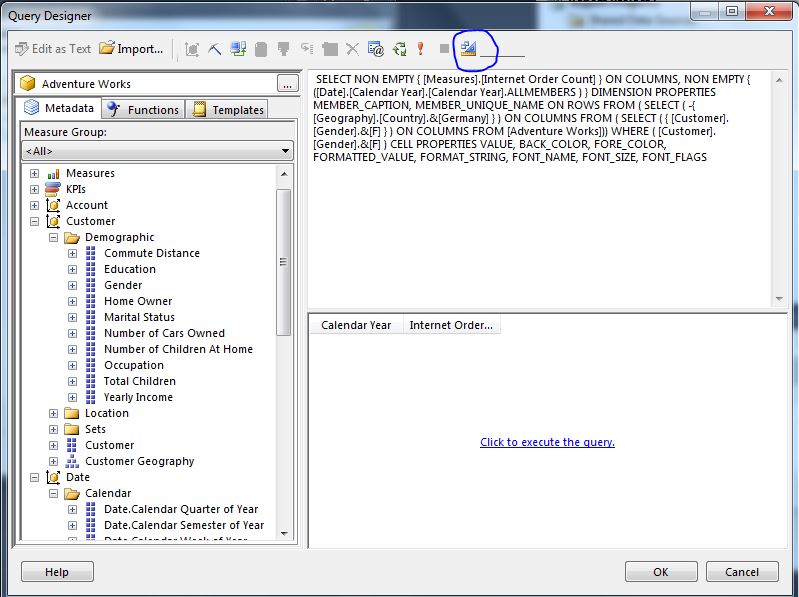
Step 3: once you finish your task, click on “Design Mode” button, this will give the MDX query, also you can format it and then copy and paste wherever you want.


Cheers!


Thursday, October 24, 2013

Introduction to MDX with Example


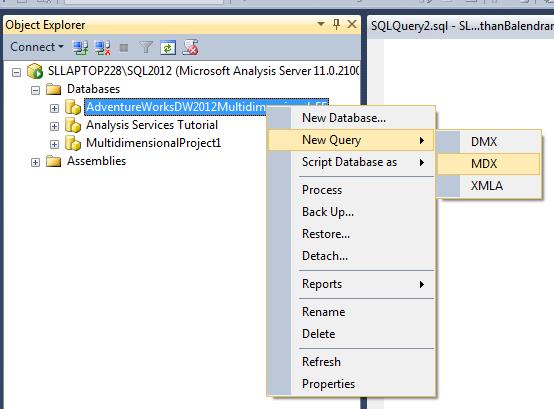
Connect to the SSAS server through the Management Studio. In Object Explorer, right click database folder and select New Query and MDX.


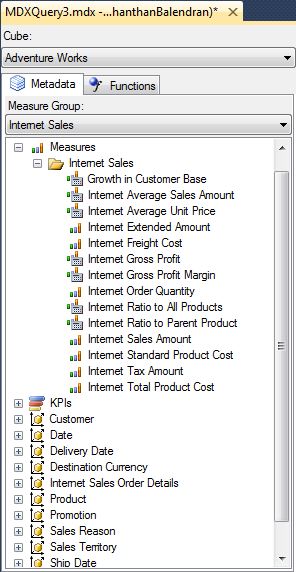
Select the Cube and you can see the structure of the cube. The structure of the cube will be shown below; this will contains all the measure groups, KPI and Dimensions. In here I have selected “Adventure Works” under cube and “Internet Sales” Measure Group under measure group, because this will filter the items that related to the Internet Sales.
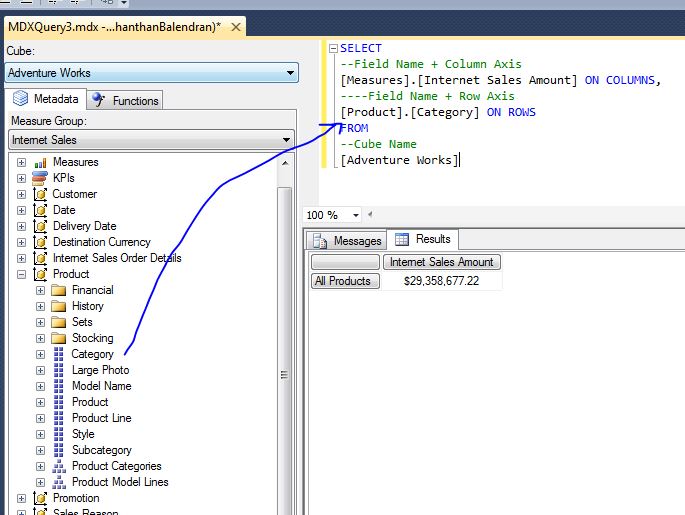
In MDX at least minimum there should be at one axis, (COLUMNS / ROWS), instead of manually typing the name just drag and drop from the metadata pane.
Some basic queries are following:


To get the total [Internet Sales Amount], this is without dimension.

To get the [Internet Sales Amount] based on Product Category, that means Product Category in Row axis (Output will display the Internet Sales Amount for the entire category).


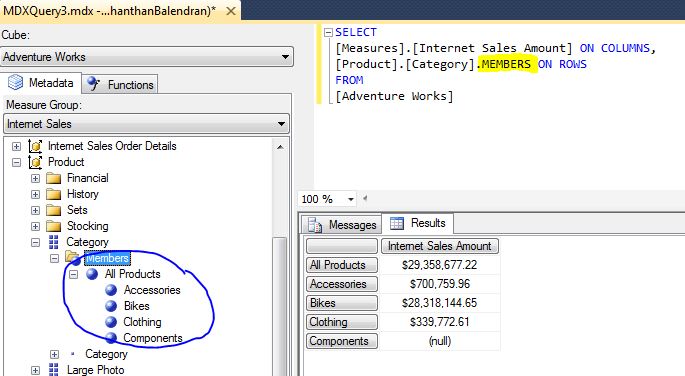
MEMBERS property will display the all the members of the Dimension or Hierarchy.


All it doesn’t matter row and column order, also can be shift the fields;


The terms Columns and Rows are simply aliases for the true names of the axes:
Axis(0) and Axis(1) respectively. Technically, an MDX query can have up to 128 axes, with aliases for the first five:
  1. Columns
  2. Rows
  3. Pages
  4. Sections
  5. Chapters


Although our query can have up to 128 axes, but SQL Server Management Studio can only render bi-dimensional results, the following image illustrate that, even our query is correct, error message is appearing.


NONEMPTY fiction returns the tuples that are non-empty (Unknown).


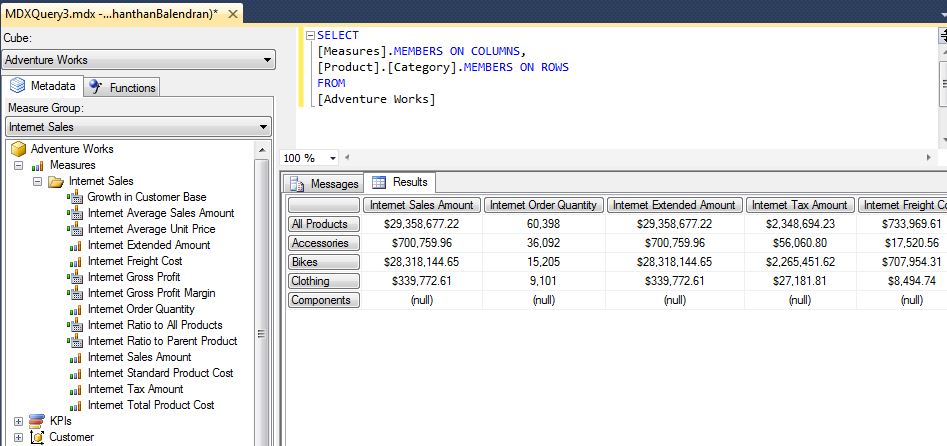
MEMBERS function can be used with measures dimension: return all the measures:


But the above query not display the calculated measures, to display the calculated measures add keyword ADDCALCULATED MEMBERS


We can use the ALLMEMBERS also.