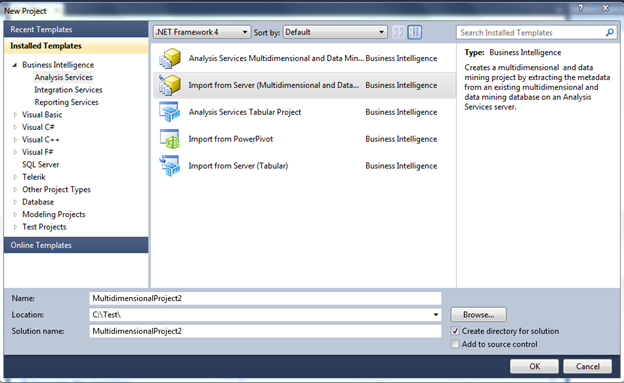
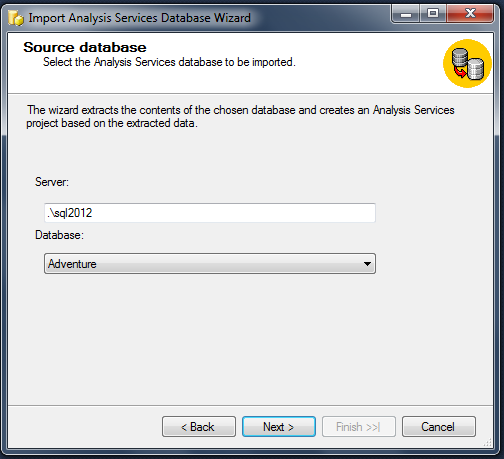
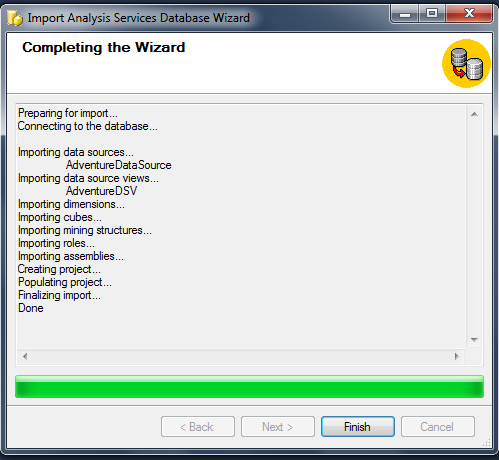
This blog is all about Build, Deploy and Process of SSAS cube.
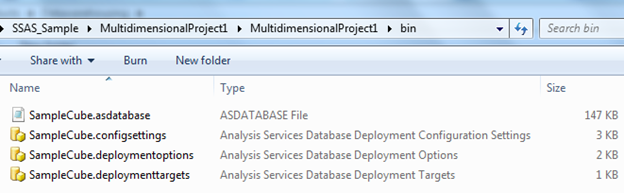
Firstly, when we build the cube, the build process will create four XML files inside the bin folder. As the names hint at, the asdatabase file is the main object definition file and the three other files contain configuration and deployment metadata.
Secondly, the deployment process will attach the above files to running Server Analysis Service. This deployment can be done by many ways, but more appropriate option for production deployment is deploy by Deployment Wizard Tool, because this tool will allow doing many configuration settings.
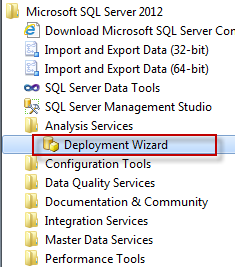
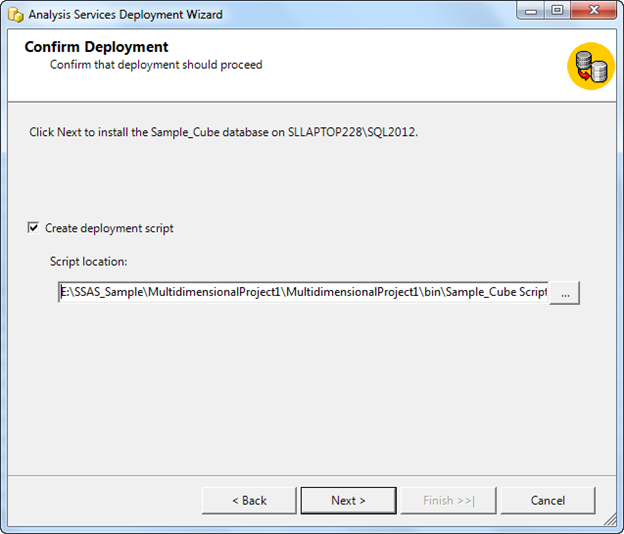
The following screenshots show the steps of deployment via Deployment Wizard Tool.
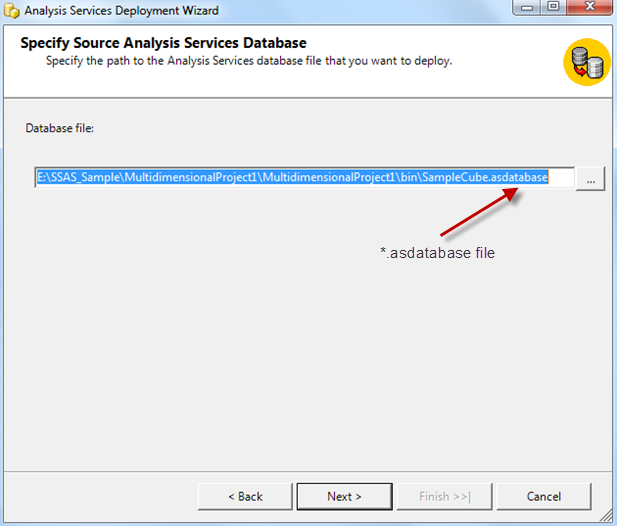


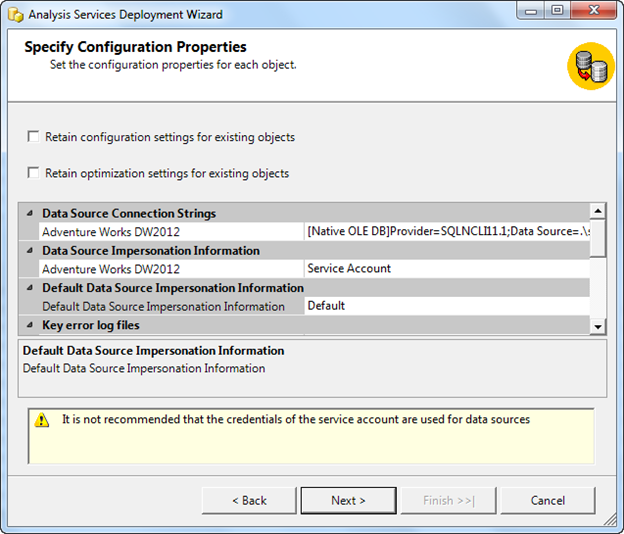
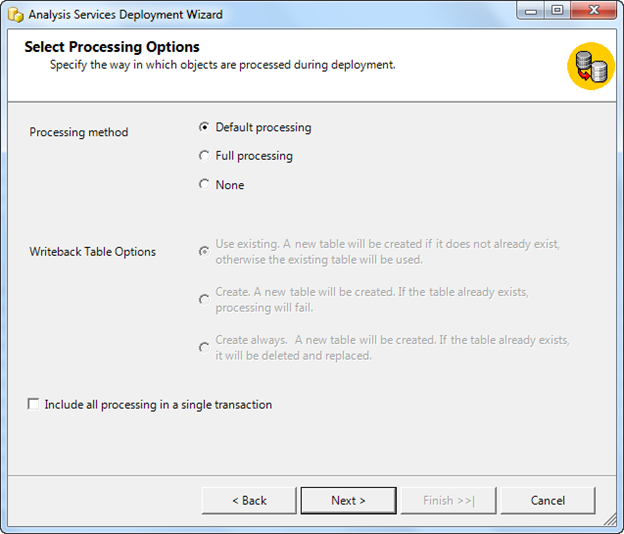
If necessary we can create script as well. This will create XMLA file, which contains all the configurations and related data. The
XMLA is stand for “XML for Analysis” open standard supports data access to data
source that reside on the World Wide Web. Microsoft SQL Server Analysis
Services implements XMLA per the XMLA 1.1 specification. XMLA is a Simple
Object Access protocol (SOAP) – based XML protocol, designed for universal data
access to any standard multidimensional data source residing on the web.
Finally, the Processing is the step, or series of steps, in which Analysis Service loads data from a relational data source into a multidimensional model. For objects that use MOLAP storage, data is saved on disk in the database file folder. For ROLAP storage, processing occur on demand, in response to MDX query on an object. For object that uses ROLAP storage, processing refers to updating the cache before returning query results.
Processing Objects: Processing affects the following Analysis Service objects: measure groups, partitions, dimensions, cubes, mining models, mining structure, and databases. When an object contains one or more objects, processing the highest-level object causes a cascade of processing all the lower-level objects. For example, a cube typically contains measure groups (each of which contains one or more partitions) and dimensions. Processing a cube causes processing of all the measure groups within the cube and the constituent dimensions that are currently in an unprocessed state.
While the processing job is working, the affected Analysis Service Objects can be accessed for querying. The processing job works inside a transaction and the transaction can be committed, or rolled back. If the processing job fails, the transaction is rolled back. If the processing job succeeds, an exclusive lock is put on the object when changes are being committed, which means the object is temporarily unavailable for querying or processing. During the committed phase of the transaction, queries can still be sent to the object, but they will be queued until the commit is completed.
Processing stage can be check using the object properties, the below image show the Cube processing stage.

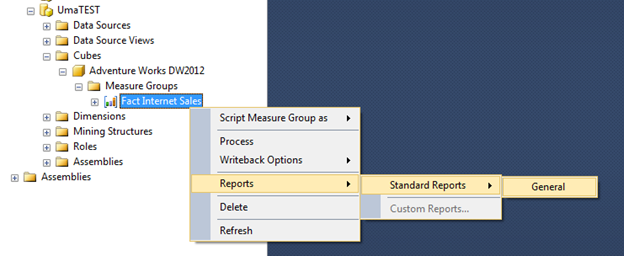
Likewise we can check object wise processing stage. For some object if properties option is not available, then we can use the report for this.

When you process objects in Analysis Services, you can select a processing option, or you can enable Analysis Services to determine the appropriate type of processing. The processing methods made available differ from one object to another, and are based on the type of object. Additionally, the methods are based on what changes have occurred to the object since it was last processed. If you enable Analysis Service to automatically select a process method (Default), it will use the method that returns the object to a fully processed stage in the least time.
Processing Mode: The following table describes the processing methods that are available in Analysis Services, and identifies the objects for which each method is supported.
Mode
|
Applies to
|
Description
|
Process Default
|
Cubes, databases, dimensions, measure groups, mining models, mining structures, and partitions.
|
Detects the process state of database objects, and performs processing necessary to deliver unprocessed or partially processed objects to a fully processed state. If you change a data binding, Process Default will do a Process Full on the affected object.
|
Process Full
|
Cubes, databases, dimensions, measure groups, mining models, mining structures, and partitions.
|
Processes an Analysis Services object and all the objects that it contains. When Process Full is executed against an object that has already been processed, Analysis Services drops all data in the object, and then processes the object. This kind of processing is required when a structural change has been made to an object, for example, when an attribute hierarchy is added, deleted, or renamed.
|
Process Clear
|
Cubes, databases, dimensions, measure groups, mining models, mining structures, and partitions.
|
Drops the data in the object specified and any lower-level constituent objects. After the data is dropped, it is not reloaded.
|
Process Data
|
Dimensions, cubes, measure groups, and partitions.
|
Processes data only without building aggregations or indexes. If there is data is in the partitions, it will be dropped before re-populating the partition with source data.
|
Process Add
|
Dimensions, measure groups, and partitions
|
For dimensions, adds new members and updates dimension attribute captions and descriptions.
For measure groups and partitions, adds newly available fact data and process only to the relevant partitions.
|
Process Update
|
Dimensions
|
Forces a re-read of data and an update of dimension attributes. Flexible aggregations and indexes on related partitions will be dropped.
|
Process Index
|
Cubes, dimensions, measure groups, and partitions
|
Creates or rebuilds indexes and aggregations for all processed partitions. For unprocessed objects, this option generates an error.
Processing with this option is needed if you turn off Lazy Processing.
|
Process Structure
|
Cubes and mining structures
|
If the cube is unprocessed, Analysis Services will process, if it is necessary, all the cube's dimensions. After that, Analysis Services will create only cube definitions. If this option is applied to a mining structure, it populates the mining structure with source data. The difference between this option and the Process Full option is that this option does not iterate the processing down to the mining models themselves.
|
Process Clear Structure
|
Mining structures
|
Removes all training data from a mining structure.
|
Source: http://msdn.microsoft.com/
Processing Settings : The following table describes the processing settings that are available for use when you create a process operation.
Processing Option
|
Description
|
Parallel
|
Used for batch processing. This setting causes Analysis Services to fork off processing tasks to run in parallel inside a single transaction. If there is a failure, the result is a roll-back of all changes. You can set the maximum number of parallel tasks explicitly, or let the server decide the optimal distribution. The Parallel option is useful for speeding up processing.
|
Sequential (Transaction Mode)
|
Controls the execution behavior of the processing job. Two options are available:
· One Transaction. The processing job runs as a transaction. If all processes inside the processing job succeed, all changes by the processing job are committed. If one process fails, all changes by the processing job are rolled back. One Transaction is the default value.
· Separate Transactions. Each process in the processing job runs as a stand-alone job. If one process fails, only that process is rolled back and the processing job continues. Each job commits all process changes at the end of the job.
When you process using One Transaction, all changes are committed after the processing job succeeds. This means that all Analysis Services objects affected by a particular processing job remain available for queries until the commit process. This makes the objects temporarily unavailable. Using Separate Transactionscauses all objects that are affected by a process in processing job to be taken unavailable for queries as soon as that process succeeds.
|
Writeback Table Option
|
Controls how writeback tables are handled during processing. This option applies to writeback partitions in a cube, and uses the following options:
· Use Existing. Uses the existing writeback table. This is default value.
· Create. Creates a new writeback table and causes the process to fail if one already exists.
· Create Always. Creates a new writeback table even if one already exists. An existing table is deleted and replaced.
|
Process Affected Objects
|
Controls the object scope of the processing job. An affected object is defined by object dependency. For example, partitions are dependent on the dimensions that determine aggregation, but dimensions are not dependent on partitions. You can use the following options:
· False. The job processes the objects explicitly named in the job and all dependent objects. For example, if the processing job contains only dimensions, Analysis Services processes just those objects explicitly identified in the job. If the processing job contains partitions, partition processing automatically invokes processing of affected dimensions. False is the default setting.
· True. The job processes the objects explicitly named in the job, all dependent objects, and all objects affected by the objects being processed without changing the state of the affected objects. For example, if the processing job contains only dimensions, Analysis Services also processes all partitions affected by the dimension processing for partitions that are currently in a processed state. Affected partitions that are currently in an unprocessed state are not processed. However, because partitions are dependent on dimensions, if the processing job contains only partitions, partition processing automatically invokes processing of affected dimensions, even when the dimension is currently in an unprocessed state.
|
Dimension Key Errors
|
Determines the action taken by Analysis Services when errors occur during processing. When you select Use custom error configuration, you can select values for the following actions to control error-handling behavior:
· Key error action. If a key value does not yet exist in a record, one of these actions is selected to occur:
o Convert to unknown. The key is interpreted as an unknown member. This is the default setting.
o Discard record. The record is discarded.
· Processing error limit. Controls the number of errors processed by selecting one of these options:
o Ignore errors count. This will enable processing to continue regardless of the number of errors.
o Stop on error. With this option, you control two additional settings. Number of errors lets you limit processing to the occurrence of a specific number of errors. On error action lets you determine the action when Number of errors is reached. You can select Stop processing, which causes the processing job to fail and roll back any changes, or Stop logging, which enables processing to continue without logging errors. Stop on erroris the default setting with Number of errors set to 0 and On error action set to Stop processing.
· Specific error conditions. You can set the following options to control specific error-handling behavior:
o Key not found. Occurs when a key value exists in a partition but does not exist in the corresponding dimension. The default setting is Report and continue. Other settings are Ignore error and Report and stop.
o Duplicate key. Occurs when more than one key value exists in a dimension. The default setting is Ignore error. Other settings are Report and continue and Report and stop.
o Null key converted to unknown. Occurs when a key value is null and the Key error action is set to Convert to unknown. The default setting isIgnore error. Other settings are Report and continue and Report and stop.
o Null key not allowed. Occurs when Key error action is set to Discard record. The default setting is Report and continue. Other settings areIgnore error and Report and stop.
When you select Use default error configuration, Analysis Services uses the error configuration that is set for each object being processed. If an object is set to use default configuration settings, Analysis Services uses the default settings that are listed for each option.
|
Source: http://msdn.microsoft.com/
Cheers!