The following steps will guide you to create CLR, also this cover the errors that appearing while this process and the solutions.
Create a Visual Studio project using SQL Server templates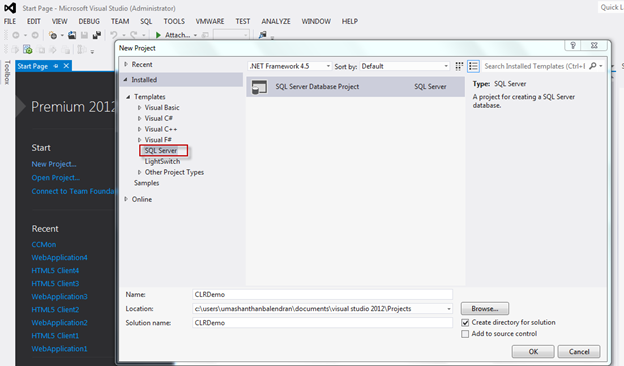
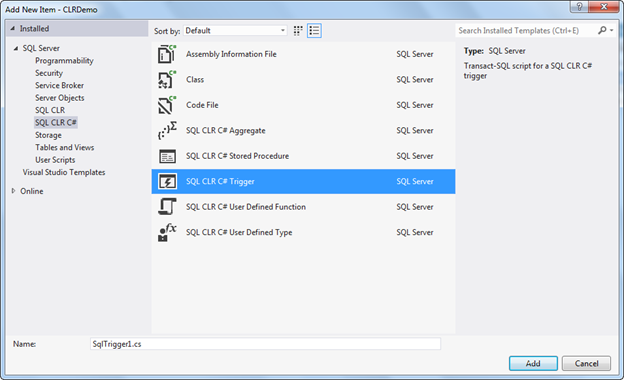
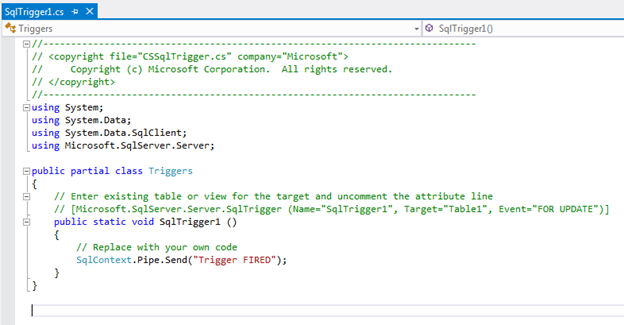
Add item – under SQL SLR C#. By default the relevant codes will be there as shown below.
In this example, I am going to fire email when a customer does a transaction above 100000. First I created a table with the columns as shown below, the table name is “TransSample”. 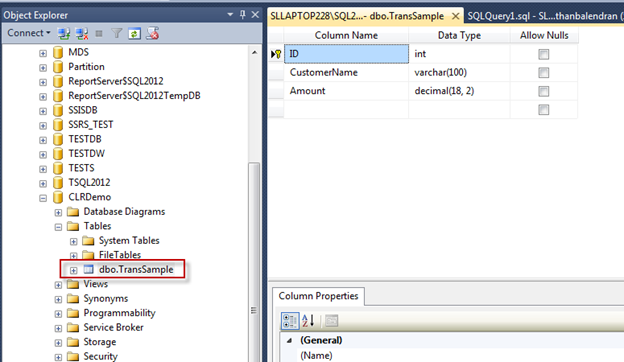
To run a CLR in SQL Server you must enable “clr enabled” in server level.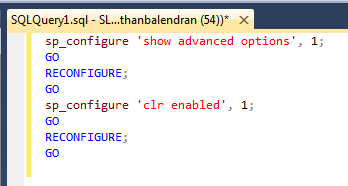
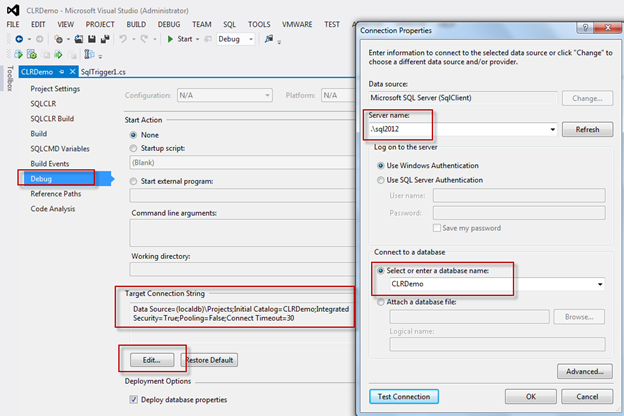
Change the project Connection properties for the target database can be changes via project properties as shown below.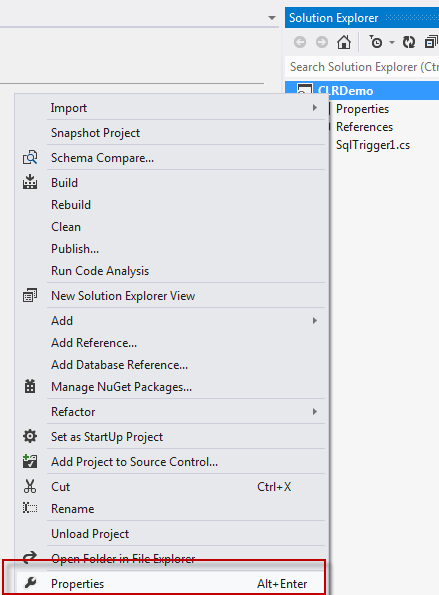
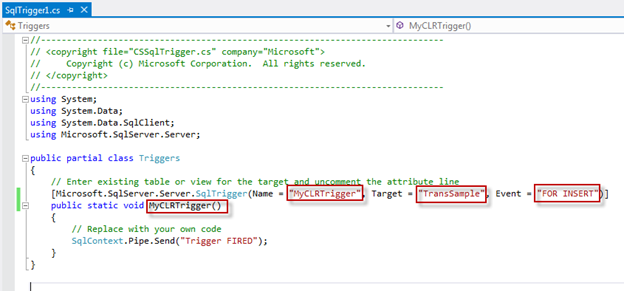
First rename default name in the code for Name, Target and Event.
Name=CLR Name
Target= Target table name
Event = INSERT/UPDATE/...
Function name as CLR name
When you try to deploy it, you might get error an error as:
SQL71501: Trigger: [dbo].[MyCLRTrigger] has an unresolved reference to object [dbo].[TransSample]
This problem is due to project does not have proper metadata about the Target Database object for that import the target database under project to do it, follow the following steps:
Close the project and locate to the project folder and delete the *.dbmdl file, then open the project aging and import the database by right click on project and under import as shown below screen dump. Once you have done this you would be able to deploy the CLR successfully.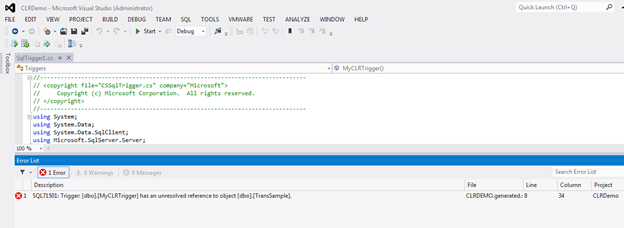
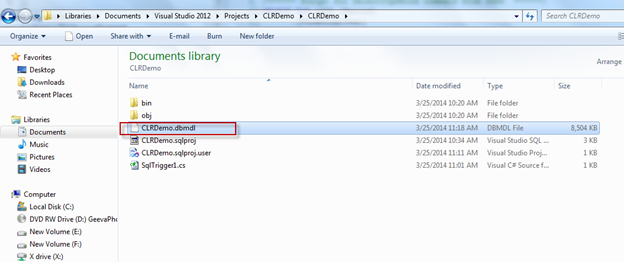

Now you can deploy the project as shown below.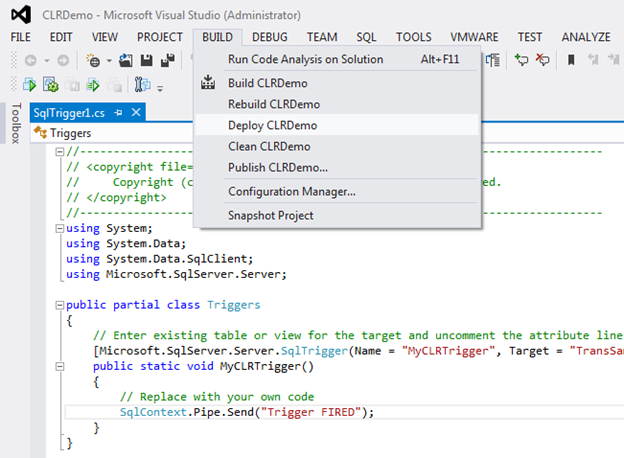
Once you deploy, you would be able to see the CLR under the database as show below.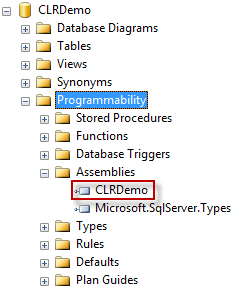
Now will see how to write the logic under this CLR to send an email for more than 100000 transaction.
Code
*********************************************************************************
using System;using System.Data;using System.Data.SqlClient;using Microsoft.SqlServer.Server;using System.Net;using System.Net.Mail;public partial class Triggers
{
// Enter existing table or view for the target and uncomment the attribute line
[Microsoft.SqlServer.Server.SqlTrigger(Name = "MyCLRTrigger", Target = "TransSample", Event = "FOR INSERT")]
public static void MyCLRTrigger()
{
SqlTriggerContext context = SqlContext.TriggerContext;
string customer = "";
double amount = 0;
if(context.TriggerAction ==TriggerAction.Insert)
{
using (SqlConnection con = new SqlConnection("context connection=true"))
{
con.Open();
SqlCommand com = new SqlCommand();
com.Connection = con;
//getting customer name
com.CommandText = "select CustomerName from inserted";
customer = com.ExecuteScalar().ToString();
//getting Amount
com.CommandText = "select Amount from inserted";
amount = Convert.ToDouble(com.ExecuteScalar());
//apply condition
if (amount >= 100000)
{
SendMail(customer, amount);
}
}
}
}
private static void SendMail(string CustomerName, double TrnAmt)
{
MailMessage msg = new MailMessage("umashanthan@gmail.com", "umashanthan@gmail.com");
SmtpClient cl = new SmtpClient("smtp.gmail.com", 587);
cl.DeliveryMethod = SmtpDeliveryMethod.Network;
cl.EnableSsl = true;
cl.UseDefaultCredentials = false;
cl.Credentials = new NetworkCredential("umashanthan@gmail.com", "xxxxxxx");
msg.Subject = "Credit Card Transaction Alert";
msg.Body = "Alert!" + Environment.NewLine + Environment.NewLine +
"The customer " + CustomerName + " made a transaction of " + TrnAmt.ToString();
cl.Send(msg);
}
}
*********************************************************************************
After deploy this CLR, You might face another issue as shown below while try to insert a records with transaction amount more than 100000. This is due to the permission issue.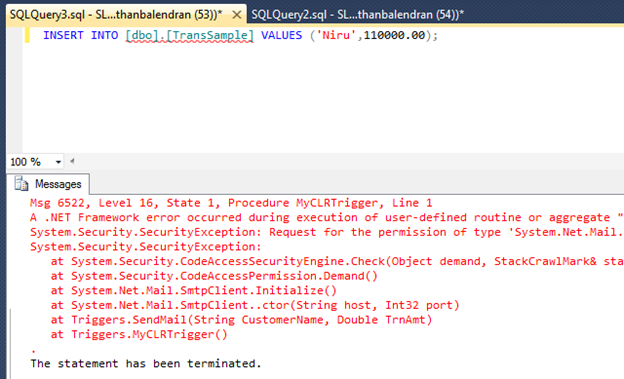
Detail error message:
Msg 6522, Level 16, State 1, Procedure MyCLRTrigger, Line 1
A .NET Framework error occurred during execution of user-defined routine or aggregate "MyCLRTrigger":
System.Security.SecurityException: Request for the permission of type 'System.Net.Mail.SmtpPermission, System, Version=4.0.0.0, Culture=neutral, PublicKeyToken=b77a5c561934e089' failed.
System.Security.SecurityException:
at System.Security.CodeAccessSecurityEngine.Check(Object demand, StackCrawlMark& stackMark, Boolean isPermSet)
at System.Security.CodeAccessPermission.Demand()
at System.Net.Mail.SmtpClient.Initialize()
at System.Net.Mail.SmtpClient..ctor(String host, Int32 port)
at Triggers.SendMail(String CustomerName, Double TrnAmt)
at Triggers.MyCLRTrigger()
First change the Permission Level as “UNSAFE”.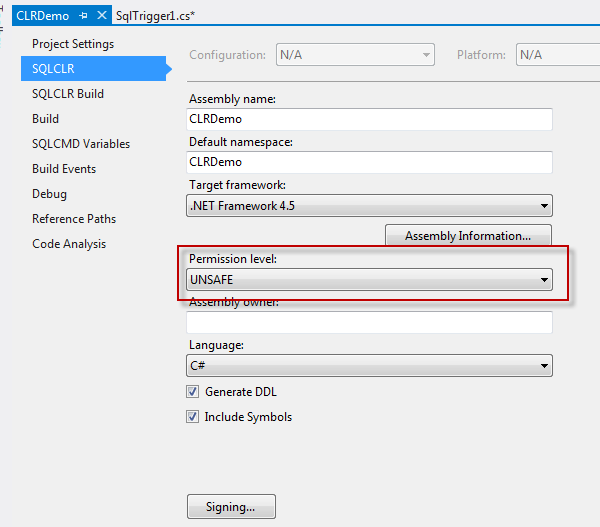
Even after you change the permission level you might get the issue as shown below. This problem is due to the permission related issue to solve that do the following. Make Trustworthy CLR in database. The TRUSTWORTHY database property is used to indicate whether the instance of SQL Server trusts the database and the contents within it. By default, this setting is OFF, but can be set to ON by using the ALTER DATABASE statement.
Error 1 SQL72014: .Net SqlClient Data Provider: Msg 10327, Level 14, State 1, Line 1 ALTER ASSEMBLY for assembly 'CLRDemo' failed because assembly 'CLRDemo' is not authorized for PERMISSION_SET = UNSAFE. The assembly is authorized when either of the following is true: the database owner (DBO) has UNSAFE ASSEMBLY permission and the database has the TRUSTWORTHY database property on; or the assembly is signed with a certificate or an asymmetric key that has a corresponding login with UNSAFE ASSEMBLY permission.
The following image show that how to make it CLR Trustworthy in Database level via SQL Server Management Studio.
The below image shows that how to make it through the project.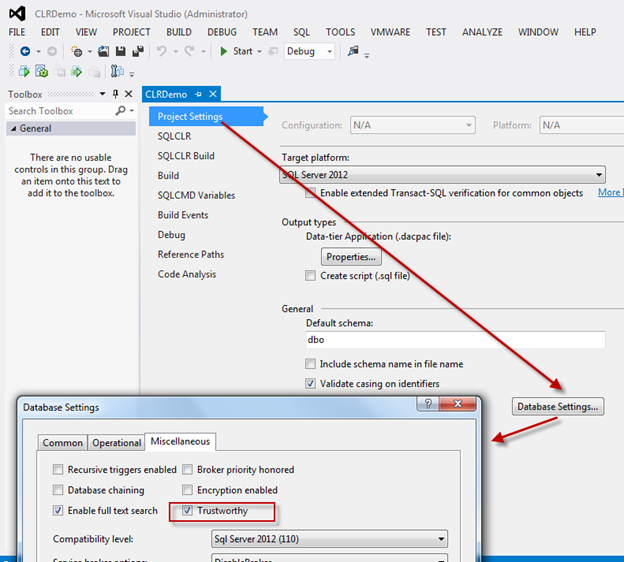
Once deploy the CLR again, just run it and see. You will receive the email as you expects.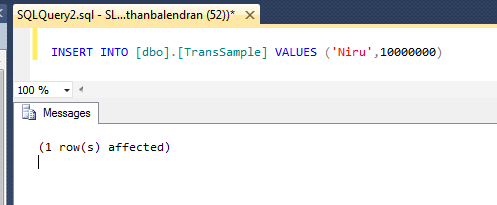

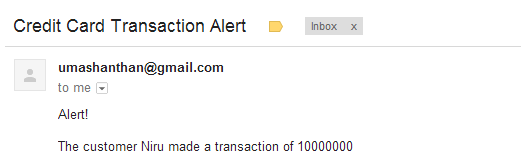
Cheers!