You can find many collections of scripts on the web, here I used from West Coast Informatics.
http://www.westcoastinformatics.com/resources.html
There is no any script for MSSQL Server, but available for MySQL, Postgres and Oracle. In this approach create a MySQL database and convert it to MSSQL database. Otherwise you need rewrite the script your own including Java code.
As a prerequisite Java and MySQL installation is required.
You can download MySQL from https://dev.mysql.com/downloads/installer/
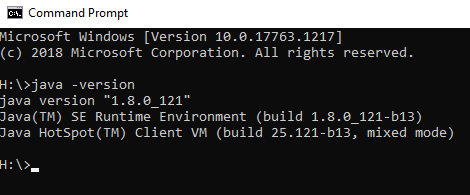
For Java, first make sure Java is already installed or not. If java is correctly installed, you will get something like this.
If not installed, you can download from https://java.com/en/download/win10.jsp
Load into a MySQL database
Create a schema called snomed in MySQL database

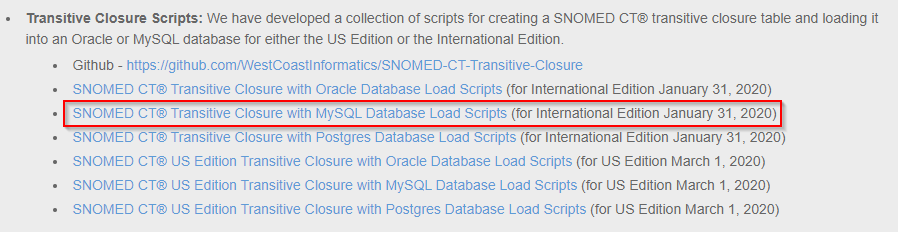
Download SNOMED CT® MySQL Database Load Scripts (for International Edition January 31, 2020) from West Coast Informatics site or from other sources.

In this case loading International Edition, download above highlighted once.


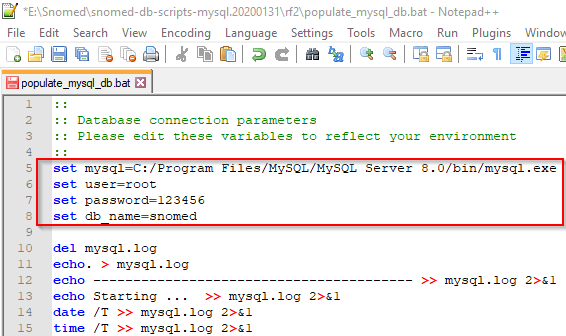
Change the database connection parameters in the batch file populate_mysql_db.bat
Get Snomed latest data
Download Snomed latest data from https://www.health.govt.nz/nz-health-statistics/classification-and-terminology/new-zealand-snomed-ct-national-release-centre/snomed-ct-software-tools or from other sources.
In this case, SnomedCT_InternationalRF2_PRODUCTION_20200309T120000Z.zip is used. Once you unzip and copy all the above 6 data script related files into this folder. You will see something like this.

Change the source file names as per the source data in mysql_tables.sql file mostly the date part are different. In this case, I changed 20200131 to 20200309.
'Snapshot/Terminology/sct2_Concept_Snapshot_INT_20200131.txt' to 'Snapshot/Terminology/sct2_Concept_Snapshot_INT_ 20200309.txt'
Run populate_mysql_db.bat file, this will take quite a bit of time to complete. This bat file will generate all the tables with data and views.

Load Transitive Closure
A file containing the transitive closure of the SNOMED CT subtype hierarchy. The transitive closure file is not currently distributed but can be generated from the snapshot relationship file using a script file.
Download Transitive Closure Scripts from for MySQL http://www.westcoastinformatics.com/resources.html
Once you unzip it you will see something like this

Copy all the above files to the previous folder.

Generate transitive closure file from the snapshot relationship file, the code is written in Java.
Change the input and output file parameter in transitive_closure.bat and run

At the end you will see transitive closure file is generated

Next you need to load data from this file to MySQL database, for that edit the parameters in populate_mysql_db_tc.bat

Also change the Transitive Closure file path in mysql_tc_table.sql

Change the parameters in populate_mysql_db_tc.bat and run

Once the batch file is completed, you will see the new Transitive Closure table with relevant views. This process will take quite a bit of time.
Migrate MySQL database to MSSQL
create a new database called Snomed in MSSQL server
Download SSMA for MySQL and follow the steps as per this
https://datamigration.microsoft.com/scenario/mysql-to-sqlserver?step=1&tabnav=true
Create a new project in SSMA and connect to the Snomed database in MySQL and MSSQL server


Create the conversion report that will generate an HTML report with conversion statistics and error/warnings. This report will help to understand conversion issues and its cause.
In this case, I didn’t get any issues for schema conversion, if you find any errors you need to change the local schema and regenerate the report to check everything ok.
Only change here is target schema to dbo instead of snomed. In MySQL Snomed database click on tables then Snomed database schema details come in the right side as shown below.
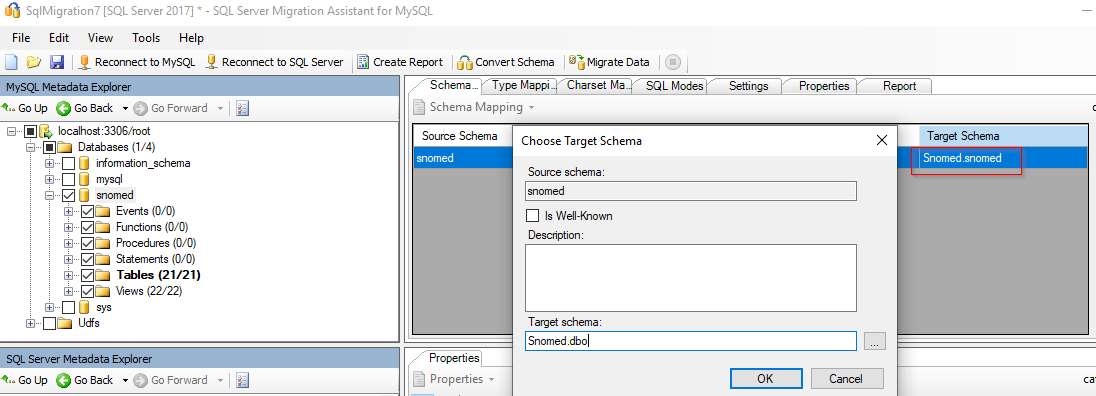


To publish the schema, select the database from MSSQL Server database “Database” node in the “SQL Server Metadata Explorer” and choose “Synchronize with Database” from right-click menu options. This action will publish the MySQL schema to the SQL Server instance.

Then migrate the data

The migrated data report will pop up at the end and data will be ready in MSSQL database.


Cheers!
Uma