Azure Storage is the cloud storage solution for modern applications that rely on durability, availability, and scalability to meet the needs of their customers. You can easily create and manage your storage for low cost via Azure Management Portal.

General-purpose Storage Accounts: A general-purpose storage account gives you access to Azure Storage services such as Tables, Queues, Files, Blobs and Azure virtual machine disks under a single account.
Blob Storage Accounts: A Blob storage account is a specialized storage account for storing your unstructured data as blobs (objects) in Azure Storage.
Blob storage
For users with large amounts of unstructured object data to store in the cloud, Blob storage offers a cost-effective and scalable solution.
Blog = Binary Large Object
You can use Blob storage to store content such as:
- Documents
- Virtual Machines
- Social data such as photos, videos, music, and blogs
- Backups of files, computers, databases, and devices
- Images and text for web applications
- Configuration data for cloud applications
- Big data, such as logs and other large datasets
Table storage
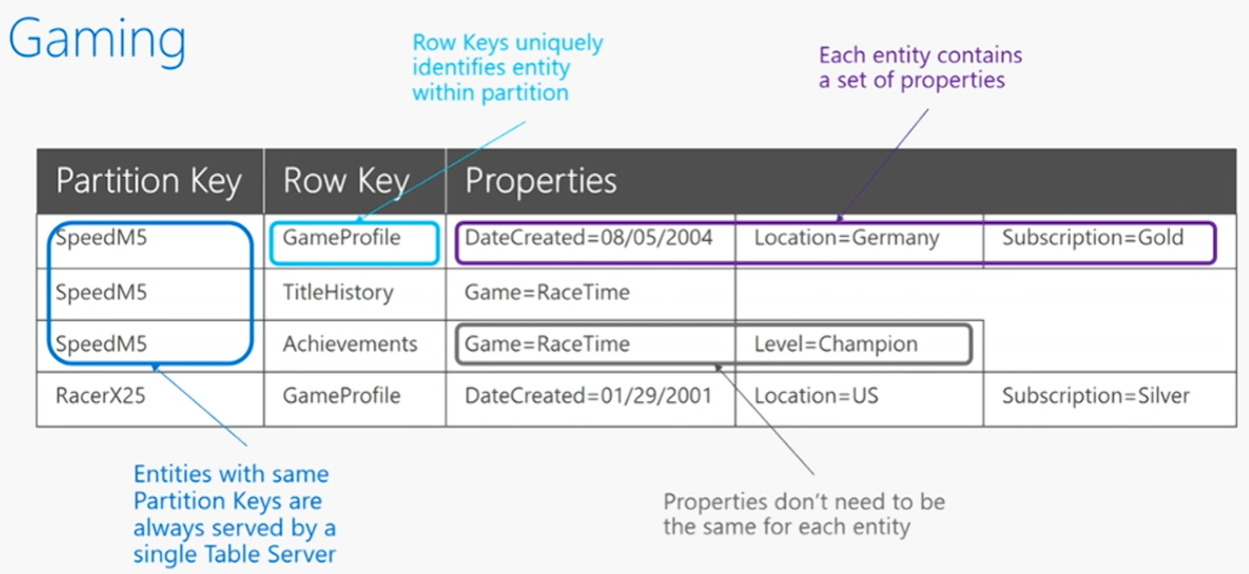
Modern applications often demand data stores with greater scalability and flexibility than previous generations of software required. For example, the following table for cloud-based gaming table to store user details.
Queue storage
Messages are inserted into queues and kept in order until they are delivered. Individual messages may be up to 64 KB in size, but queue can hold 200 TB of messages.
File storage
Azure File storage offers cloud-based SMB file shares so that you can migrate legacy applications that rely on file shares to Azure quickly and without costly rewrites.
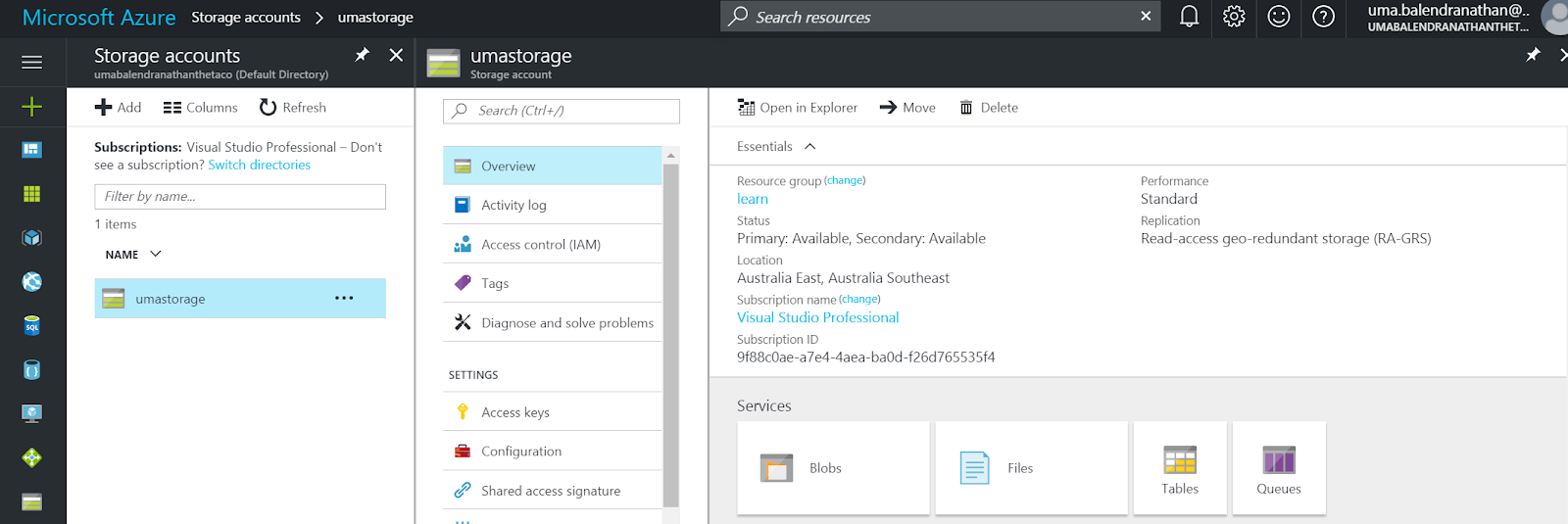
The following steps show how to create a file storage
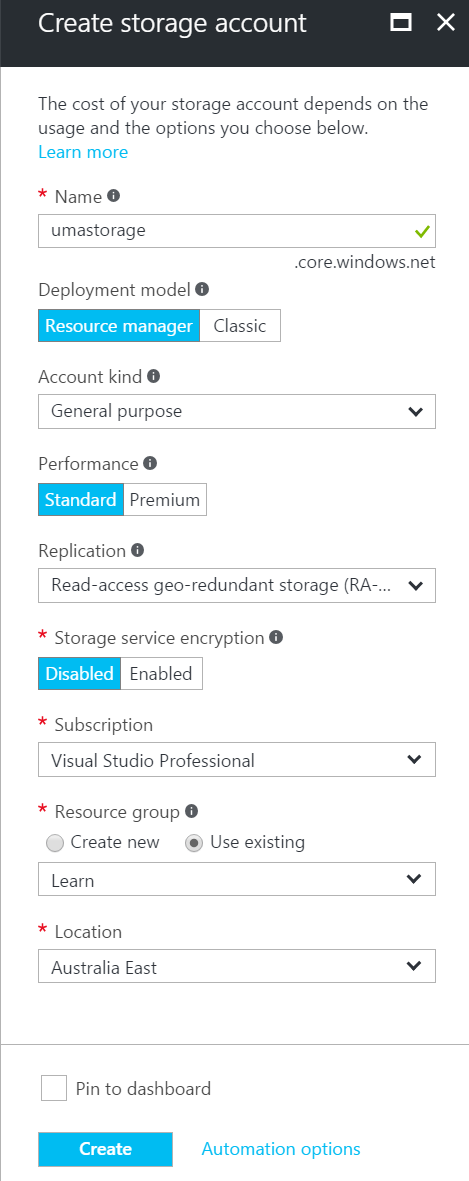
Step1: Create storage account
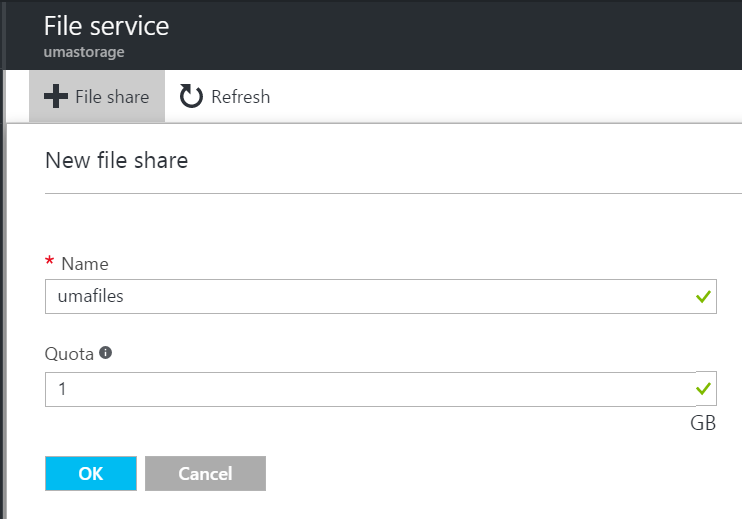
Step 2: Create file share
Step3: Add few files and create a directory
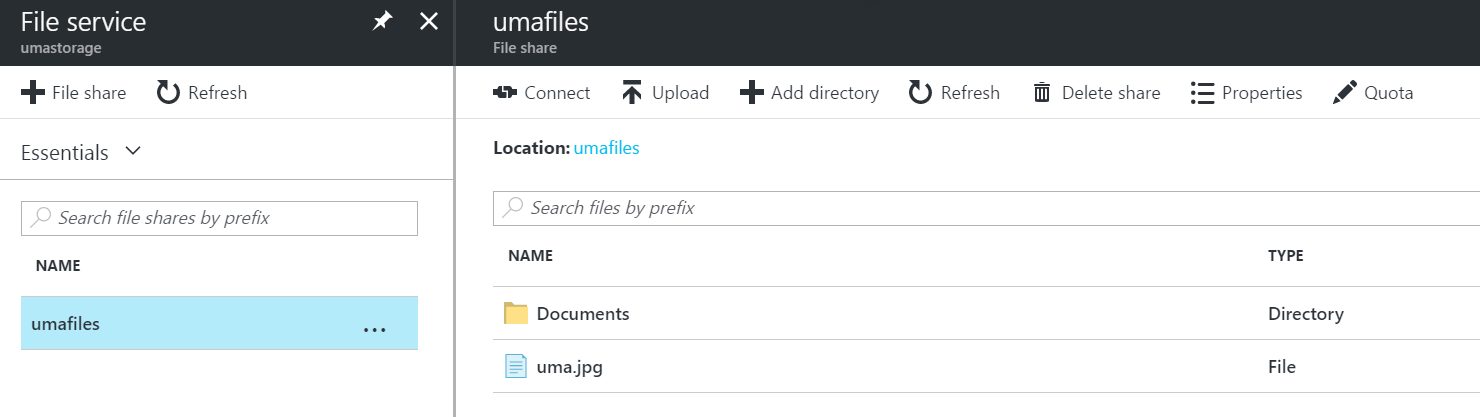
Step 4: Get the URL by click on Properties and you can use as file server
You also can mount this file storage into your Windows or Linux OS. You can get required command by click on connect.
For Windows
> net use [drive letter] \\umastorage.file.core.windows.net\umafiles /u:AZURE\umastorage 0GDgfkzL/NYFubiSkHb5y40vF3aIMRKrb9sOPgQnjcyK20lOMcjRmFrXmLv2t+X11A+7300K4pv61GRt/OYffg==
For Linux
> sudo mount -t cifs //umastorage.file.core.windows.net/umafiles [mount point] -o vers=3.0,username=umastorage,password=0GDgfkzL/NYFubiSkHb5y40vF3aIMRKrb9sOPgQnjcyK20lOMcjRmFrXmLv2t+X11A+7300K4pv61GRt/OYffg==,dir_mode=0777,file_mode=0777

Once you mount the file storage you can use this file storage same as other drive through the explorer.

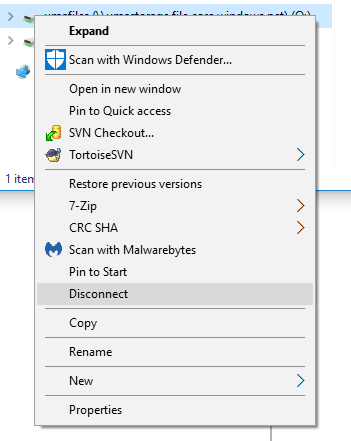
For disconnect, you can right click and disconnect
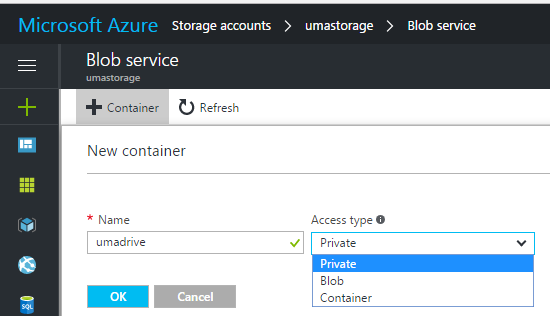
In a similar way, you can create blog storage as well
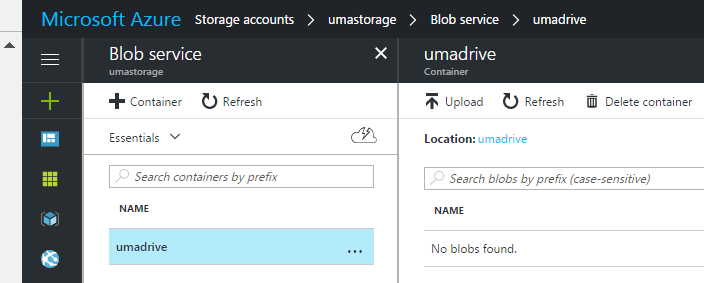
You can use this drive to attach your virtual machine

Cheers!
Uma
