Showing posts with label Azure. Show all posts

Sunday, March 6, 2022

How to authenticate Azure Storage Account using Key Vault in Azure Data Factory

 How to authenticate Azure Storage Account using Key Vault in Azure Data Factory

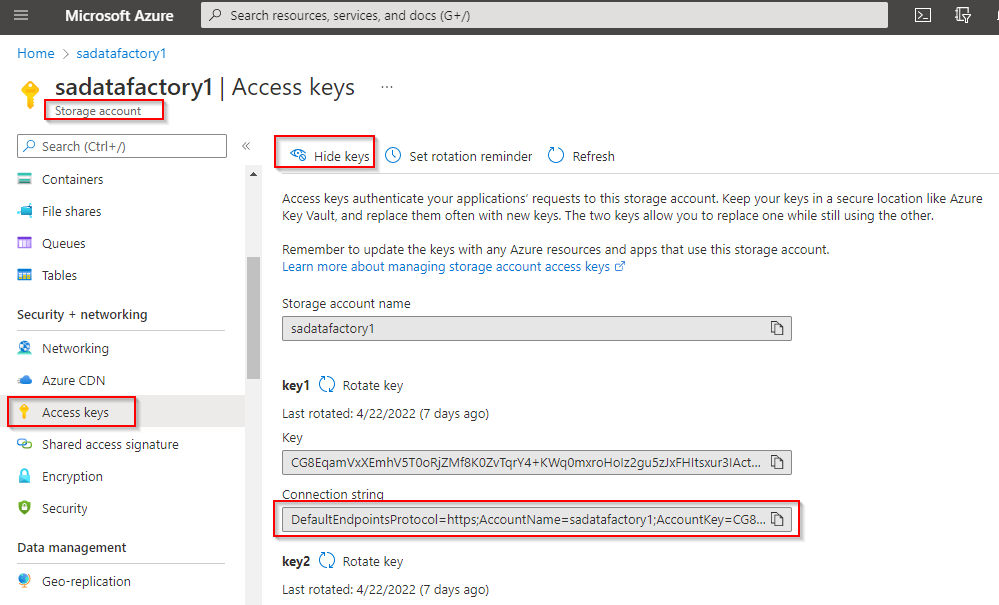
Open the portal blade for your storage account 🡪 Select Access keys

To copy key values, you must first click Show keys 🡪 Copy the Connection string value for key1
Open key vault 🡪 Secrets 🡪 Generate/Import

Paste the contents of the clipboard into the Value field, then enter a Name for the secret and create.

Grant Access to the Key Vault

Your data factory cannot use the secrets stored in your key vault until you grant it permission to do so. The data factory instance has an associated managed identity – a managed application registered in Azure Active Directory – which was created automatically when you created the data factory. You must grant access to this identity.

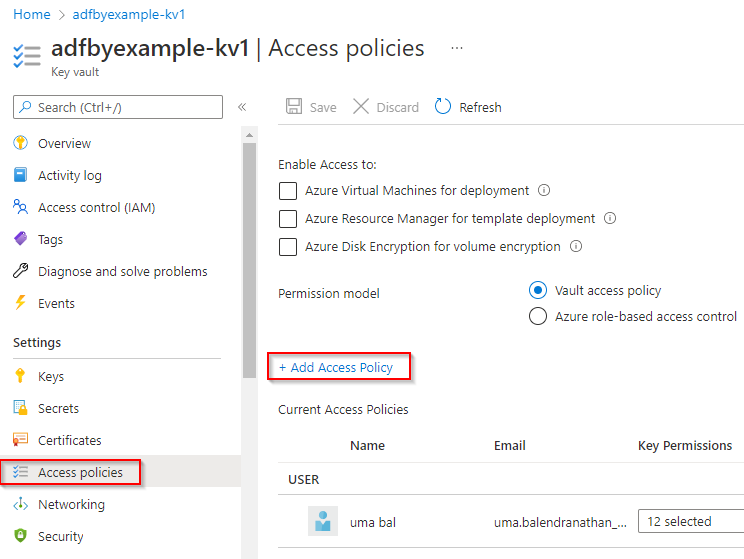
key vault and select Access policies

On the Access policies blade, locate and click the + Add Access Policy button
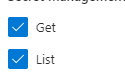
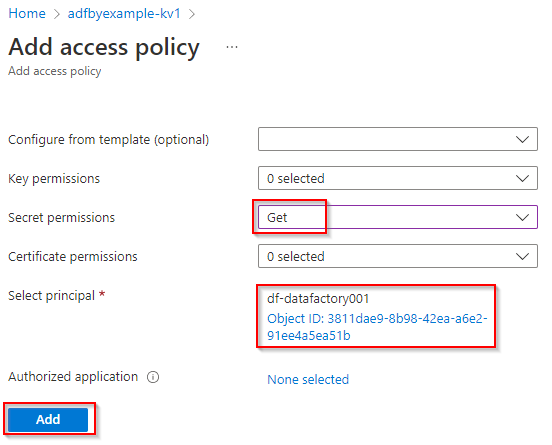
select Get and List from the Secret permissions
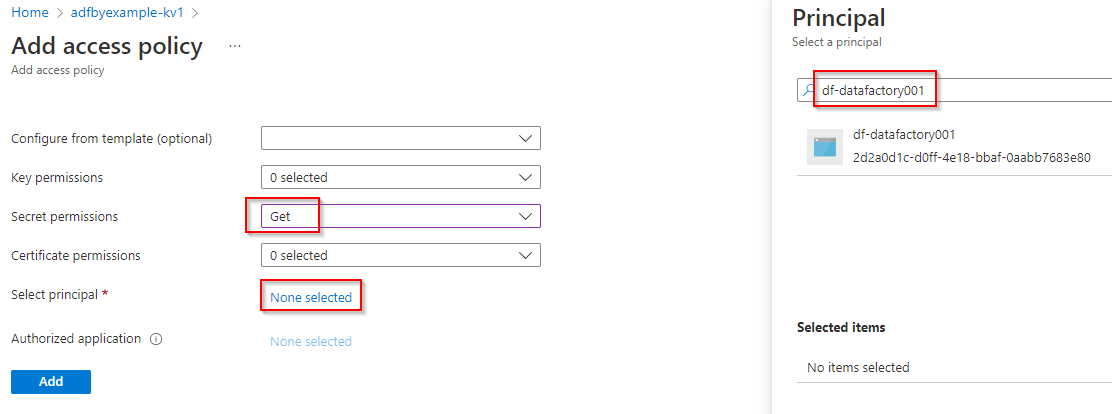
Under Select principal, click None selected

This opens the security principal selection blade

At the top of the blade is a search input field. An ADF managed identity service principal has the same name as the ADF instance it represents – enter the name of your data factory to search for the service principal. The search will return one matching item, as shown in the below figure. Click the item to choose it, then click the Select button at the bottom of the blade.
Create a Key Vault ADF Linked Service

Azure Data Factory accesses a key vault in exactly the same way it does other types of external resource: using a linked service. To refer to a key vault from within your data factory, you must create a linked service to represent it.

add a new linked service

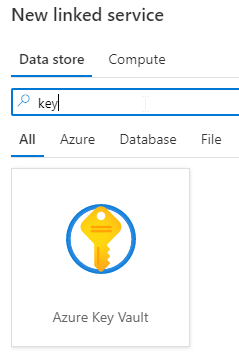
then search for and select the Azure Key Vault data store. Click Continue
On the New linked service (Azure Key Vault) blade, provide a Name for the key vault linked service, then select your key vault from the Azure key vault name dropdown

Use the Test connection button to check the linked service configuration, and when successful, click Create


Create a New Storage Account Linked Service

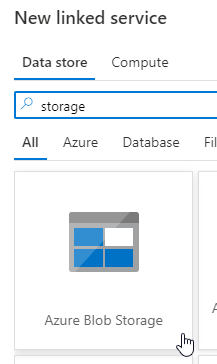
create another new linked service, this time using the Azure Blob Storage data store

Ensure that Authentication method is set to “Account key,” then use the toggle below that field to change the connection type from “Connection string” to “Azure Key Vault.”

Select your key vault linked service from the AKV linked service dropdown, then enter the name of your storage account connection string secret.

Use the Test connection button to check the linked service configuration, and when successful, click Save.
The new linked service obtains credentials from the key vault at runtime, by obtaining the value of your named secret, authorized using the ADF instance’s managed identity


Cheers!
Uma

Monday, December 6, 2021

How to setup Azure Log Analytics for Power BI workspace

Power BI is integrating with Azure Log Analytics (LA) to enable administrators and Premium workspace owners to configure a Log Analytics connection to their Power BI subscription. 

Once connected to Power BI, data is sent continuously and is available in Log Analytics in approximately 5 minutes. The following diagram shows how Azure Monitor operates, with the path taken by Power BI highlighted.

An Azure Log Analytics connection is currently supported for Premium workspace in Power BI. You must configure this at the workspace level as shown below.

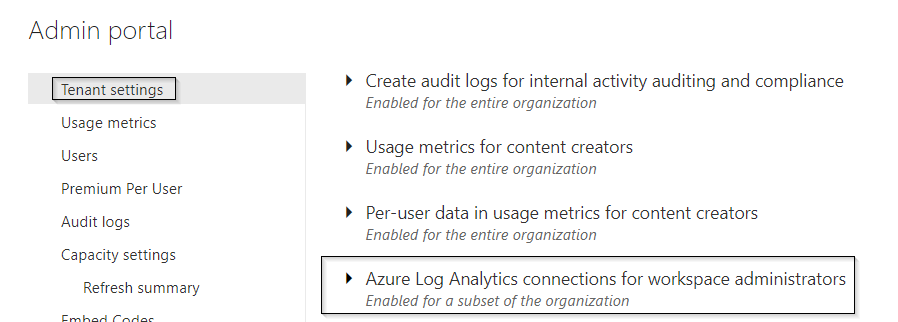
Must be allowed by the tenant administrator under Tenant settings

Before configuring this, you must create a Log Analytics Workspace and assign the owner role for Power BI Service app.

Once you configure the Log Analytics for a workspace, the data will be available in 5 minutes. Click on Locks in Log Analytics in Azure Portal and run your queries.

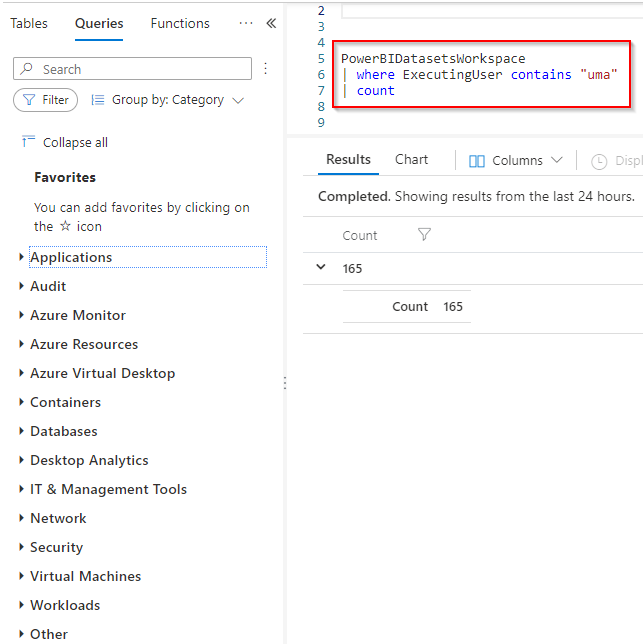
You can see there is table called PowerBIDatasetsWorkspace

You can run a KQL query and analyze the data, the following query is showing count. Kusto Query Language is a powerful tool to explore your data and discover patterns, identify anomalies and outliers, create statistical modelling, and more.


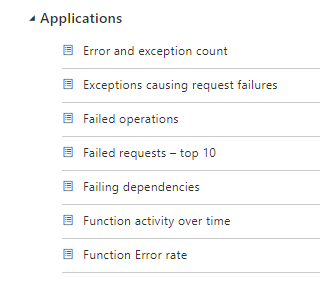
You can also use pre-defined queries and modifies as per your requirements


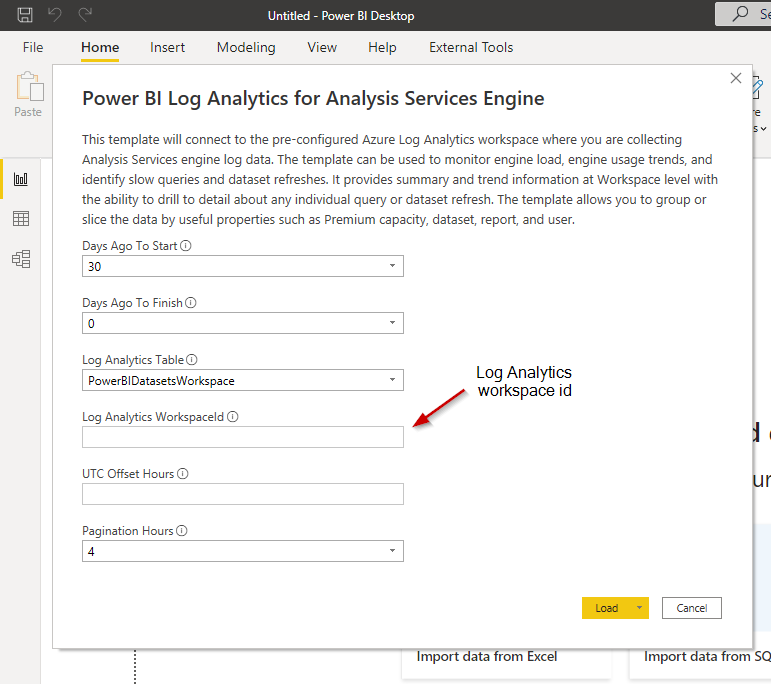
In addition to this, you can download power bi report templates from Microsoft. All you need just provide the parameter values and publish them in Power BI service.


Please read here for more details

https://docs.microsoft.com/en-us/power-bi/transform-model/log-analytics/desktop-log-analytics-overview

https://docs.microsoft.com/en-us/azure/data-explorer/kusto/query/

Cheers!
Uma
Wednesday, August 4, 2021

Configuring dataflow storage to use Azure Data Lake Gen 2

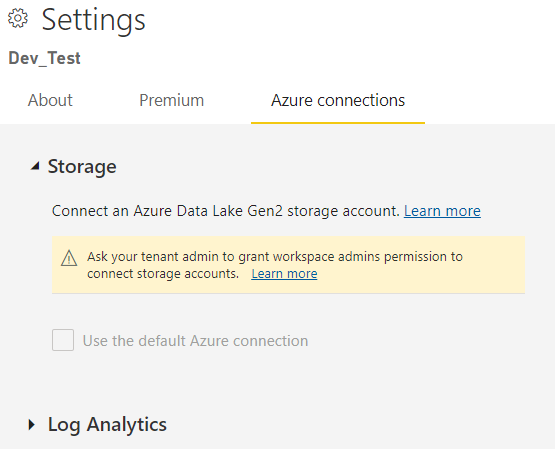
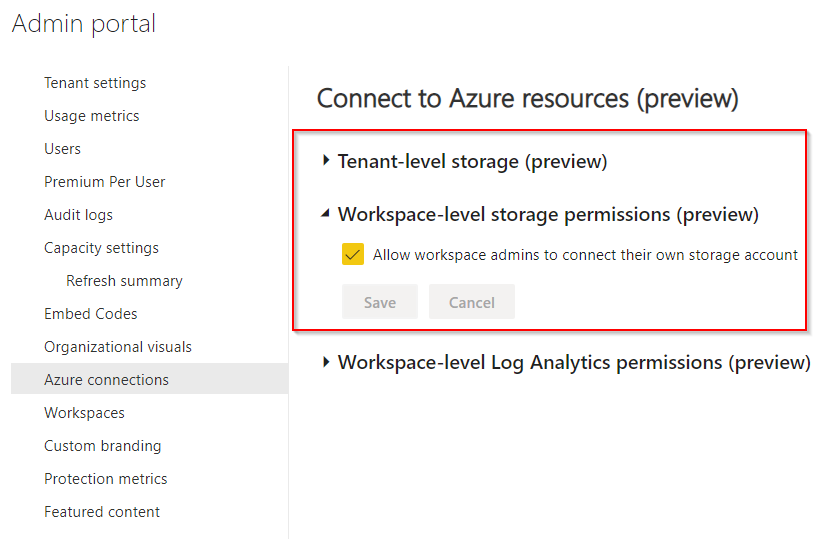
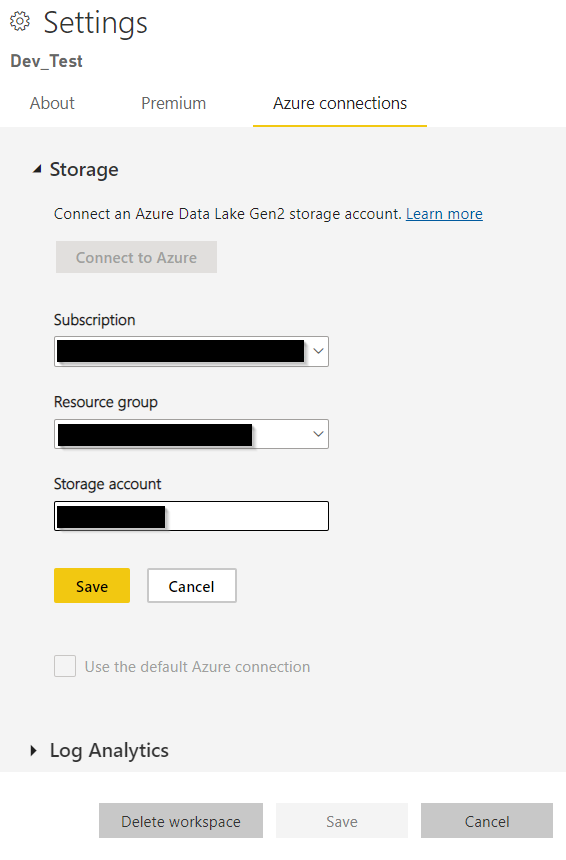
Data used with Power BI is stored in internal storage provided by Power BI by default. With the integration of dataflows and Azure Data Lake Storage Gen 2 (ADLS Gen2), you can store your dataflows in your organization's Azure Data Lake Storage Gen2 account. This essentially allows you to "bring your own storage" to Power BI dataflows, and establish a connection at the tenant or workspace level.

Cheers!
Uma
Wednesday, March 10, 2021

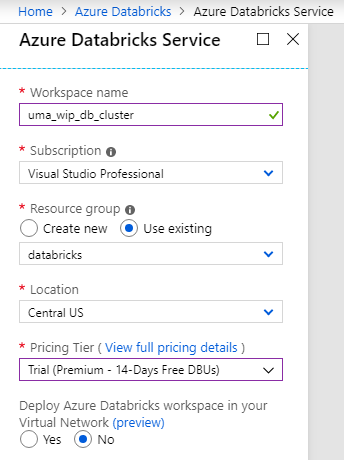
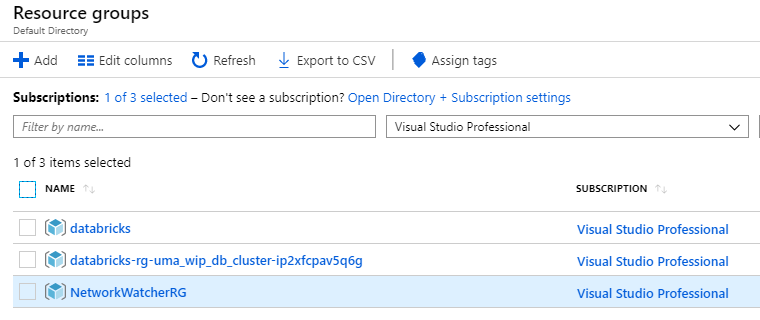
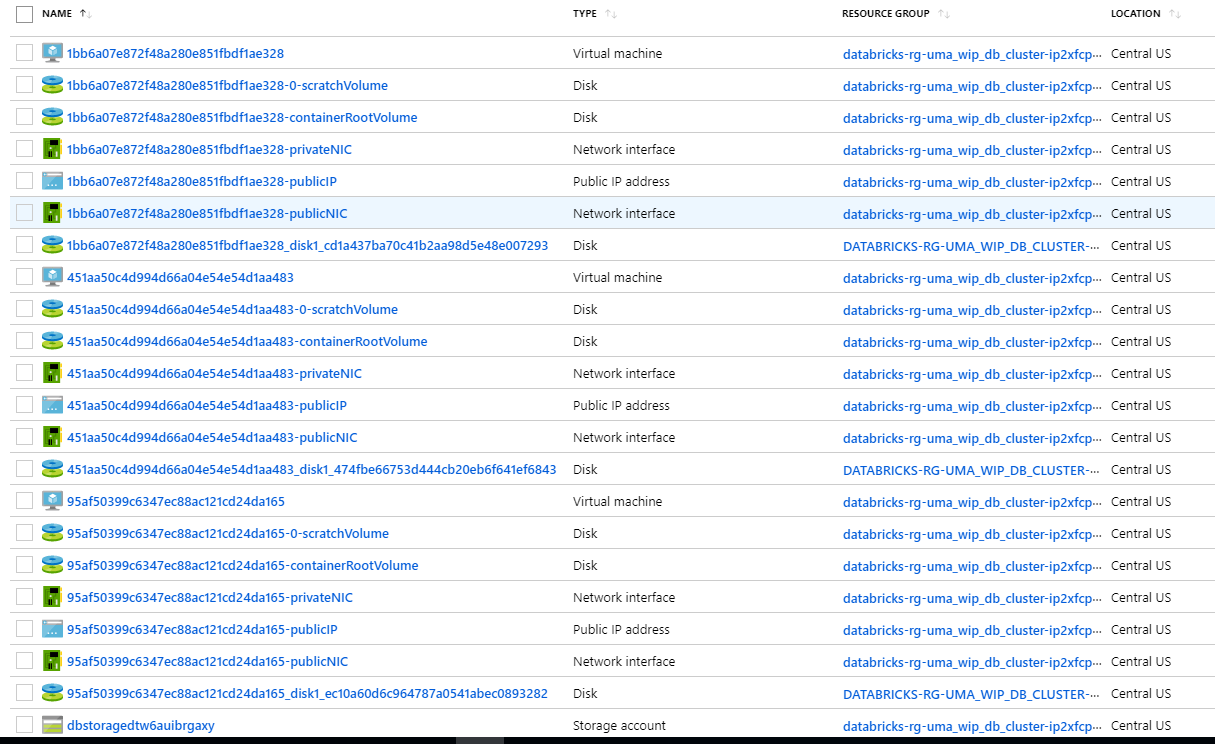
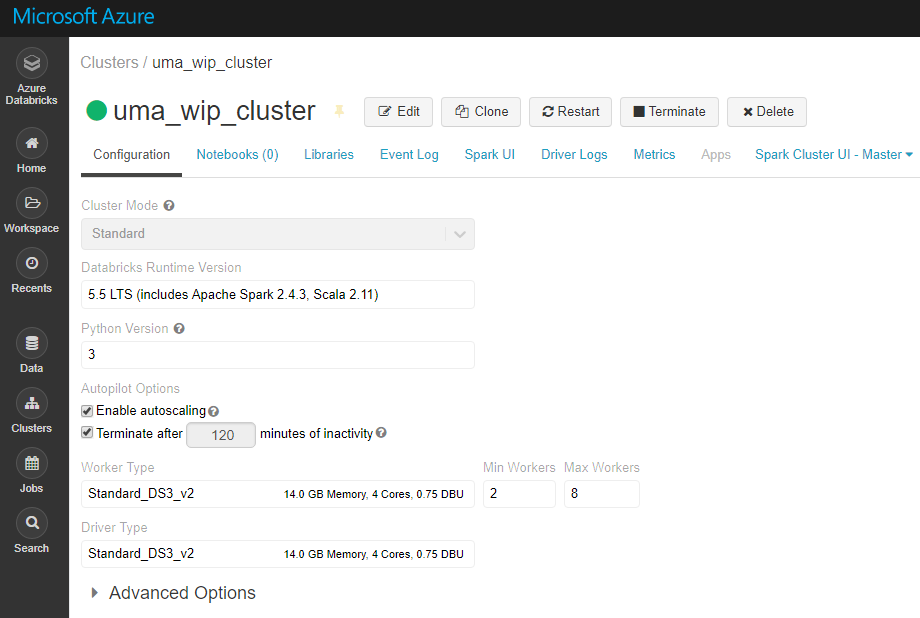
Creating Azure Databricks workspace and explore

Azure Databricks is a data analytics platform optimized for the Microsoft Azure cloud services platform. Azure Databricks offers three environments for developing data intensive applications: Databricks SQL, Databricks Data Science & Engineering, and Databricks Machine Learning.
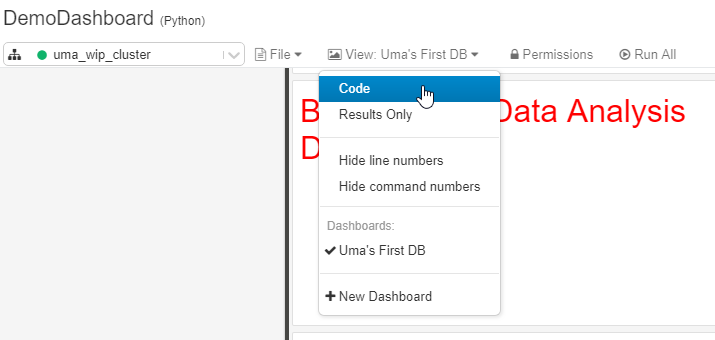
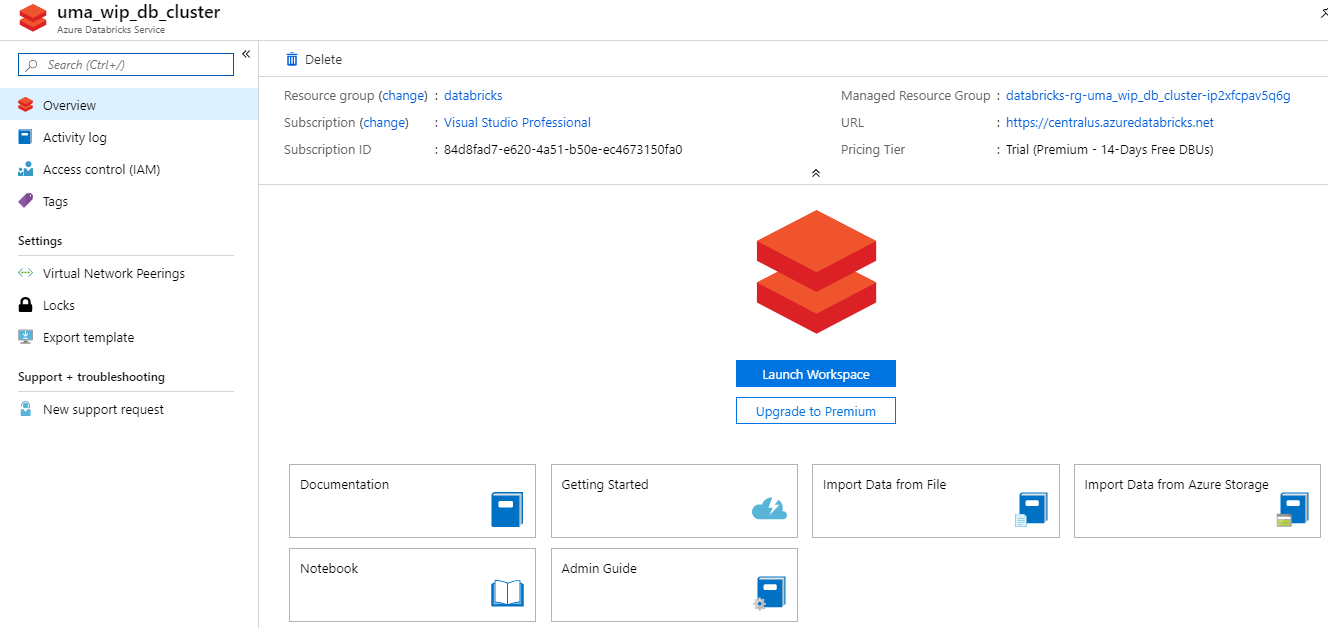
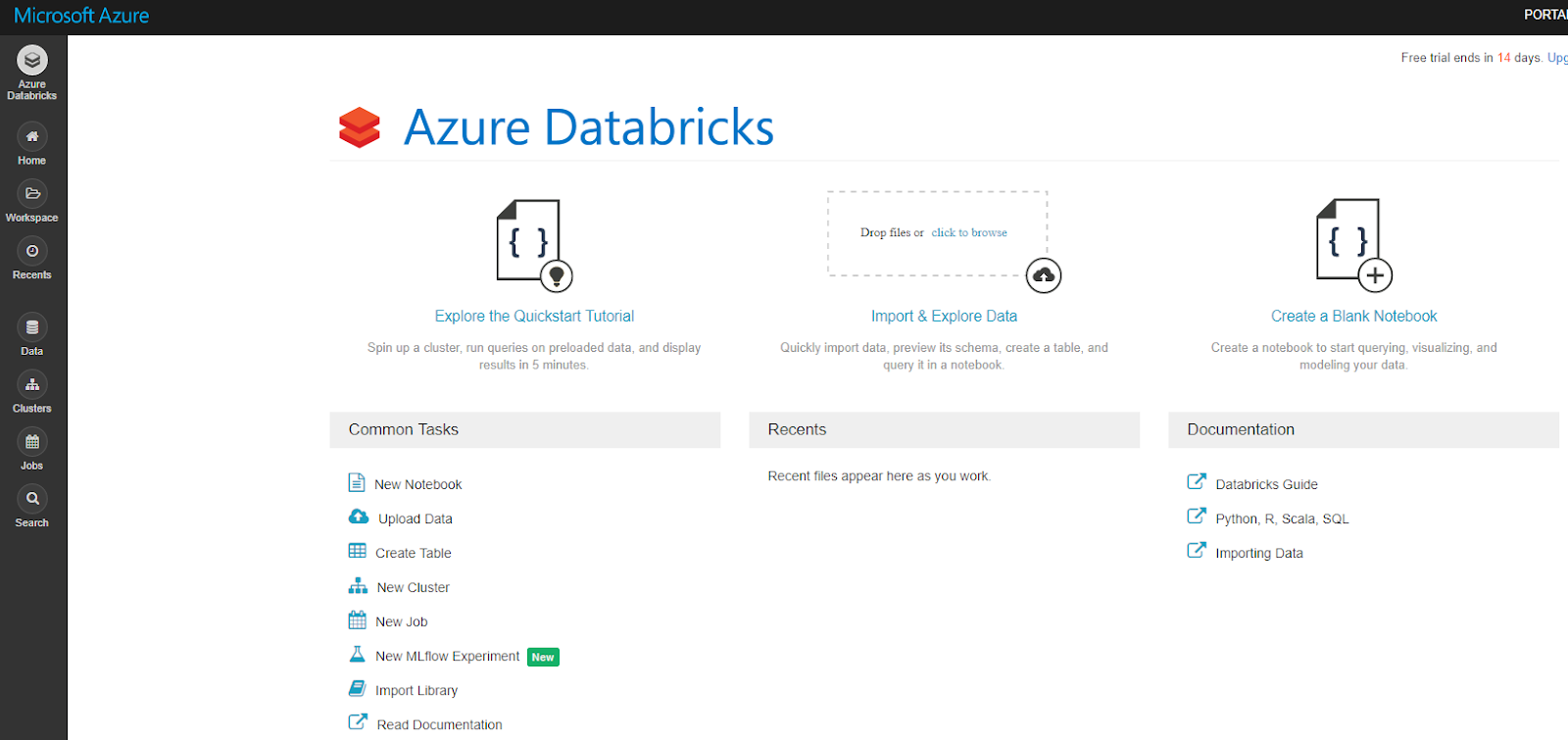
You are redirected to the Azure Databricks portal.


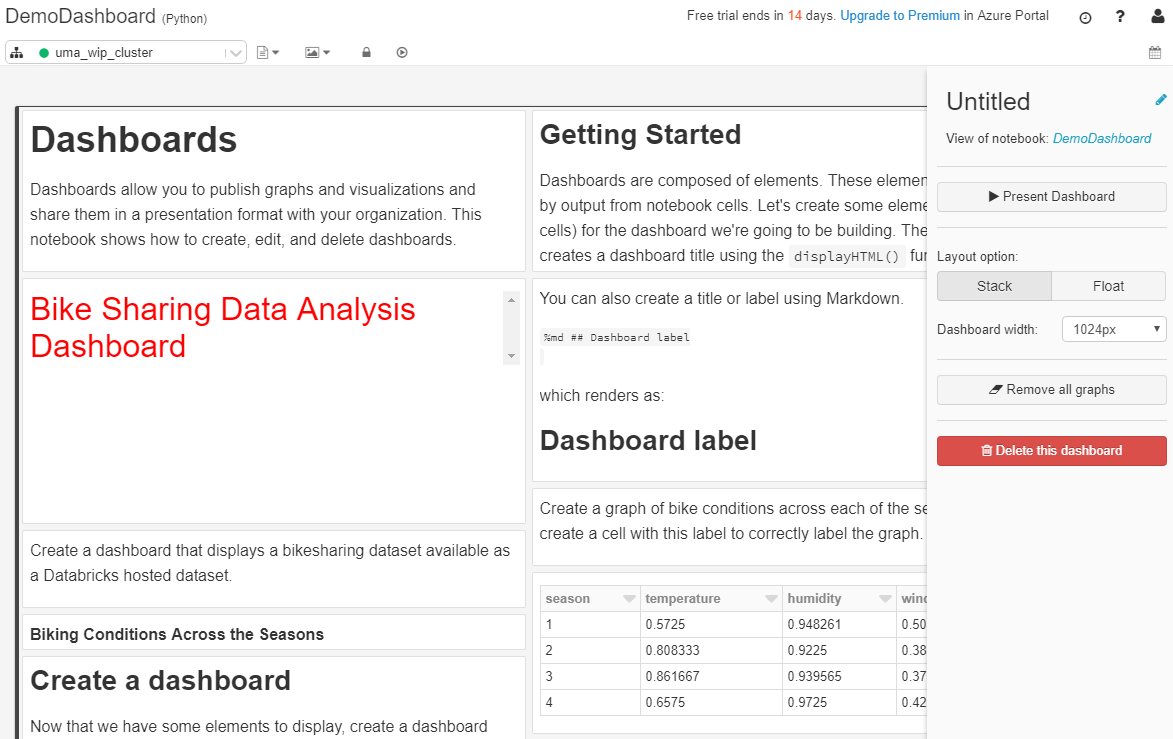
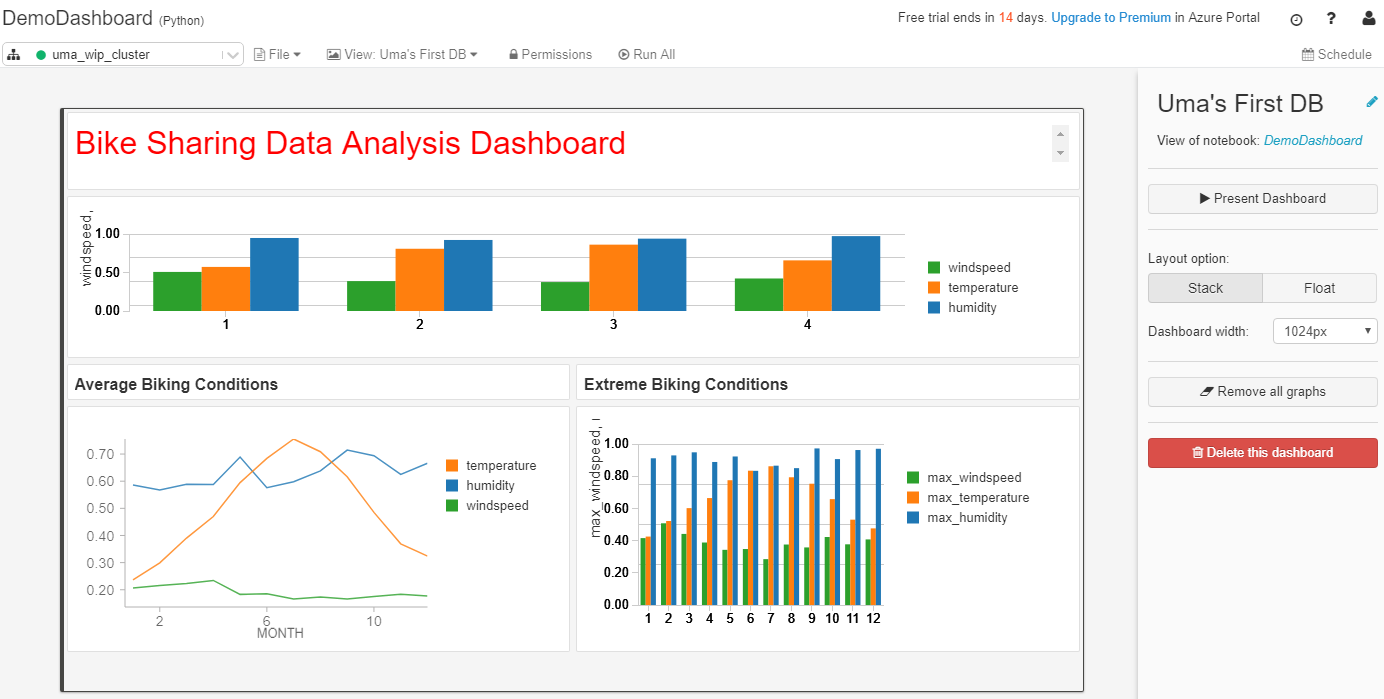
You can format it

Click on present the workbook

Cheers!
Uma