Sunday, March 30, 2014

HTML5 Basic Syntax


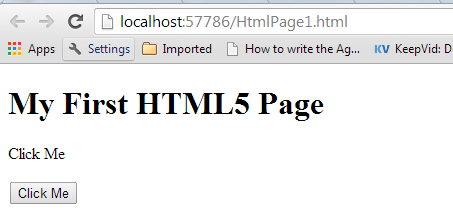
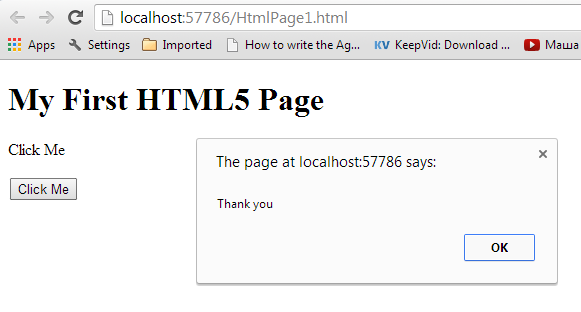
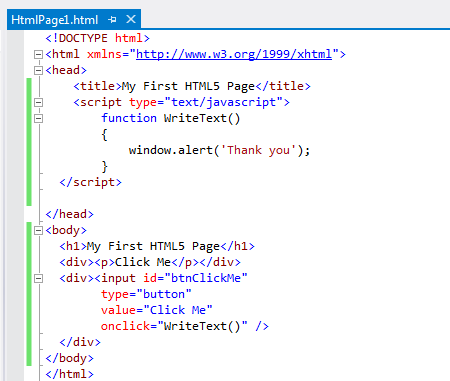
This post is about the basic syntax of HTML 5 page and how JavaScript function is calling via HTML 5.

Wednesday, March 26, 2014

SSIS Error Code DTS_E_OLEDB_NOPROVIDER_64BIT_ERROR - The requested OLE DB provider Microsoft.ACE.OLEDB.12.0 is not registered -- perhaps no 64-bit provider is available

In the SSIS package which using OLE DB provider Microsoft.ACE.OLEDB.12.0 to get the values from the Excel sheets is failing only when I run through the SQL Agent Job, but while run through the Business Intelligent Studio or SQL Server Integration Service it is not failing, when I close look at the error message it clearly says that the “The requested OLE DB provider Microsoft.ACE.OLEDB.12.0 is not registered -- perhaps no 64-bit provider is available”. In this case, I found the reason, run the package through the Business Intelligent Studio or SQL Server Integration Service, by default 32-bit driver is using, but run via SQL Agent Job in 64-bit environment, it’s calling 64-bit driver.


Solution: There is an option in SQL Agent, under Execution Option, where we can turn on use 32 bit run time.


Detail Error Message:
Description: SSIS Error Code DTS_E_OLEDB_NOPROVIDER_64BIT_ERROR.  The requested OLE DB provider Microsoft.ACE.OLEDB.12.0 is not registered -- perhaps no 64-bit provider is available.  Error code: 0x00000000.  An OLE DB record is available.  Source: "Microsoft OLE DB Service Components"   Hresult: 0x80040154  Description: "Class not registered".  Code: 0xC020801C Source: Extract Data OLE DB Source [711] Description: SSIS Error Code DTS_E_CANNOTACQUIRECONNECTIONFROMCONNECTIONMANAGER.  

Cheers!

Wednesday, March 19, 2014

By default Package configurations Organizer is not available in SSIS 2012

By default SSIS 2012 project is in Project Deployment Model, so you won’t see the package configurations organizer by right clicking on Control flow. To enable package configuration, convert the project into Package Deployment Model.

Once you convert it, you will see the package configuration organizer same as SSIS 2008 and 2005.


Cheers!

Thursday, March 6, 2014

What is Synchronous versus Asynchronous Transformations in SSIS

Transformations are divided into two main categories: synchronous and asynchronous.
  • Synchronous transformations are components such as the Derived Column and Data Conversion Transformations, where rows flow into memory buffers in the transformation, and the same buffers come out. No rows are held, and typically these transformations perform very quickly, with minimal impact to your Data Flow.
Asynchronous transformations can cause a block in your Data Flow and slow down your runtime. There are two types of asynchronous transformations: partially blocking and fully blocking.
  • Partially blocking transformations, such as the Union All, create new memory buffers for the output of the transformation.


  • Fully blocking transformations, such as the Sort and Aggregate Transformations, do the same thing but cause a full block of the data. In order to sort the data, SSIS must first see every single row of the data. If you have a 100MB file, then you may require 200MB of RAM in order to process the Data Flow because of a fully blocking transformation. These fully blocking transformations represent the single largest slowdown in SSIS and should be considered carefully in terms of any architecture decisions you must make.
Cheers!
Uma

Tuesday, March 4, 2014

Code differences in SSIS Script Task between C# and VB.NET

The main difference is handling variable in terms of syntax. In C# you need to use brackets, not parentheses so instead of the top line of code, you need to use the bottom one
Dts.Variables(“varFileName”).Value
Dts.Variables["varFileName"].Value
Here is the code block in C#
string FileName;
FileName = Dts.Variables["varFileName"].Value.ToString();
MessageBox.Show(FileName);


One more example:
C#
public void Main()
{
if(Dts.Variables.Contains("User::MyValue"))
{
System.Windows.Forms.MessageBox.Show("MyValue=" +
Dts.Variables["User::MyValue"].Value.ToString());
}
Dts.TaskResult = (int)ScriptResults.Success;
}
VB
Public Sub Main()
If Dts.Variables.Contains("User::MyValue") = True Then
System.Windows.Forms.MessageBox.Show("myValue=" &
Dts.Variables("User::MyValue").Value.ToString())
End If
Dts.TaskResult = ScriptResults.Success
End Sub

Cheers!
Uma

Thursday, February 20, 2014

Crete Partitioned Table by SQL Server Management Studio and T-SQL script

This blog is about Create Partitioned Tables via T-SQL script and SQL Server Management Studio. Partitioning can make large tables and indexed more manageable and scalable. The data in partition tables and indexed is horizontally divided into units that can be spread across more than one file group in a database. SQL Server 2012 supports up to 15,000 partitions by default. In earlier versions, the number of partitions was limited to 1,000 by default. On x86-based systems, creating a table or index with more than 1000 partitions is possible, but is not supported.
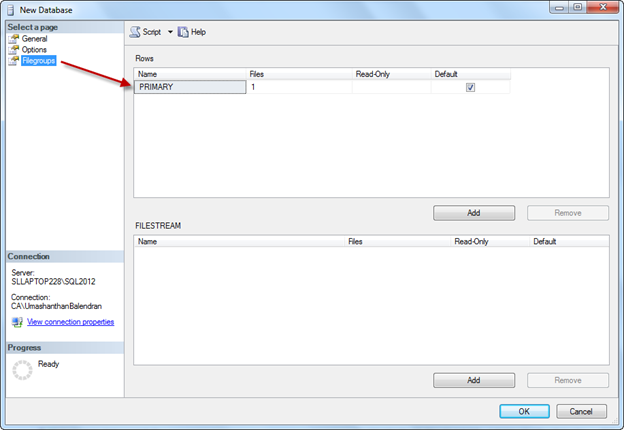
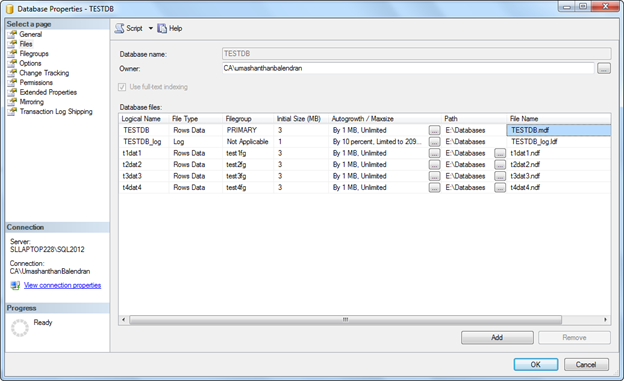
Once you create a new database, you can see there is default file group called PRIMARY as shown below.

The following steps are needed to follow to create a partition via SQL Server Management Studio.
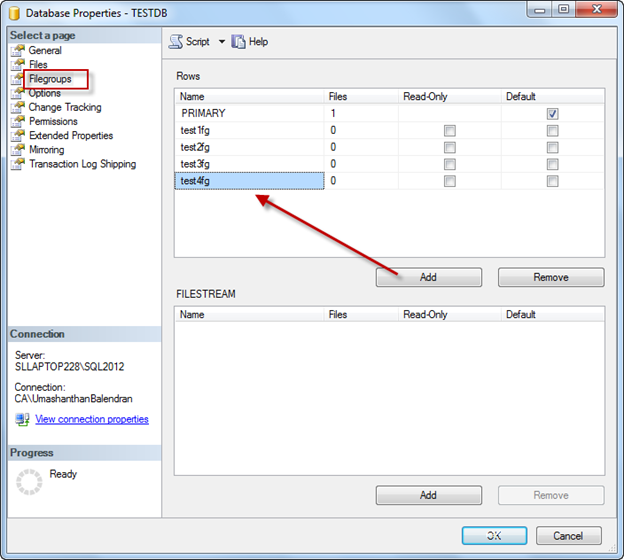
Step 1: Add 4 more file group

Step 2: Add 4 files and assign to each file group.
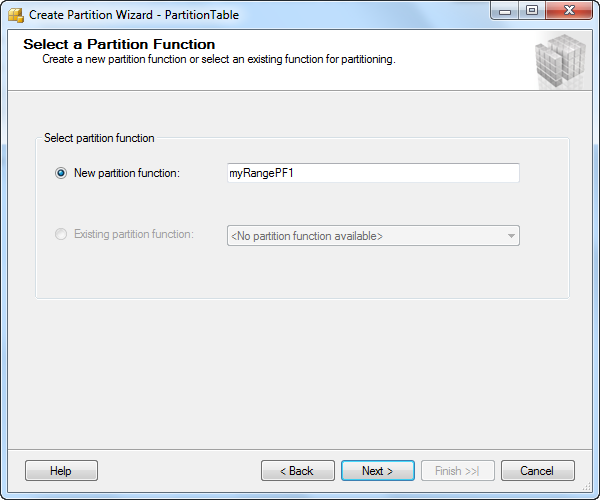
Step 3: To create partition use Create partition wizard, by right click on particular table

Step 4: Select the column in a table to apply for partition.
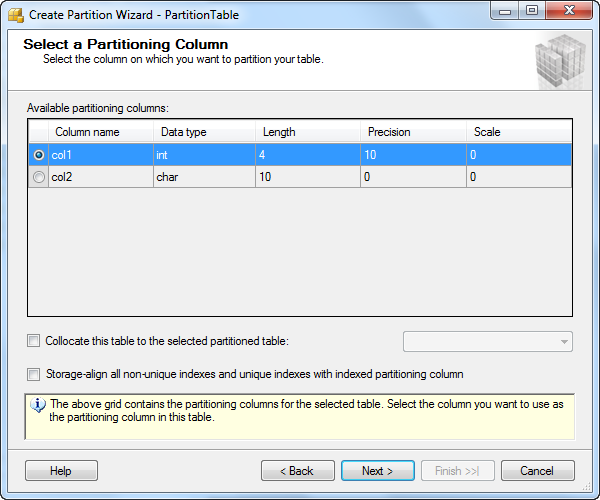
Step 5: Type the Partition Function name

Step 6: Type Partition Scheme name


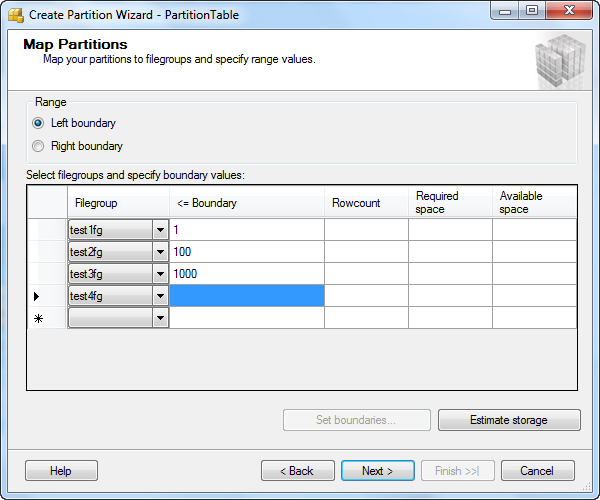
Step 7: Define the boundary for each file group

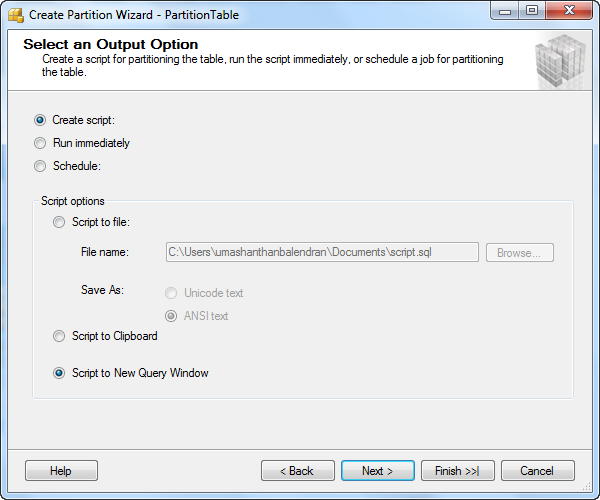
Step 8: You can create the script for these and run it alter or run immediately.
Step 9: insert some values and check whether values are inserting into appropriate file group.

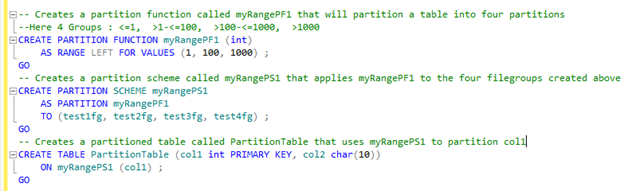
In the same way the following steps have to follow for create partition using T-SQL script.
Create 4 new measure group called test1fg, test2fg, test3fg and test4fg.

Once you run this script you will see there will be 4 more measure group will be available in the database. After that create file group, you have to a create file and add to each file group, for the best practice each file in a different drive would increase the performance.

You need to create Partition Function, Partition Scheme and then assign this partition function to the relevant table. In here I have created Partition Function called myRangePF1 using integer value with 3 parameters; in this case there will be 4 ranges
1.       <=1
2.       >1 and <=100
3.       >100 and <=1000
4.       >100
On the Map Partitions page, under Range, select either Left boundary or Right boundary to specify whether to include the highest or lowest bounding value within each filegroup you create. You must always enter one extra filegroup in addition to the number of filegroups specified for the boundary values when you are creating partitions.
In here I created sample table called Partition Table with two column one is integer and another one character field and then assign integer column into Partition Function. The below screen shot will make you clear.


When I insert -1, you will be see that it will insert into test1fg file group as shwon below.

Cheers!
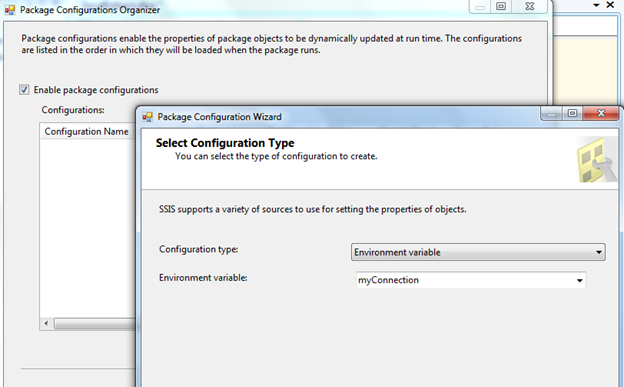
How to create Environmental Variable for Package Configuration in SSIS 2012 (Package Deployment Model) and SSIS 2008

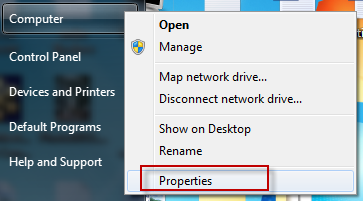
First you need to create Environment al variable, by right click on my computer and properties. Under Advanced tab, click on Environmental variables button, under system variables create a variable as you want. The steps are shown by screen shots.

Cheers!