Wednesday, December 23, 2015

Linux basic command collection from YouTube videos

These days, knowing Linux commands is inevitable to learn big data tools. Here I am sharing useful basic Linux commands and some basic stuffs which were taken from YouTube tutorials.
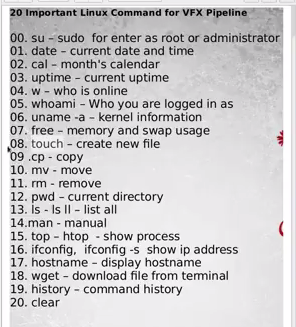
20 Important Linux commands in a nutshell:
Moving page by page or row by row
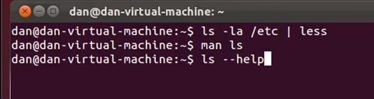
To get help : man ls = ls –help
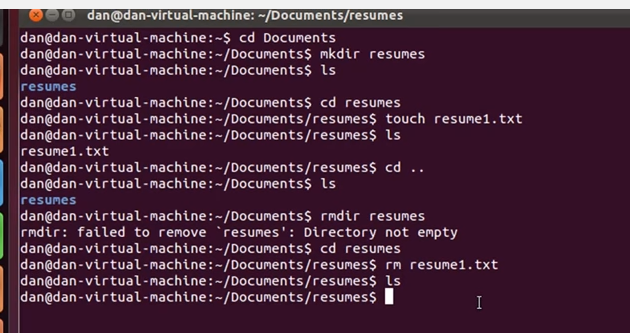
Delete file recursively and forcefully
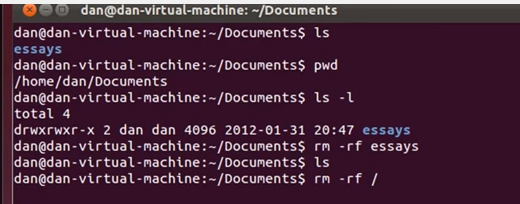
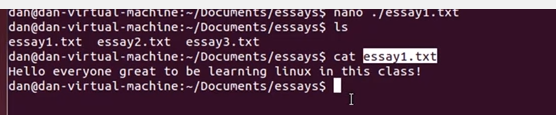
Cat command is read or concatenate files
Nano command is used for Edit text

Ctrl + x -> Exit
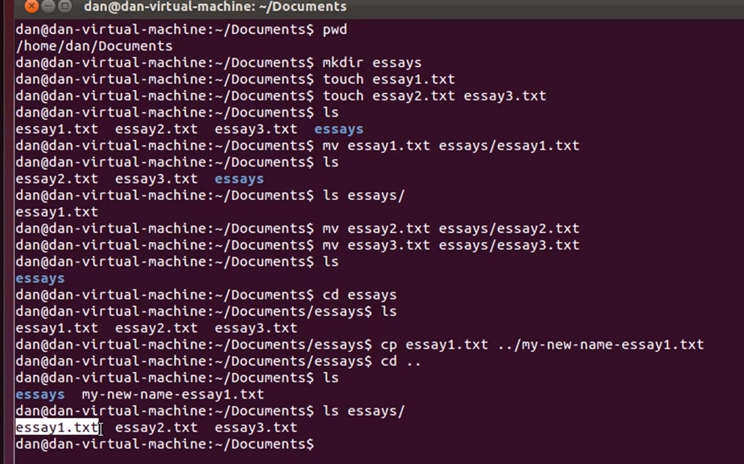
Mv used for rename the file as well
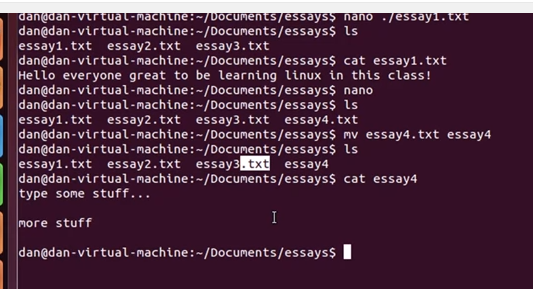
File format no matter in Linux 1.txt and 1 are same in Linux
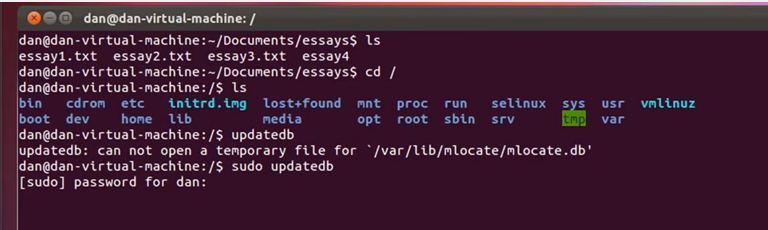
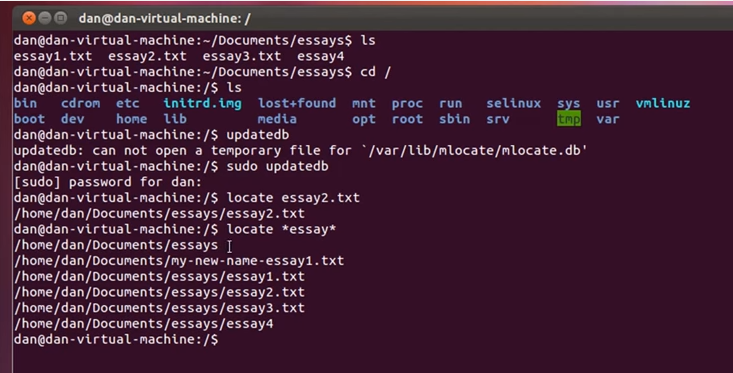
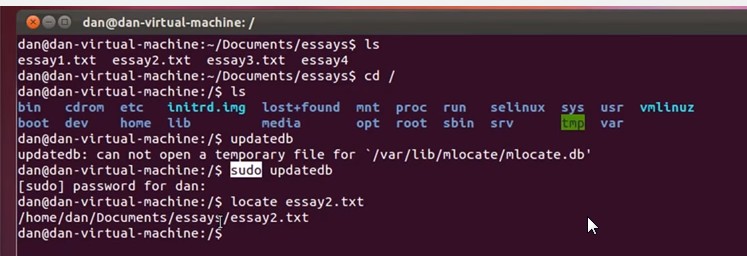
To find / search the file
Remove Directory : sudo rm -r DirectryName

Print or echo command :
The following image shows the echo command used to display JAVA_HOME environmental variable

Download and Unzip files:
The following example show how to download Hadoop and Unzip

Copy file content to another file:
you can use cp command to copy data or content from one file to another
In this example shows how to get copy content from template file in Hadoop


Give permission to all sub folders:
The following example shows that how to grant permission to all subfolder

Change to Root
[1]The user account added during installation is set an administrative account with Sudo, so it's easy to get root account's shell like follows.
trusty@dlp:~$
sudo -s 

[sudo] password for trusty:
# own password

root@dlp:~#
# switched
[2]Or it's possible to switch to root account with su command to set root account's password.
trusty@dlp:~$
sudo passwd root 

[sudo] password for trusty:
# own password

Enter new UNIX password:
# set root password

Retype new UNIX password:
# confirm

passwd: password updated successfully
trusty@dlp:~$
su - 

Password:
# input root password

root@dlp:~#
# switched
How to locate directry
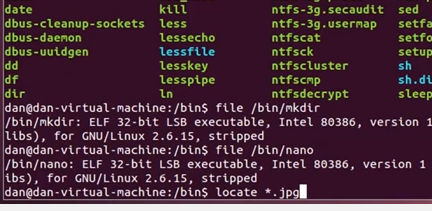
locate '*/data'
How to quickly create a file without a context
touch file1.txt
touch file1.txt file2.txt file3.txt file4.txt
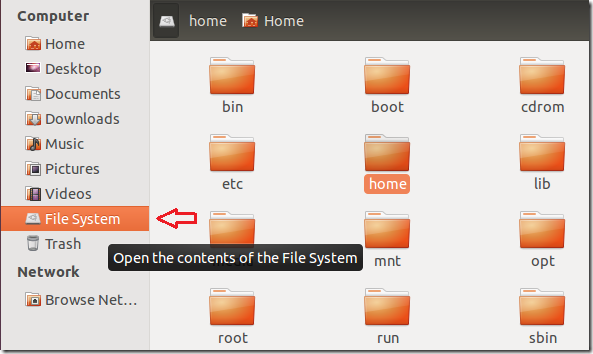
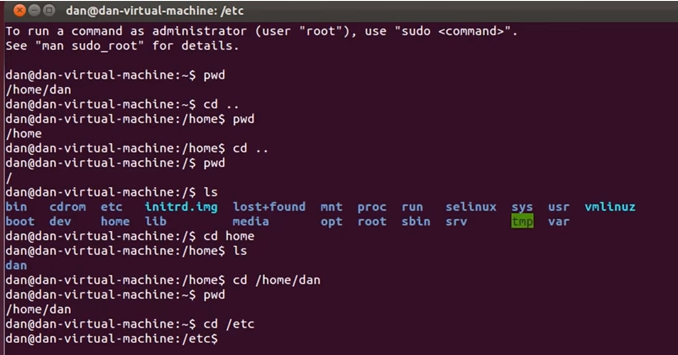
Main directories and its purpose
http://www.liberiangeek.net/wp-content/uploads/2012/08/ubuntu-12-10-change_thumb.png
The standard Ubuntu directory structure mostly follows the Filesystem Hierarchy Standard, which can be referred to for more detailed information.
Here, only the most important directories in the system will be presented.
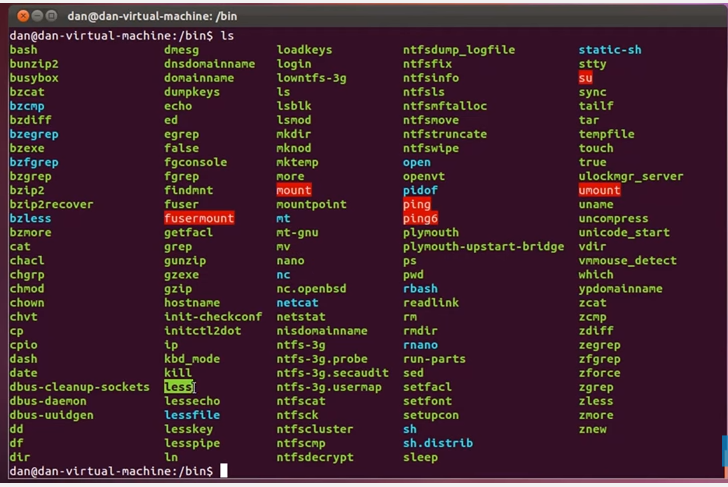
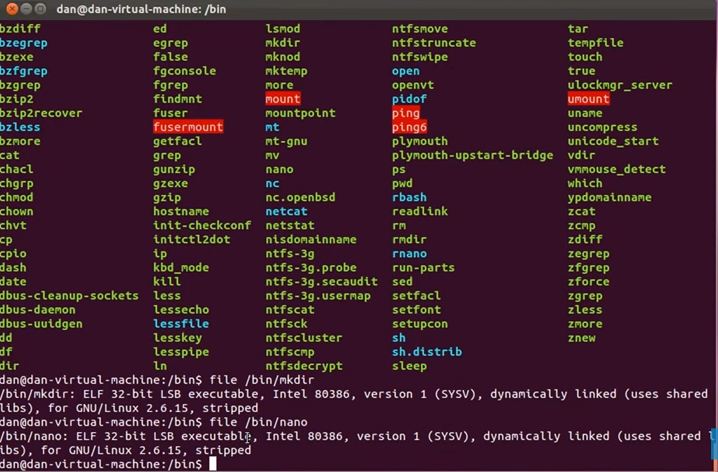
/bin is a place for most commonly used terminal commands, like ls, mount, rm, etc.
/boot contains files needed to start up the system, including the Linux kernel, a RAM disk image and bootloader configuration files.
/dev contains all device files, which are not regular files but instead refer to various hardware devices on the system, including hard drives.
/etc contains system-global configuration files, which affect the system's behavior for all users.
/home home sweet home, this is the place for users' home directories.
/lib contains very important dynamic libraries and kernel modules
/media is intended as a mount point for external devices, such as hard drives or removable media (floppies, CDs, DVDs).
/mnt is also a place for mount points, but dedicated specifically to "temporarily mounted" devices, such as network filesystems.
/opt can be used to store additional software for your system, which is not handled by the package manager.
/proc is a virtual filesystem that provides a mechanism for kernel to send information to processes.
/root is the superuser's home directory, not in /home/ to allow for booting the system even if /home/ is not available.
/run is a tmpfs (temporary file system) available early in the boot process where ephemeral run-time data is stored. Files under this directory are removed or truncated at the beginning of the boot process. 
(It deprecates various legacy locations such as /var/run, /var/lock, /lib/init/rw in otherwise non-ephemeral directory trees as well as/dev/.* and /dev/shm  which are not device files.)
/sbin contains important administrative commands that should generally only be employed by the superuser.
/srv can contain data directories of services such as HTTP (/srv/www/) or FTP.
/sys is a virtual filesystem that can be accessed to set or obtain information about the kernel's view of the system.
/tmp is a place for temporary files used by applications.
/usr contains the majority of user utilities and applications, and partly replicates the root directory structure, containing for instance, among others,/usr/bin/ and /usr/lib.
/var is dedicated to variable data, such as logs, databases, websites, and temporary spool (e-mail etc.) files that persist from one boot to the next. A notable directory it contains is /var/log where system log files are kept.


Cheers:
Uma

How to move a table from one schema to another Schema

In ETL, one of the strategy load data to Staging schema and then move to Live schema.

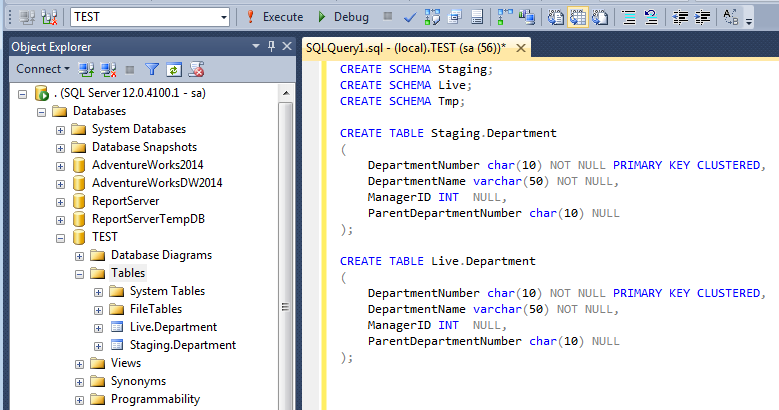
The following example shows that how to move a table from one schema to another schema.

CREATE SCHEMA Staging;
CREATE SCHEMA Live;
CREATE SCHEMA Tmp;


CREATE TABLE Staging.Department
(
   DepartmentNumber char(10) NOT NULL PRIMARY KEY CLUSTERED,
   DepartmentName varchar(50) NOT NULL,
   ManagerID INT  NULL,
   ParentDepartmentNumber char(10) NULL
);


CREATE TABLE Live.Department
(
   DepartmentNumber char(10) NOT NULL PRIMARY KEY CLUSTERED,
   DepartmentName varchar(50) NOT NULL,
   ManagerID INT  NULL,
   ParentDepartmentNumber char(10) NULL
);


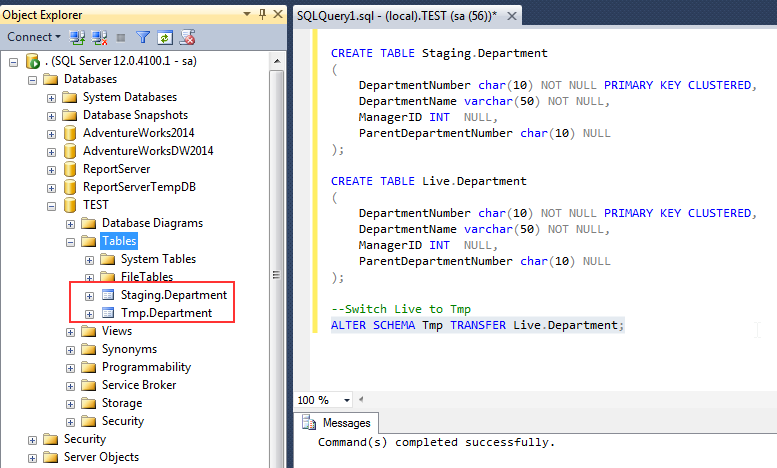
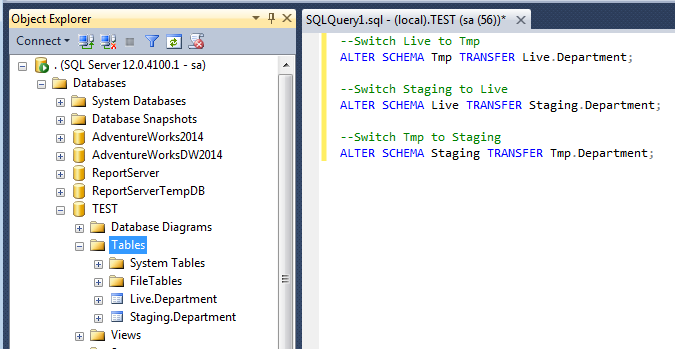
--Switch Live to Tmp
ALTER SCHEMA Tmp TRANSFER Live.Department;
--Switch Staging to Live
ALTER SCHEMA Live TRANSFER Staging.Department;


--Switch Tmp to Staging
ALTER SCHEMA Staging TRANSFER Tmp.Department;


To get rid of risk, we can use this as SP with transaction.

Sample stored procedure for Switch schema with transaction.

CREATE PROCEDURE dbo.SwitchSchema
AS
BEGIN
BEGIN TRANSACTION;


BEGIN TRY
--Switch Live to Tmp
ALTER SCHEMA Tmp TRANSFER Live.Department;
--Switch Staging to Live
ALTER SCHEMA Live TRANSFER Staging.Department;
--Switch Tmp to Staging
ALTER SCHEMA Staging TRANSFER Tmp.Department;
END TRY


BEGIN CATCH


IF @@TRANCOUNT > 0
       ROLLBACK TRANSACTION;
END CATCH;

IF @@TRANCOUNT > 0
   COMMIT TRANSACTION;


END;


Cheers!
Uma

Tuesday, December 22, 2015

How to use tSetGlobalVar or Global variables in Talend

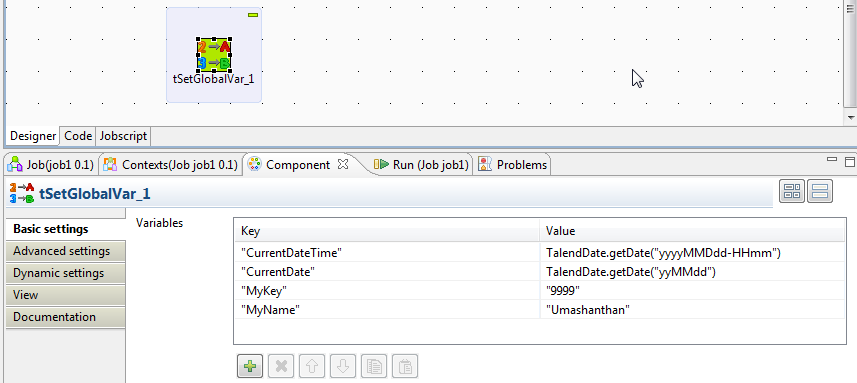
tSetGlobalVar allows you to define and set global variables in GUI.

In the following screenshot, you can see that how to define global variables in tSetGlobalVar
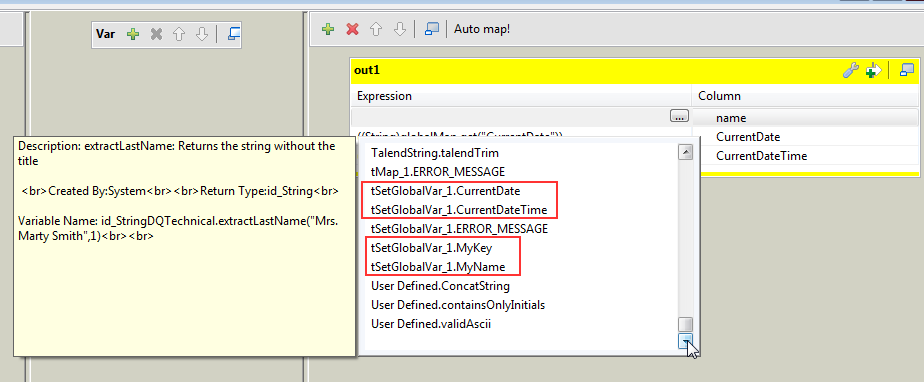
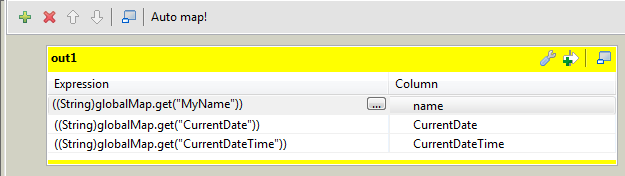
In the following screenshot, you can see that how to use Talend Global variable it in tMap
In the following screenshot, you can see that how to use Talend Global variable in tJava.
In the similar way you can use in many other components.
Cheers!
Uma

Monday, December 14, 2015

How to export image / blob-type data from SQL Server to File system using Export Column in SSIS

The Export Column Transformation is a transformation that exports data to a file from the Data Flow. The Export Column Transformation Task is used to extract blob-type data from fields in a database and create files in their original formats to be stored in a file system or viewed by a format viewer, such as Microsoft Word or Microsoft Paint.


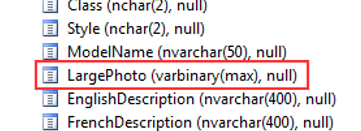
In the following example, you’ll use existing data in the AdventureWorksDW database to output some stored documents from the database back to file storage. DimProduct table has a column called  LargePhoto which is varbinary (max).


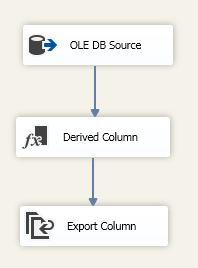
Create a simple package something similar to this


Create a directory with an easy name like C:\demo\SSIS\Export that you can use when exporting these pictures.


Create a Derived Column Name named FilePath


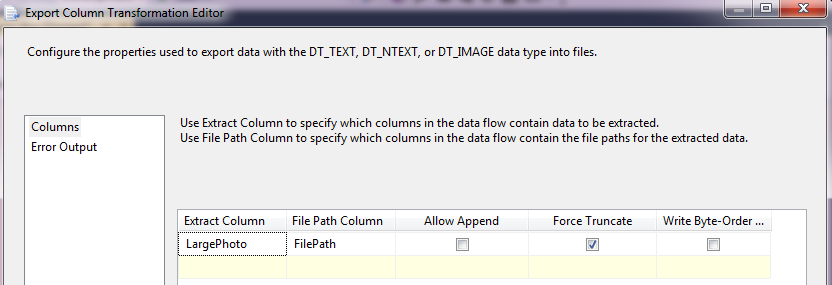
Set the Extract Column equal to the [LargePhoto] field, since this contains the embedded GIF image. Set the File Path Column equal to the field name [FilePath]. Check the Force Truncate option to rewrite the files if they exist.


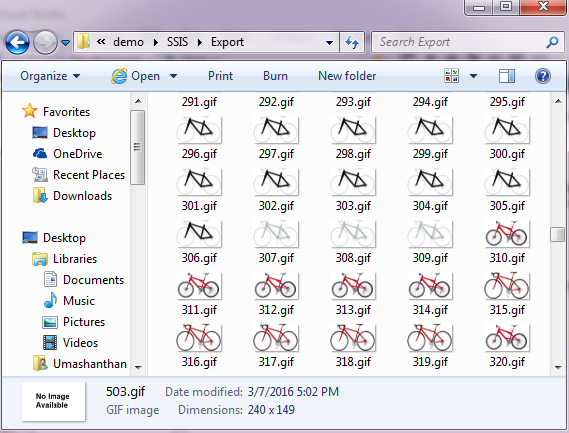
One you run, all the images will be export into the target location.


Cheers! Uma

How to import XML Data in SSIS

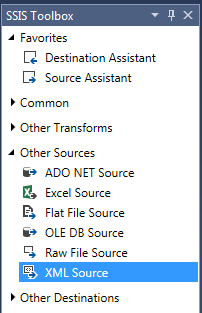
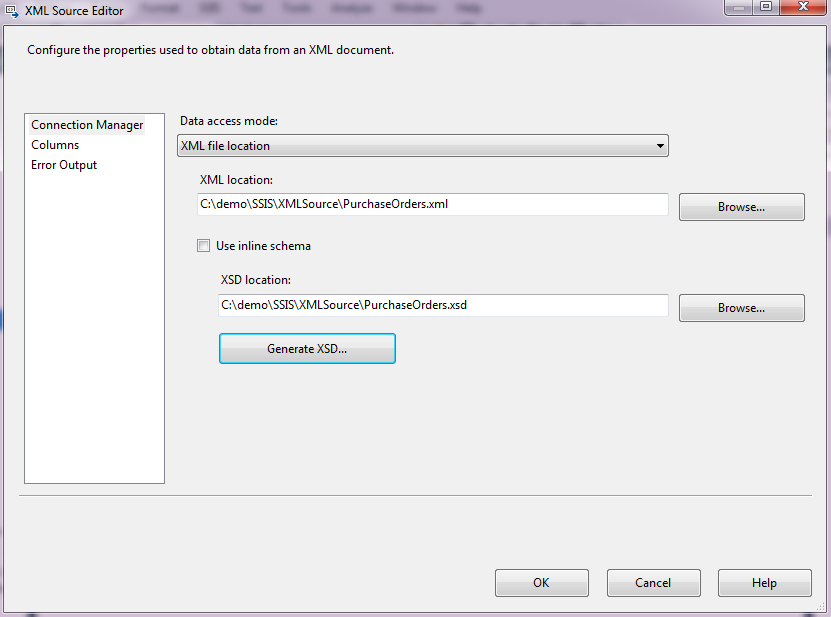
The XML source is a powerful SSIS source that can use a local or remote (via HTTP or UNC) XML file as the source. This source component is a bit different from the OLE DB Source in its configuration.
In the below example, I am using sample "purchase order" and "customers and orders" XML files which can be downloaded from the MSDN site: http://msdn.microsoft.com/en-us/library/bb387034.aspx and http://msdn.microsoft.com/en-us/library/bb387025.aspxrespectively. You can generate XSD file using XML source component.
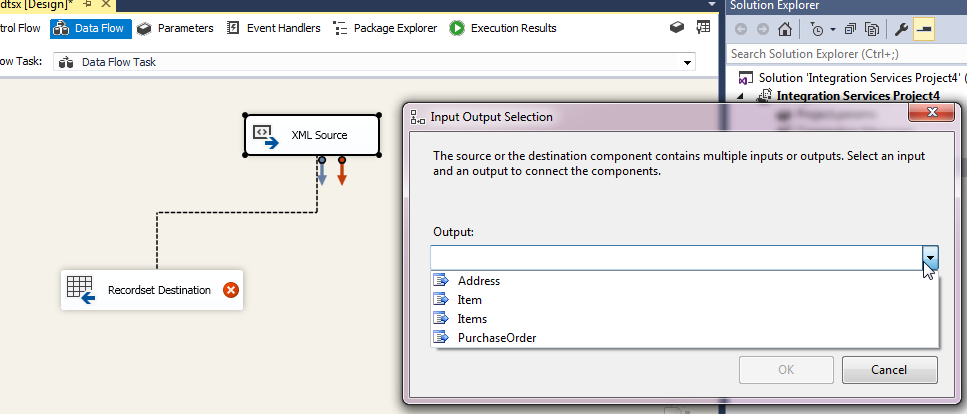
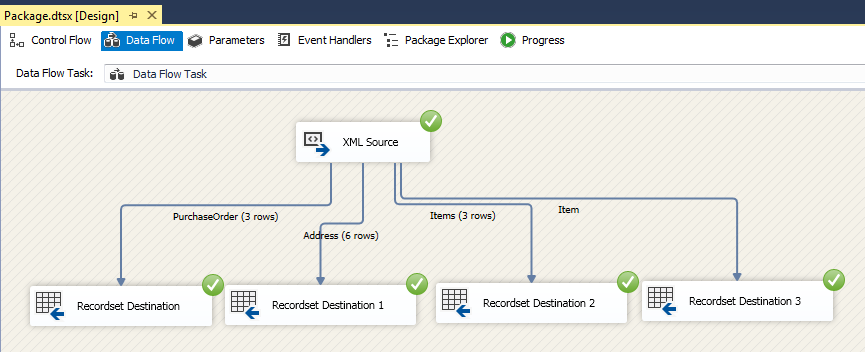
In this XML file you can noticed that, four level or nodes available.
XML source automatically identify and display the Nodes and its value and attributes.
Each tabular set can be loaded individually into its own table.  Thus, we actually can add multiple any kind of destinations, and split the data flow accordingly.
Cheers!
Uma