Showing posts with label Python. Show all posts

Monday, May 4, 2020

Wine Quality data analytics using Databricks

Data can be downloaded from here

https://archive.ics.uci.edu/ml/datasets/wine+quality
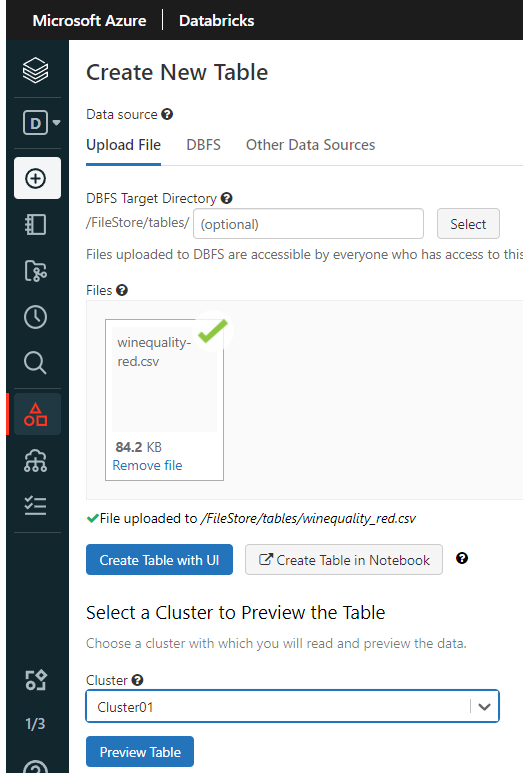
In the preview data, use “First row is header” to identify the column name & “ Infer Schema” to automatically identify the data types.

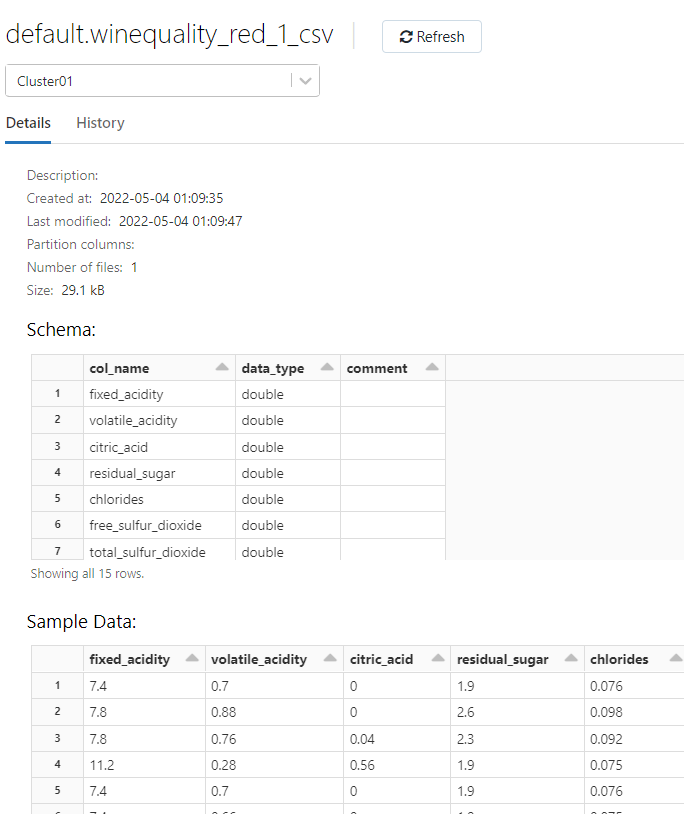
The table will be created in Default database

Let’s crate a new database and load data into the table

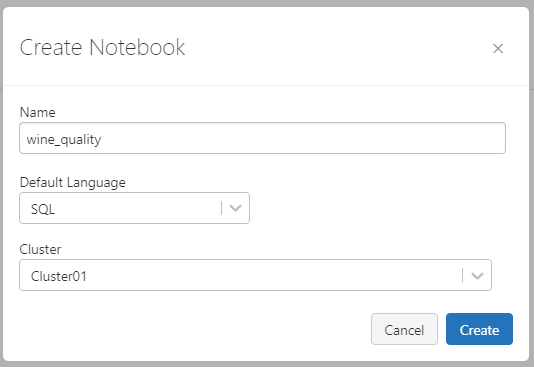
Create a SQL Notebook and Import that downloaded data.

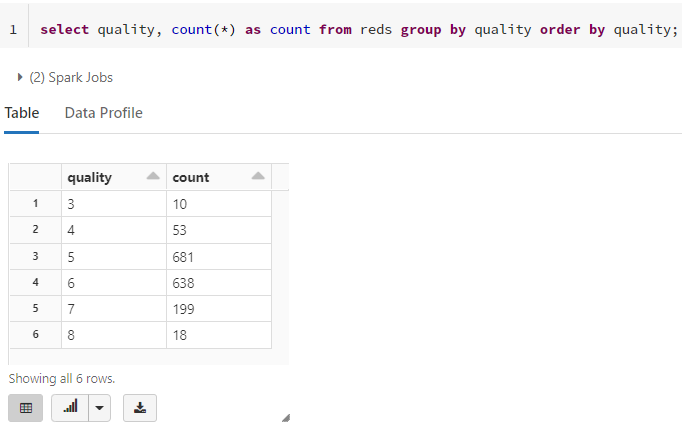
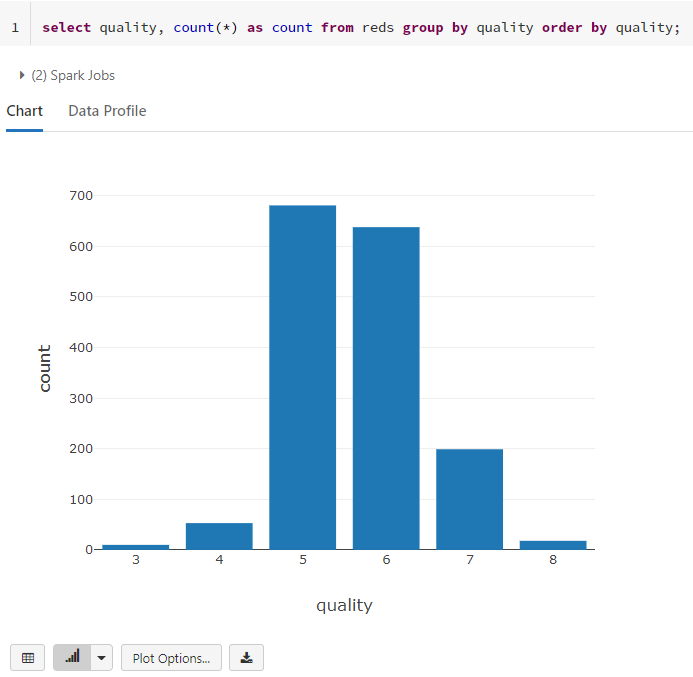
Some sample useful SQL commands

You can change to plot view
Using Python Notebook

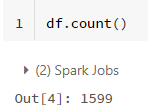
Create a data frame and load the data from the table

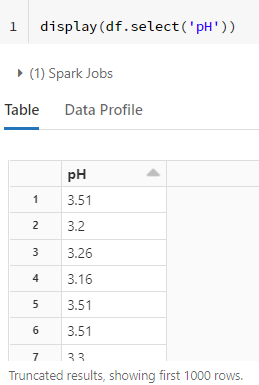
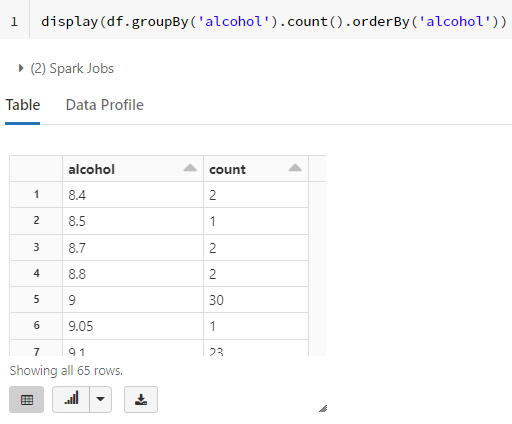
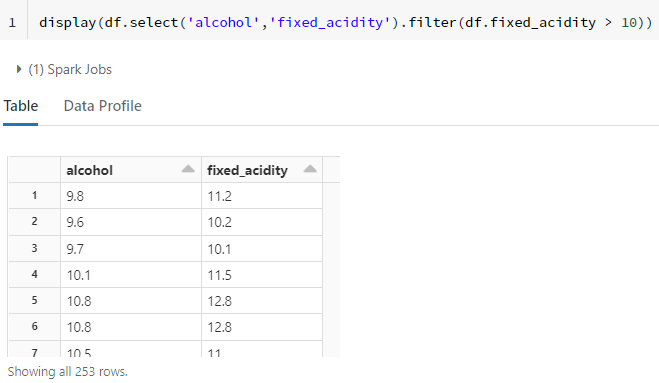
Some common useful Python commands

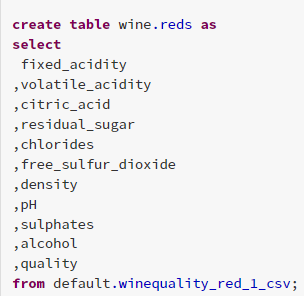
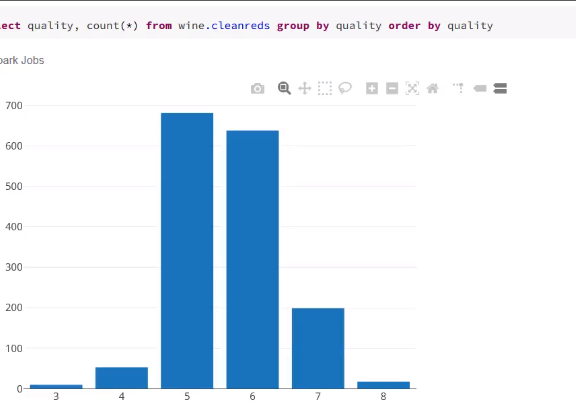
Save the results as another table

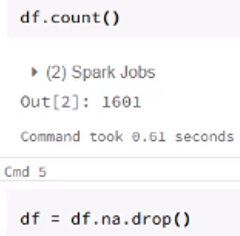
Cleaning Data

Handling NULL value


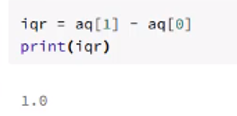
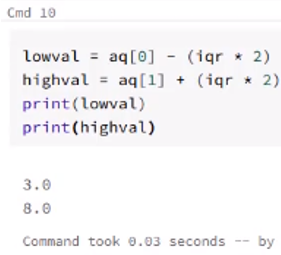
Remove extreme values or outliers

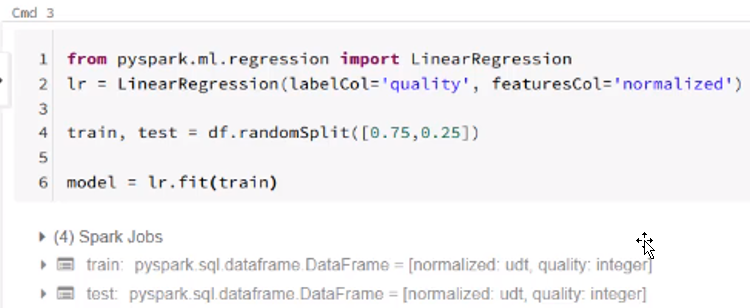
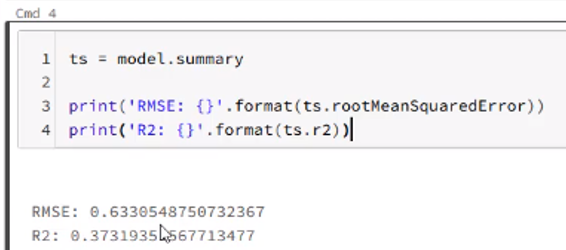
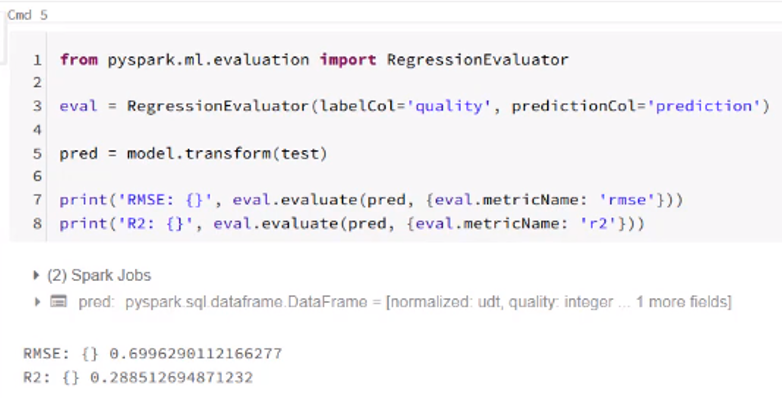
Machine Learning

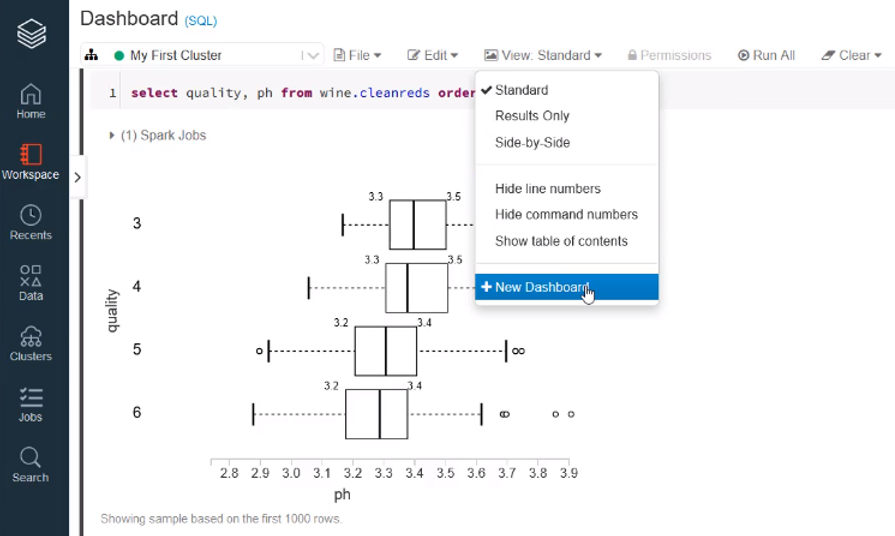
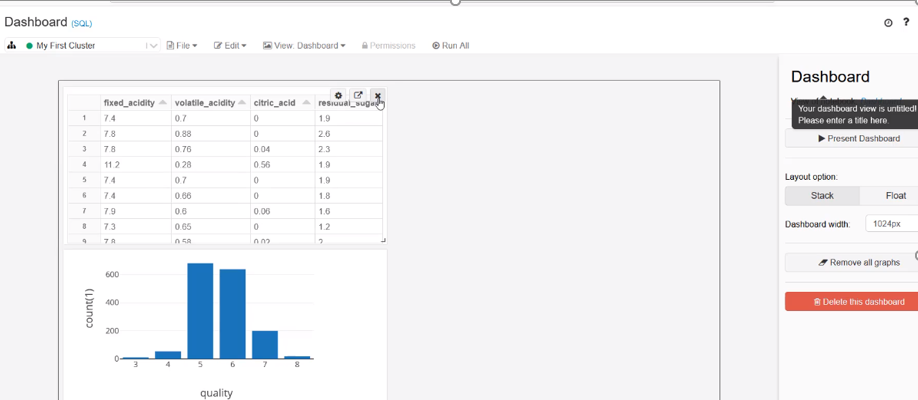
Create multiple charts and dashboards


Cheers!
Uma

Saturday, January 17, 2015

How to set TEMPLATE_PATH for Python Bottle framework in Windows Environment

By default template path is set to ./ or ./views/ in bottle.py, however this will not work and the following error message appear always in Windows environment.
Error: 500 Internal Server Error
Sorry, the requested URL 'http://localhost:8080/' caused an error:
Template 'hello_world' not found.


To overwrite a template path “template_lookup” should be used under return bottle.template function as shown below:
template_lookup=['C:/Python34/Lib/site-packages/views']
*Make sure that forward slash used instead of backslash.
The following sample code illustrates this:
***********************************************
Python Code
***********************************************
import bottle


@bottle.route('/')
def home_page():
   mythings = ['apple','orange','banana','peach']
   return bottle.template('hello_world', username="Uma", things=mythings
                          , template_lookup=['C:/Python34/Lib/site-packages/views'])


bottle.debug(True)
bottle.run(host='localhost', port=8080)

**********************************************
Template "hello_world.tpl"
**********************************************
<!DOCTYPE html>
<html>
<head>
<title>Hello World!</title>
</head>
<body>
<p>
Welcome {{username}}
<p>
<ul>
%for thing in things:
<li>{{thing}}</li>
%end
</ul>
</body>
</html>


Thursday, January 15, 2015

How to install Python modules using setuptools (easy_install/pip) in Window

Setuptools is not included in the standard library. It introduced a command-line utility called easy_install. It also introduced the setuptools Python package that can be imported in your setup.py script, and the pkg_resources Python package that can be imported in your code to locate data files installed with a distribution.
You can download the setuptools in the following link. https://pypi.python.org/pypi/setuptools
Once you unzip and using command prompt you can install using command prompt:
Python setup.py install
One you install you can see the relevant files such easy_install.py and pip.exe under script folder.
The following example show how to install or upgrade packages using pip command:
pip install <packagename>
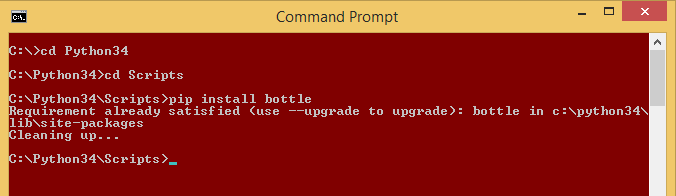
The following example shows how to install Bottle module.

The following command are normal installation using easy_install.py in other environments
$ easy_install.py Package
$ easy_install.py http://sample.host/Package-X.Y.tar.gz
$ easy_install.py http://svn.sample.host/Package/trunk

Cheers!