I see, one of the main reason why Talend Open Studio (TOS) become a famous ETL tool because it support JSON and XML data handling in very convenient way whereas SSIS is not support or need custom codes to handle it. In this blog, I am going to discuss about the JSON filed extract components of TOS. There are 2 components available in Talend Open Studio, to extract the data from JSON format.
tFileInputJSON (only for JOSN File)

tFileInputJSON extracts JSON data from a file according to the JSON Path query, then transferring the data to a file, a database table, etc.
tExtractJSONFields (a file, a database table, etc)

tExtractJSONFields extracts the data from JSON fields stored in a file, a database table, etc., based on the XPath query.
The following example shows that how to use this components, mainly define the JSON Path.
In this example, the JSON file is as follows:

tFileInputJSON - Extracting JSON data from a file
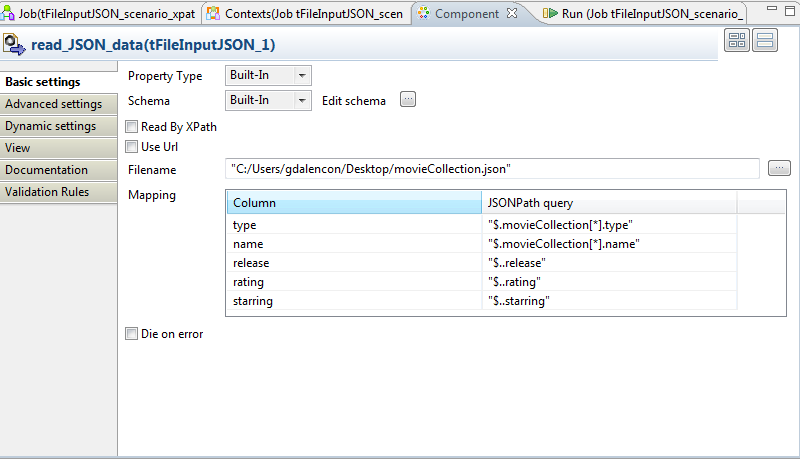
In the Mapping table, the schema automatically appears in the Column part.
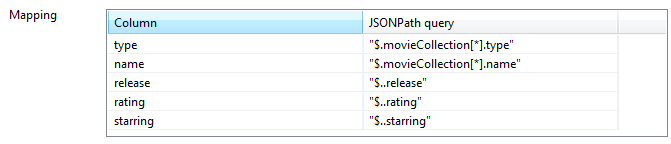
In the JSONPath query column, enter the following queries:
- For the columns type and name, enter the JSONPath queries "$.movieCollection[*].type" and "$.movieCollection[*].name"respectively. They correspond to the first nodes of the JSON data.
Here, "$.movieCollection[*]" stands for the root node relative to the nodes type and name, namely movieCollection.
- For the columns release, rating and starring, enter the JSONPath queries "$..release", "$..rating" and "$..starring"respectively.
Here, ".." stands for the recursive decent of the details node, namely release, rating and starring.
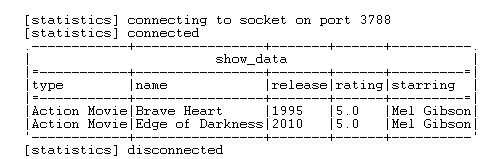
Output will be as shown below:

tFileInputJSON - Extracting JSON data from a file using XPath
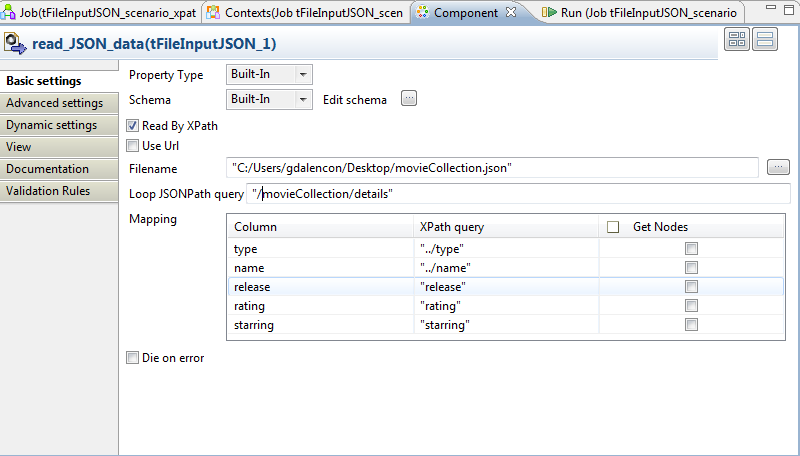
In the Loop JSONPath query field, enter "/movieCollection/details".
In the Mapping table, the schema automatically appears in the Column part.
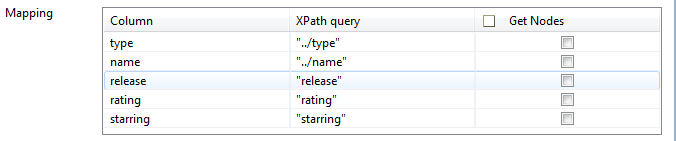
In the XPath query column, enter the following queries:
- For the columns type and name, enter the XPath queries "../type" and "../name" respectively. They correspond to the first nodes of the JSON data.
- For the columns release, rating and starring, enter the XPath queries "release", "rating" and "starring" respectively.
You will get same output as above example
tExtractJSONFields
Node within the JSON field, on which the loop is based.
Mapping: Column: schema defined to hold the data extracted from the JSON field.
XPath Query: XPath Query to specify the node within the JSON field.
Get nodes: select this check box to extract the JSON data of all the nodes specified in the XPath query list or select the check box next to a specific node to extract its JSON data only.
Is Array: select this check box when the JSON field to be extracted is an array instead of an object.
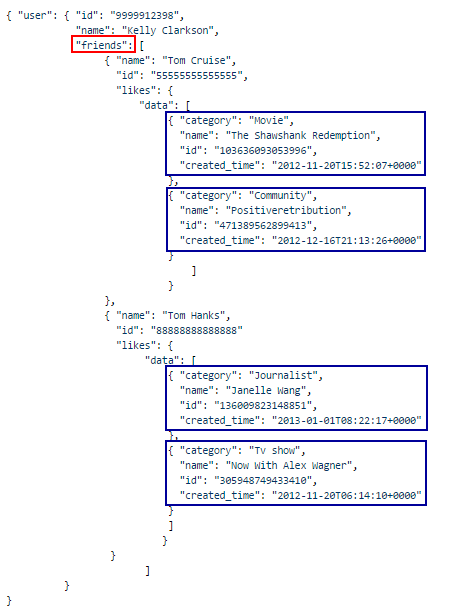
XPath Query: XPath Query to specify the node within the JSON field. In the above JSON file, next to the friends column, retrieving the entire friends node from the source file.
JSONPath query = "$.user.friends[*]"
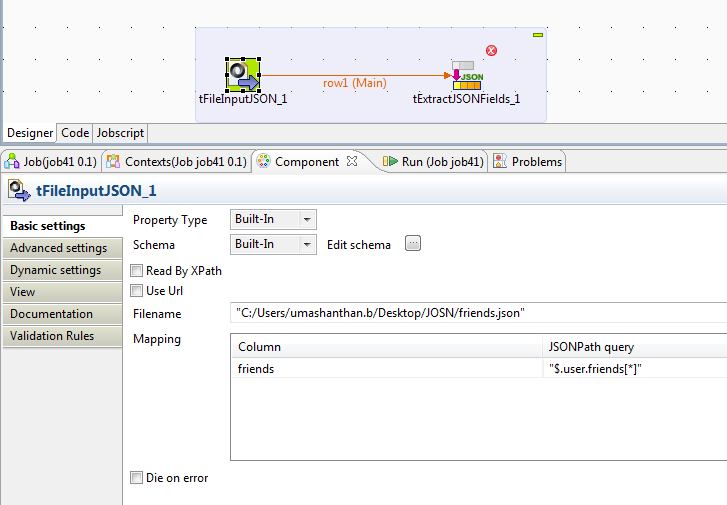
Mapping Column: schema defined to hold the data extracted from the JSON field.
Add columns that you need to retrieve on the right-side
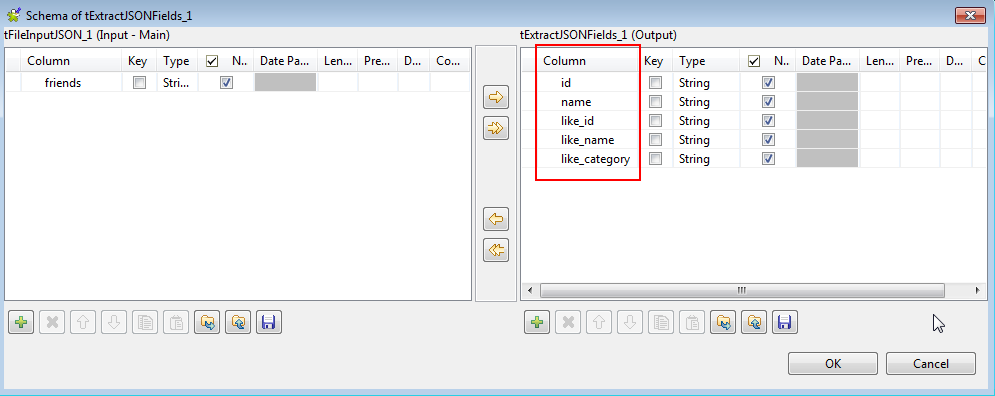
JSON field - List of the JSON fields to be extracted, in this example it is “friends”
XPath Query: XPath Query to specify the node within the JSON field.

JOSN Path Query:
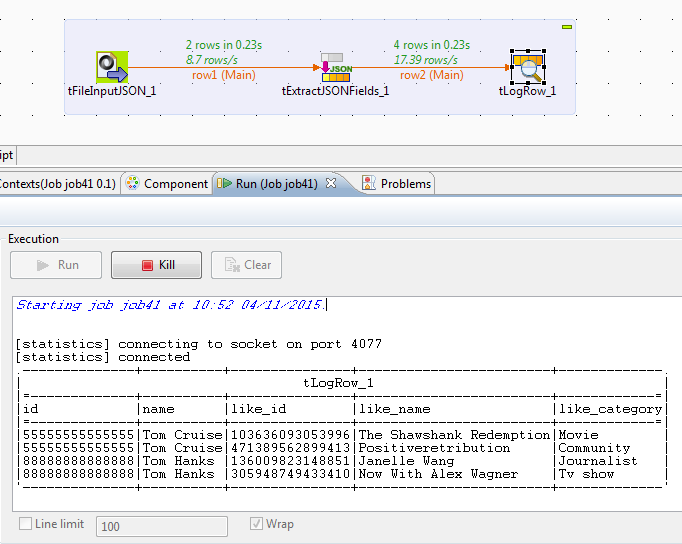
To work with this components you need to understand the JSON Path, you can find very useful article in the following link: Here I have copied part of that article. http://goessner.net/articles/JsonPath/
# JSONPath - XPath for JSON
A frequently emphasized advantage of XML is the availability of plenty tools to analyse, transform and selectively extract data out of XML documents. XPath is one of these powerful tools.
It's time to wonder, if there is a need for something like XPath4JSON and what are the problems it can solve.
- Data may be interactively found and extracted out of JSON structures on the client without special scripting.
- JSON data requested by the client can be reduced to the relevant parts on the server, such minimizing the bandwidth usage of the server response.
If we agree, that a tool for picking parts out of a JSON structure at hand does make sense, some questions come up. How should it do its job? How do JSONPath expressions look like?
Due to the fact, that JSON is a natural representation of data for the C family of programming languages, the chances are high, that the particular language has native syntax elements to access a JSON structure.
The following XPath expression
/store/book[1]/title
would look like
x.store.book[0].title
or
x['store']['book'][0]['title']
in Javascript, Python and PHP with a variable x holding the JSON structure. Here we observe, that the particular language usually has a fundamental XPath feature already built in.
The JSONPath tool in question should …
- be naturally based on those language characteristics.
- cover only essential parts of XPath 1.0.
- be lightweight in code size and memory consumption.
- be runtime efficient.
|2007-08-17| e2# JSONPath expressions
JSONPath expressions always refer to a JSON structure in the same way as XPath expression are used in combination with an XML document. Since a JSON structure is usually anonymous and doesn't necessarily have a "root member object" JSONPath assumes the abstract name $ assigned to the outer level object.
JSONPath expressions can use the dot–notation
$.store.book[0].title
or the bracket–notation
$['store']['book'][0]['title']
for input pathes. Internal or output pathes will always be converted to the more general bracket–notation.
JSONPath allows the wildcard symbol * for member names and array indices. It borrows the descendant operator '..' from E4X and the array slice syntax proposal[start:end:step] from ECMASCRIPT 4.
Expressions of the underlying scripting language (<expr>) can be used as an alternative to explicit names or indices as in
$.store.book[(@.length-1)].title
using the symbol '@' for the current object. Filter expressions are supported via the syntax ?(<boolean expr>) as in
$.store.book[?(@.price < 10)].title
Here is a complete overview and a side by side comparison of the JSONPath syntax elements with its XPath counterparts.
XPath
|
JSONPath
|
Description
|
/
|
$
|
the root object/element
|
.
|
@
|
the current object/element
|
/
|
. or []
|
child operator
|
..
|
n/a
|
parent operator
|
//
|
..
|
recursive descent. JSONPath borrows this syntax from E4X.
|
*
|
*
|
wildcard. All objects/elements regardless their names.
|
@
|
n/a
|
attribute access. JSON structures don't have attributes.
|
[]
|
[]
|
subscript operator. XPath uses it to iterate over element collections and for predicates. In Javascript and JSON it is the native array operator.
|
|
|
[,]
|
Union operator in XPath results in a combination of node sets. JSONPath allows alternate names or array indices as a set.
|
n/a
|
[start:end:step]
|
array slice operator borrowed from ES4.
|
[]
|
?()
|
applies a filter (script) expression.
|
n/a
|
()
|
script expression, using the underlying script engine.
|
()
|
n/a
|
grouping in Xpath
|
XPath has a lot more to offer (Location pathes in not abbreviated syntax, operators and functions) than listed here. Moreover there is a remarkable difference how the subscript operator works in Xpath and JSONPath.
- Square brackets in XPath expressions always operate on the node set resulting from the previous path fragment. Indices always start by 1.
- With JSONPath square brackets operate on the object or array addressed by the previous path fragment. Indices always start by 0.
|2007-08-18| e3# JSONPath examples
Let's practice JSONPath expressions by some more examples. We start with a simple JSON structure built after an XML example representing a bookstore (original XML file).
{ "store": {
"book": [
{ "category": "reference",
"author": "Nigel Rees",
"title": "Sayings of the Century",
"price": 8.95
},
{ "category": "fiction",
"author": "Evelyn Waugh",
"title": "Sword of Honour",
"price": 12.99
},
{ "category": "fiction",
"author": "Herman Melville",
"title": "Moby Dick",
"isbn": "0-553-21311-3",
"price": 8.99
},
{ "category": "fiction",
"author": "J. R. R. Tolkien",
"title": "The Lord of the Rings",
"isbn": "0-395-19395-8",
"price": 22.99
}
],
"bicycle": {
"color": "red",
"price": 19.95
}
}
}
XPath
|
JSONPath
|
Result
|
/store/book/author
|
$.store.book[*].author
|
the authors of all books in the store
|
//author
|
$..author
|
all authors
|
/store/*
|
$.store.*
|
all things in store, which are some books and a red bicycle.
|
/store//price
|
$.store..price
|
the price of everything in the store.
|
//book[3]
|
$..book[2]
|
the third book
|
//book[last()]
|
$..book[(@.length-1)]
$..book[-1:] |
the last book in order.
|
//book[position()<3]
|
$..book[0,1]
$..book[:2] |
the first two books
|
//book[isbn]
|
$..book[?(@.isbn)]
|
filter all books with isbn number
|
//book[price<10]
|
$..book[?(@.price<10)]
|
filter all books cheapier than 10
|
//*
|
$..*
|
all Elements in XML document. All members of JSON structure.
|
Cheers!
Uma